PRACTICAL IMAGE EDITING
Run Recognition Again Without Misreading Your Existing Brush Work
Before running Find text again on a partly hand-drawn draft, distinguish the work you will keep from the work that will change. A successful scan replaces the recognition regions, clears their checked selections, starts a new selection-history baseline and invalidates the old repair candidate. Existing drawn strokes remain. That combination means a new list with zero selected words can still have an active manual removal mask. Review the combined state before another repair.
Published 2026-10-26 · Updated
1. Give the new recognition request a concrete purpose
A wrong recognition-language setting is a reason to reconsider a scan. A clearly visible missed word is not automatically a reason to resubmit the whole image: you can mark it manually. Decide what new location information you need before using Find text again. Merely changing the recognition-language selector does not make a new request or translate the picture.
Use an image you own or may edit and respect the recognition upload permission. The request sends a resized working image to the recognition service; it is not a local reshuffling of the existing list. Availability and temporary usage limits still apply. Do not cycle through unrelated languages or repeat an unchanged request expecting hidden original detail to appear.
2. Save the useful output and record the current plan
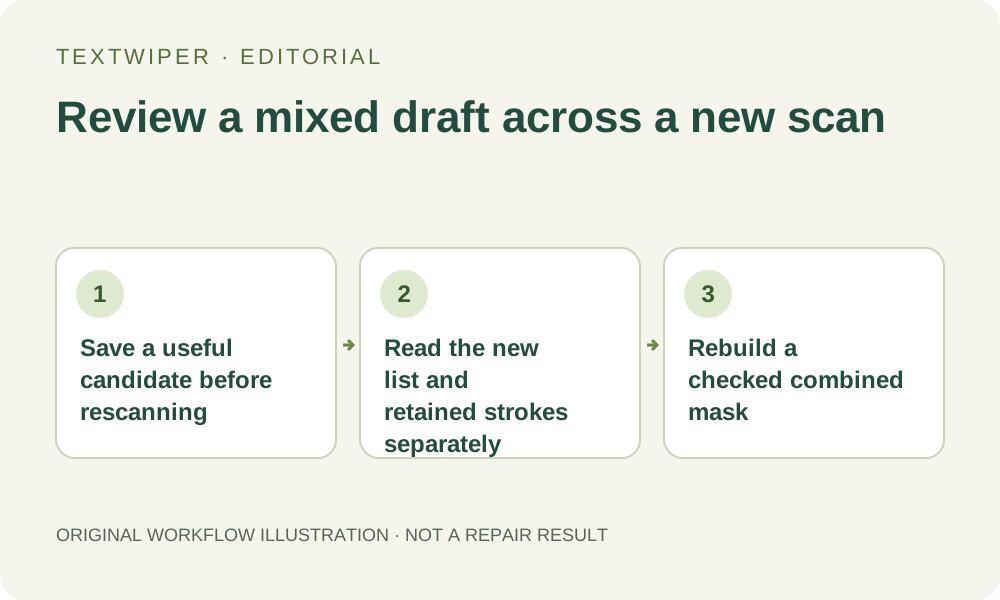
If a candidate is already useful, download it before the new scan. Keep the source separately and note which targets are selected through detection and which are painted manually. A short position-based note is clearer than recording only the count, because a list item may represent a word, line or broader region.
Do not rely on Undo to return through a successful scan to the old detection-selection history. The new success establishes a fresh baseline. It also removes the existing repair preview, so a completed output you want to compare later should be a real downloaded file rather than a memory of what the canvas displayed.
3. Distinguish a successful refresh from a stopped request
After a successful Find text operation, read the new detection list. The previously checked recognition regions are cleared; they are not automatically matched by spelling to the new regions. Existing Brush, Area, Erase and Protect strokes remain in their source-image positions. This applies even when a successful response finds no usable text regions.
A failed request or canceled waiting does not replace the draft with a successful new detection set. Read the actual status instead of assuming every return from the busy screen means the list has been refreshed. The page can retain the preceding image and selection for correction. Do not describe an unchanged list after an error as new recognition evidence.
4. Check retained subtractive strokes against the new regions
Turn on Show mask before selecting from the new list. An earlier Brush or Area mark can still provide green coverage although zero recognized items are selected. More subtly, an old Erase stroke can cut into a region you select now, and a blue Protect stroke can exclude that overlap. Old manual corrections have not been reinterpreted semantically for the new list.
Select each needed new region and inspect its actual final coverage. If retained strokes no longer suit the plan, deliberately correct the available selection state or clear the whole selection and rebuild. Do not keep selecting the same new item to overcome an old protection stroke; protection has priority, and its overlap may retain unwanted lettering.
5. Judge one freshly repaired candidate after reconciliation
Only run Quick or Smart repair after the combined new detection selections and retained strokes express the intended targets. Each manual run uses the loaded original and current mask. A new recognition transcript alone does not repair anything and does not certify that the old hand-painted boundary was appropriate.
Inspect the full result by location, including areas that were already manually covered before the scan. Use comparison briefly to locate changes and hide it to evaluate the whole candidate. Check that new targets are gone and necessary nearby wording still reads correctly. If a covered unique detail cannot be checked, reject the candidate or obtain a suitable source.
6. Stop rescanning when the task is a manual boundary decision
When the remaining issue is an uncertain letter edge or unavailable fine region, another unchanged scan is not a substitute for deciding which pixels may be replaced. Use a defensible manual selection or a better authorized source. Keep downloaded versions if you need to compare them; a mixed draft remains in page memory and is not saved by signing into an account.
Manual selection, repair and downloads are free during beta without an account. Whole-image automatic cleanup is a separate limited signed-in trial with its own upload choice. It neither updates this recognition list nor inherits its green mask as a processing boundary. Do not spend a finite automatic attempt merely to refresh recognition information.