PRACTICAL IMAGE EDITING
Switch the Editor Language Without Translating the Picture
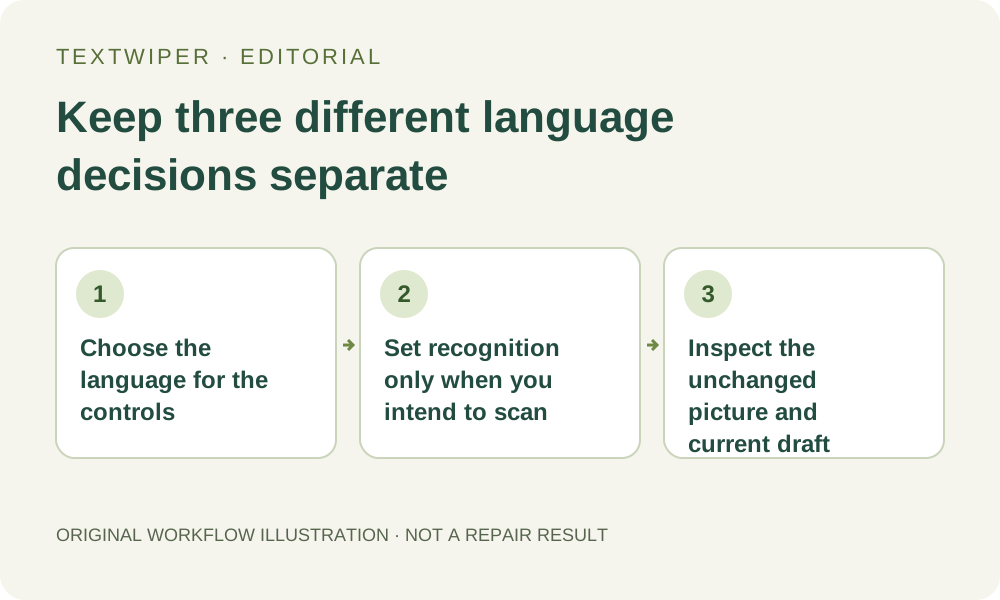
Changing the editor from English to another interface language changes the controls, not the words printed in your picture. It also does not choose a recognition language for you. Understanding these three layers lets you use familiar instructions without accidentally starting another scan, translating a poster or abandoning an unfinished selection.
Published 2026-10-18 · Updated
1. Identify the three layers before switching
The interface language covers headings, buttons, status messages and other public controls. The text-recognition language tells an optional recognition request which available language to use, or allows automatic detection. The image itself is a grid of pixels containing whatever lettering was present in your source. These are related choices, but changing one does not automatically change the others.
For example, you can read the controls in Simplified Chinese while editing an English label. That does not translate the label into Chinese or require Chinese recognition. Begin with an image you own or are allowed to edit and decide whether you need more comfortable controls, different recognition, or a newly designed image. Only the first task is an interface switch.
2. Use the current tool page control to keep an active draft
Within the current core tool page, use its Language selector or ordinary language-menu click. This applies the selected catalog to the page without a full navigation. The supported workflow retains the current file, image canvas, removal mask, protection and settings in that page. Wait for the chosen interface to load before reading its controls; a language-loading error is not an image-processing error.
Do not replace this step with opening a fresh language URL, refreshing, or using a modified click that opens another tab when you need the existing draft. Those actions create or reload a document. A fixed language address makes the public page shareable, but it contains neither your uploaded file nor a recoverable copy of the mask.
3. Check the interface and recognition settings separately
- Before switching, note the current image dimensions and one selected target. Keep an untouched source file outside the page.
- Choose the interface language using the current page control. Check that the headings and buttons change and that the intended picture and selection remain visible.
- Read the separate Text detection language setting. Do not change it solely to match the interface; choose a currently available option that corresponds to the lettering only when recognition is needed.
- If you choose Find text, review its upload permission. It sends a resized working image for recognition; switching interface language alone does not submit that request.
- If recognition is unavailable for the required language or misses a target, use Brush or Area to select visible lettering manually. Inspect the positions rather than trusting a translated label.
- Before repair, check green removal and blue protection again. A familiar interface improves readability; it does not decide which words should disappear.
4. Understand what the fixed language address means
The home tool and watermark tool have independent language paths, such as /zh-cn/ and /fr/watermark-remover/. The core pages are generated as translated HTML before a visit; they do not wait for your first edit to become public pages. In the running core editor, a language change also updates the address without making the draft part of that address.
Copied links are useful for sending someone to the correct public interface, not for handing off customer images. The image-text articles currently have complete English and Simplified Chinese editions; the remaining interface languages should not be treated as full translations of every article. A translated control menu also says nothing about recognition quality for that script.
5. Check the intended boundary, including unavailable options
Changing the interface does not rewrite your own keyword entries, filename or picture lettering into another language. A recognition-language change is also not poster translation: recognition can return candidate text and positions, while repair removes selected pixels. New replacement wording and typography need a separate design step in an appropriate application.
Arabic illustrates why the layers matter. An Arabic interface and manual editing are available, while automatic Arabic recognition is currently disabled because the recorded ordering behavior was not suitable for reliable checking. An available interface option is therefore not a promise that every recognition option is enabled. Use the actual current recognition controls and service messages.
6. Save the real output before leaving the page
The registered October 16 language verification included a self-drawn in-memory image, a real brush selection and 36 interface switches. Its file, canvases, masks, settings and user-entered text were checked for preservation. That is an existing bounded verification, not a new repair test today or evidence that a draft survives closing the browser.
After your own repair, inspect the full result in the interface you prefer, download it, and reopen the actual file. The output contains the edit you explicitly ran; it is not a translation produced by the language menu. Keep the original and useful downloads before refreshing, closing or moving to a new tab, because manual editing state remains in the current page memory.