PRACTICAL IMAGE EDITING
Prepare an Existing Poster for a New Language
To reuse a poster in another language, first separate image cleanup from translation and typesetting. TextWiper can repair selected lettering in a flattened image; it does not translate a poster or add replacement text. The useful output is a checked background that you can take into your layout editor.
Published 2026-10-15 · Updated
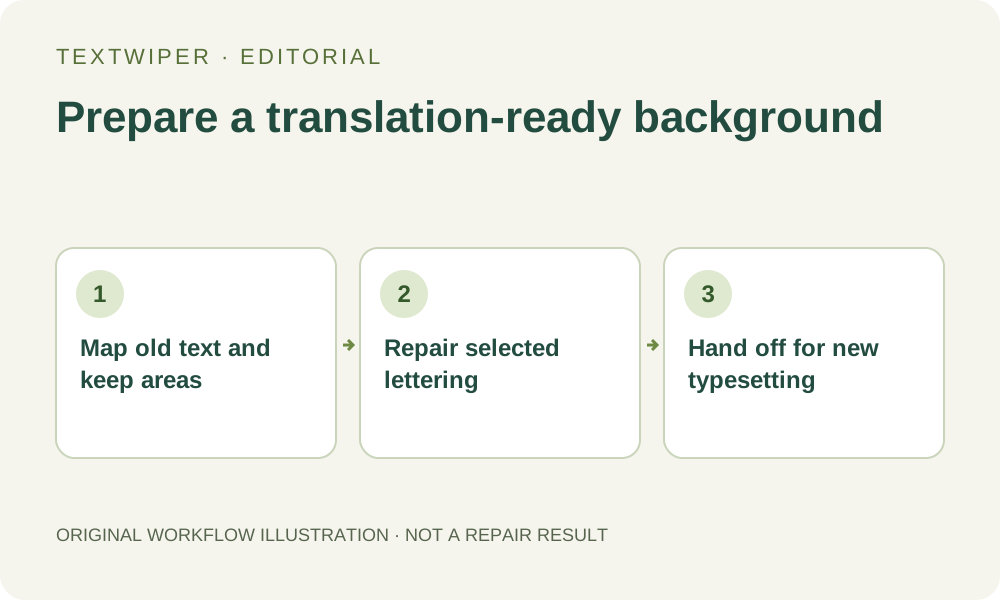
1. Look for the editable poster before repairing pixels
If you have the original layered design, replace its text in that application. Deleting a text layer reveals the actual underlying artwork; repairing a flattened poster estimates missing pixels. Keep the source poster and a separate copy of all wording so that cleanup does not become your only record of the original message.
This workflow suits an authorized JPG, PNG or still WebP when the editable source is unavailable. TextWiper does not open a PDF as a poster document. Export the page to a supported still image in another application, check its dimensions, and avoid an unnecessarily small screenshot that makes letters and background detail harder to separate.
2. Make a text map for the language handoff
List the headline, supporting copy, date, contact details and small print. Mark each item as remove, retain or confirm with the person preparing the new version. A logo might remain unchanged, while an old-language subtitle needs removal; a date or product code may need confirmation rather than automatic deletion.
Record where replacement text will go in your separate layout file. A longer translation may need a wider column or a different line break. Erasing the existing words does not enlarge a text box, identify a font or reflow a composition, so decide whether the artwork provides enough usable space before investing in a difficult repair.
3. Select the old lettering without clearing the whole poster
- Open the working copy in the TextWiper text remover. Choose Brush for individual lines, or Area for an isolated block on a plain background.
- Zoom in and include the old letters, their outline and visible shadow. Keep unrelated decoration and retained text outside the green removal mask.
- Use Erase to trim an over-wide selection. Use Protect on a nearby logo or illustration edge that must stay, checking that protection does not also preserve unwanted old letters.
- If Find text would help locate small copy, use it only after reading its upload-permission prompt. Recognition is optional; it does not translate the detected words or choose what should be deleted.
- Try Quick repair for a flat color or simple gradient. If the lettering covers texture, inspect a Smart repair result on the same reviewed selection instead of assuming either mode is always better.
- After changing the selection, repair again. The editor returns to the original while the mask is edited; the previous result is not silently updated.
4. Check the space that the new language will occupy
The full repaired image appears by default. Inspect the headline area for ghost letters, uneven color and abrupt gradient changes, then check the edges of retained logos and illustrations. Open Show comparison when you need to locate a change, and use Hide comparison before judging the complete composition.
Do not rely on future replacement text to hide a poor repair. A translated headline may be shorter, use different line spacing or leave an old character exposed. Check the cleared region both closely and at the intended poster viewing size, including the margins around the planned replacement text.
5. Export a background and finish the new version elsewhere
Download PNG, reopen the actual file and confirm its dimensions before placing it in your layout application. Add the separately reviewed translation there, then choose its font, alignment and line breaks. TextWiper does not supply editable replacement lettering, a translation review or print-ready document setup.
Check the finished poster again after typesetting: all intended old-language copy should be gone, retained information should still be correct, and the new text should fit without crowding an image or logo. Keep the original poster, cleaned background and final language version as separate files.
When to stop and return to the source design
Stop if the old headline crosses detailed artwork, a required logo or a face and the repair changes recognizable features. Protect cannot uncover pixels beneath overlapping text; it preserves the input within its boundary, including any unwanted lettering there. Rebuild that area in a layout editor or request a background without the old text. A clean-looking estimate is not proof that the original hidden design was recovered.