PRACTICAL IMAGE EDITING
Remove Specific Words from an Image
To erase selected words rather than all text, enter your own removal phrases, add words that must stay and review the detected matches. Keyword rules create a repair mask; they do not edit a hidden text layer.
Updated
Define removal and protection rules
Suppose your image contains a sale label and a brand name. Add the sale wording to Words to remove and the brand to Words to keep. TextWiper has no built-in removal list, and an empty removal list does not erase anything.
Keep rules take priority when a detection matches both lists. They add protected areas around matching detected text. Protection still depends on recognition: if a brand is missed, paint its area with Protect before repairing.
| Match style | What it means | When to choose it |
|---|---|---|
| Contains phrase | Matches detected text that contains your entered phrase. | A label has extra words around the phrase you want to find. |
| Whole word or phrase | Requires a whole word or phrase match rather than a partial word. | A short word could also appear inside a longer word you need to keep. |
Use commas or new lines to separate entries. OCR errors and phrase layout can affect matches; inspect what is actually selected.
Use keyword rules on one image
- Choose the image. Add a JPG, PNG or still WebP. A file can be up to 10 MB, 16 megapixels and 4096 pixels per side.
- Choose a detection language. The available OCR options are English and Chinese + English. Changing the interface language does not add a new OCR language.
- Enter your words. Open Use your keyword library, fill the removal and keep lists, then choose the match style.
- Scan and match. Use Scan & match my words to detect text and create suggestions. If you have already detected the image, Apply to detected text uses the current detections.
- Check the mask. Green marks removal and blue marks protection. Brush can cover a missed letter; Erase can shrink an area; Protect can preserve nearby details.
- Repair and compare. Choose Quick repair or Local AI repair, repair the selected area and compare the result before downloading.
Reuse the rule across a batch
The batch workspace accepts up to 10 images and 40 megapixels total. Use Suggest matching words when you want to inspect selections before repair. Use Scan & erase matches only when you are ready for automatic matching and repair across the queue.
For repeated work, save your entered rules as a template. An optional signed-in account can store keyword templates; signing in is not required to edit an image. Templates store your rules, not a cloud copy of the images.
Troubleshoot a missing or unwanted match
- The word is visible but was not matched.
- Check the detected text first. Small, rotated, decorative or low-contrast letters may be missed. You can select a detected region or brush over the intended letters manually.
- A short rule selects too much.
- Switch from Contains phrase to Whole word or phrase, use a more specific phrase and inspect the removal mask.
- A word appears in both lists.
- The keep rule takes priority. Remove it from the keep list only if you intend to erase that text, then apply your suggestions again.
- A completed image needs different rules.
- Apply new suggestions or edit the image before repairing again. Inspect the new result; previously completed results do not automatically prove that a changed rule was applied.
Save the result in the right format
| Format | Preserves | Trade-off |
|---|---|---|
| PNG | Transparency and decoded pixels outside the repair mask. | May be larger than JPG. |
| JPG | A common photo format. | Transparency becomes white; the whole image is re-encoded. |
| Batch ZIP | Successful repaired images in your chosen PNG/JPG format. | Skipped and failed items are not included as successful repairs. |
The repair fills the selected pixels using surrounding information. It does not retrieve the original background hidden underneath the text. Local AI's first use downloads approximately 28 MB; batch processing remains serial.
Worked example: remove SALE and OLD OFFER, keep NOVALE
This self-created label contains SALE, OLD OFFER, NOVALE and WHOLESALE. The example uses your own word rules with English OCR and Quick repair.
- Download the sample PNG and upload it to the editor.
- Enter SALE and OLD OFFER as separate removal rules, and NOVALE as a word to keep.
- Choose Whole words, then Scan & match words. Check the removal and protection areas before repairing.
- Use Quick repair and download a PNG. Whole-word matching leaves WHOLESALE unselected.
A label with words to remove and words to keep


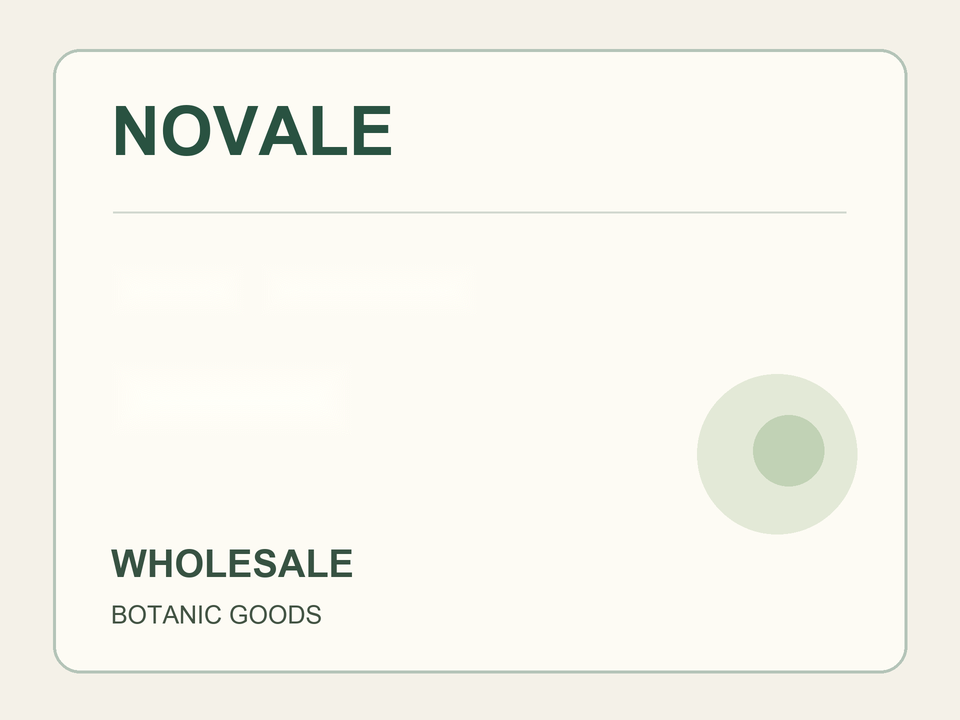
White in the mask marks pixels allowed to be repaired. The dark background only makes the transparent mask visible.
The mask and output below came from the real editor. Word rules depend on OCR and the matching mode; they are not a guarantee that the detector will read every font or language correctly. No sample rules are added to your saved word library.
Self-created samples · Real browser workflow · Quick repair · October 11, 2026