PRACTICAL IMAGE EDITING
Batch Remove Text from Images
To remove text from several images, add a batch, choose what may be erased, inspect the repairs and export the successful images together. TextWiper processes the queue on your device; an account is not required.
Updated
Choose the right batch workflow
A collection of product images may have the same sale label in different positions. Keyword rules can find that label across the queue. A collection with different captions needs individual selections instead. Choose based on what should disappear, rather than removing every detected word.
Up to 10 images, 40 megapixels across the batch and 10 MB per file. Each image must be at most 16 megapixels and 4096 pixels per side. JPG, PNG and still WebP are supported; animated images, GIF and SVG are not.
Review and repair a collection
- Add the images. Open the batch workspace and choose images. Split a larger collection into smaller groups that fit the image and pixel limits.
- Detect the text. Select English or Chinese + English, then choose Find text in queue. Detection creates suggestions with nothing selected by default.
- Decide what stays. Enter optional removal words and brand words to keep, then choose Suggest matching words. Keep rules take priority. Or select individual detections without using a word list.
- Review important images. Open an image in the editor, adjust the green removal mask, use Protect over nearby details and choose Save review & back. Do this when an automatic match could affect a logo or other important detail.
- Approve the repair. Use Repair reviewed images for images you have reviewed, or explicitly approve the queue's current selections with Use selections & repair. Quick repair suits simple backgrounds; Local AI repair may help with textures. Use a careful background selection when a label sits near important details.
- Inspect and download. Compare the results before using them. Download successful results individually or choose a PNG/JPG format for the ZIP.
When automatic keyword removal is useful
Scan & erase matches combines detection, matching and repair without a separate review step. It uses only the removal words you enter. For example, a removal rule for “SALE” can target that label while a keep rule protects the brand name. This is useful for a repeated label; it still needs a final visual check.
An empty removal list never erases text. Images without a matching removal area are skipped. Matching depends on OCR recognizing the text, so a rotated label or decorative font can be missed.
What to do when the batch stops or looks wrong
- The collection exceeds the limit.
- Split it into smaller groups or resize very large images. The combined pixel limit can be reached before the 10-image limit.
- Only some images finished.
- Cancel preserves completed results. Inspect successful images and retry an individual failed image. A ZIP includes only successful results; a skipped or failed item is not a repaired image.
- A brand name was selected.
- Add it to Words to keep and review the mask. If OCR missed the brand, use the Protect tool to paint the area manually.
- Processing is slow.
- The queue runs one image at a time. Local AI repair downloads an approximately 28 MB model on first use; slower devices and larger selections can take longer. Use a smaller batch or Quick repair where the background is simple.
Choose a batch export format
| Export | Use it when | Keep in mind |
|---|---|---|
| PNG in ZIP | You need transparency or unchanged decoded pixels outside the repair mask. | Files may be larger than JPG. |
| JPG in ZIP | You want a common photo format without transparency. | Transparency becomes white and the whole image is re-encoded. |
| Individual download | You want to inspect and use one successful result first. | Download before clearing the queue or closing the page. |
Originals and results stay in this page's memory. Clearing the queue or closing it removes them; TextWiper does not provide a cloud image history.
Worked example: two sale labels in different positions
These two drawings were created for this guide. SALE is in a different position in each image. Both went through the real batch workflow together, using Quick repair.
- Download both sample PNGs and add them to the batch workspace.
- Enter SALE in Words to remove and NOVALE in Words to keep. Choose Whole words and Quick repair.
- Use Scan & erase matches, then inspect each result. The images are processed one at a time.
- Download the completed images as a PNG ZIP. The pictures below are those actual exported results.
Sample 1: label at the upper right
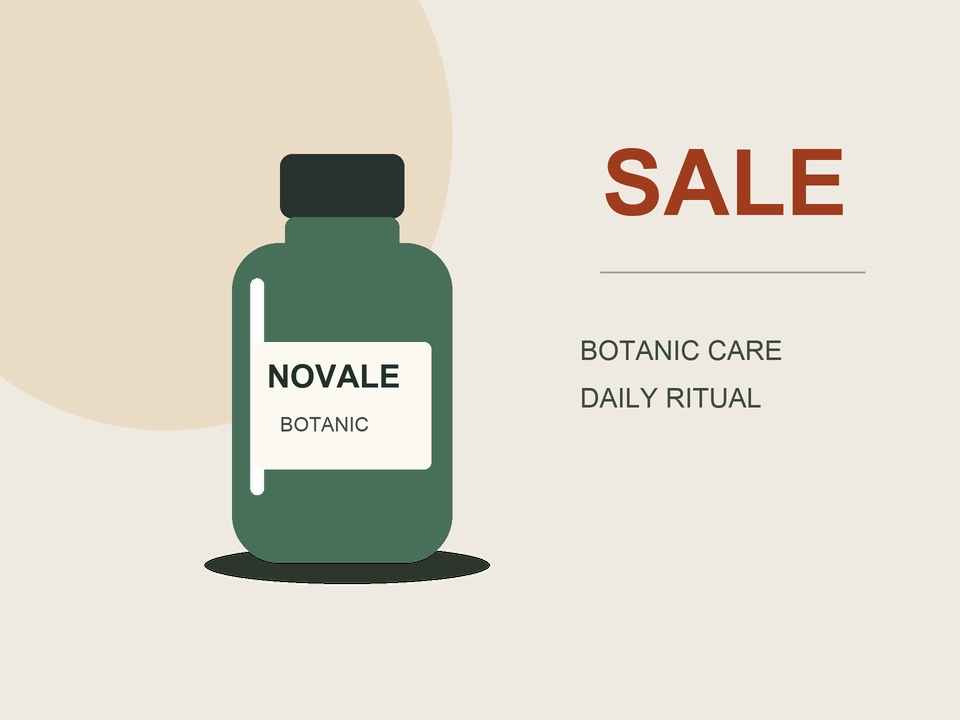
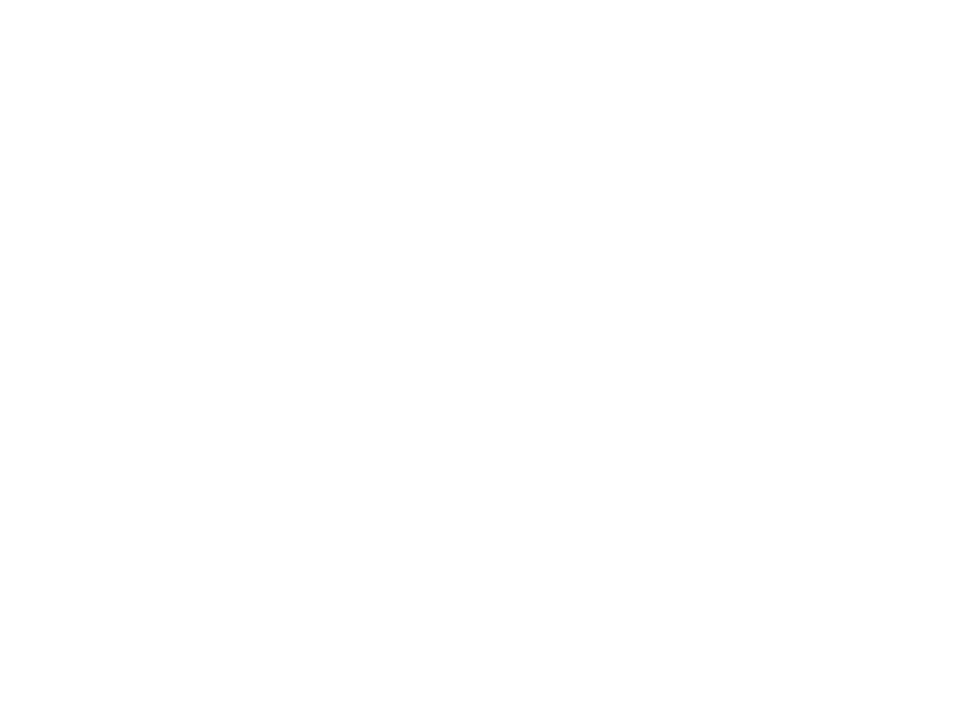
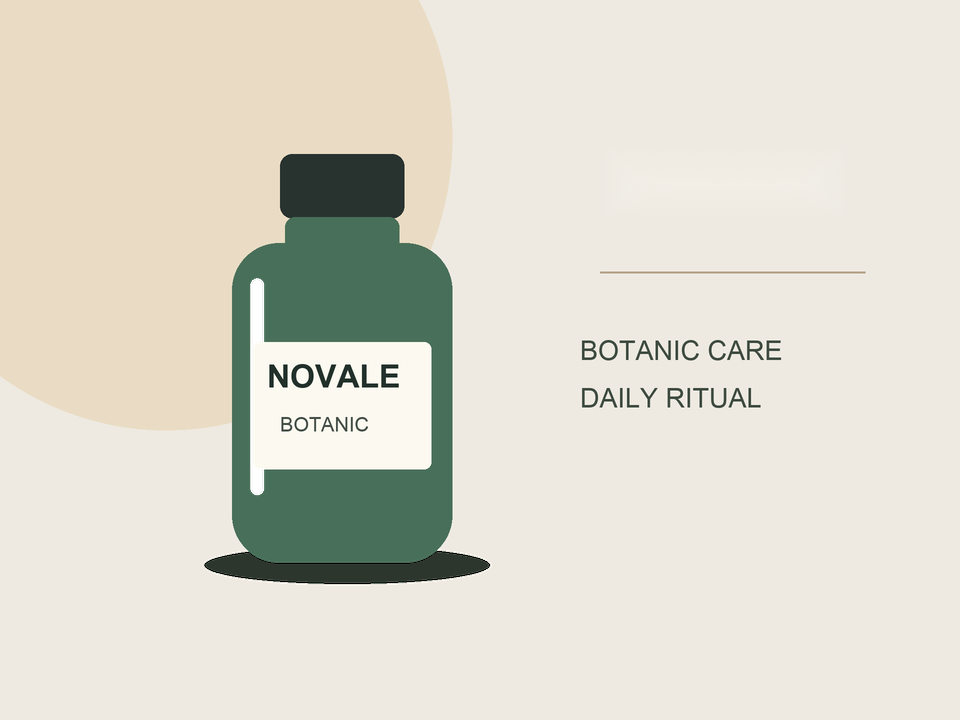
Sample 2: label at the lower left
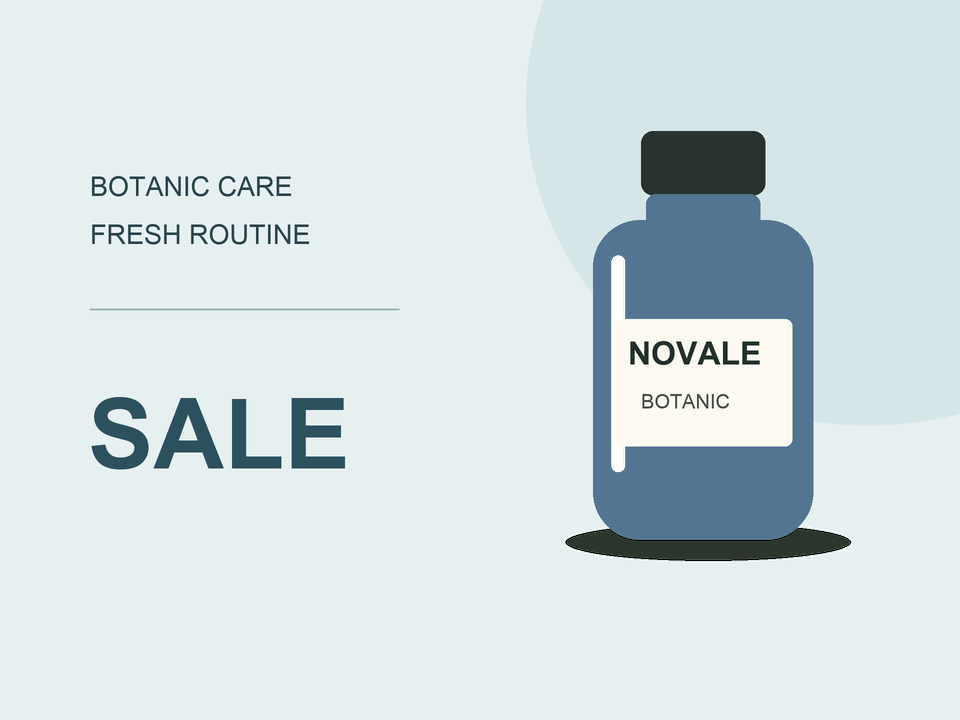
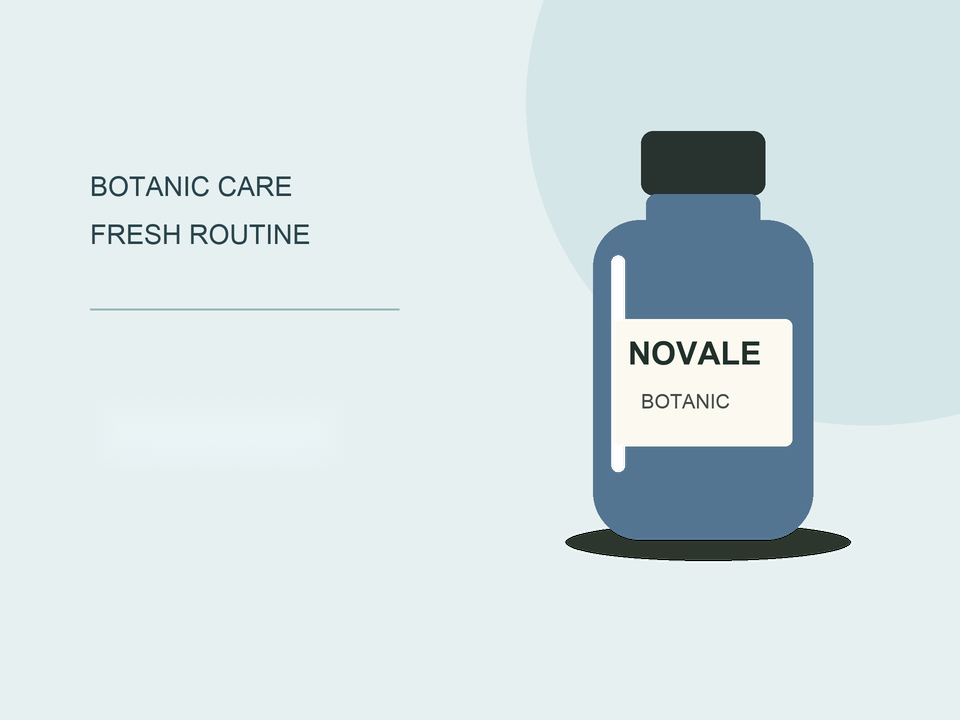
White in the mask marks pixels allowed to be repaired. The dark background only makes the transparent mask visible.
This is a controlled example with clear English labels on smooth backgrounds. OCR may miss smaller or decorative text. The actual results show faint filling patches where the labels were removed. A matched word still needs a visual check, particularly near product details.
Self-created samples · Real browser workflow · Quick repair · October 11, 2026