PRACTICAL IMAGE EDITING
OCR Missed Some Text? Complete the Selection by Hand
A short detection list does not describe every letter visible in a picture. Small captions, angled writing and low-contrast words can be absent, while successfully detected words initially remain unselected. Before submitting the same image again, identify which situation you have. Manual selection can cover a missed target without needing the recognizer to read it.
Published 2026-10-17 · Updated
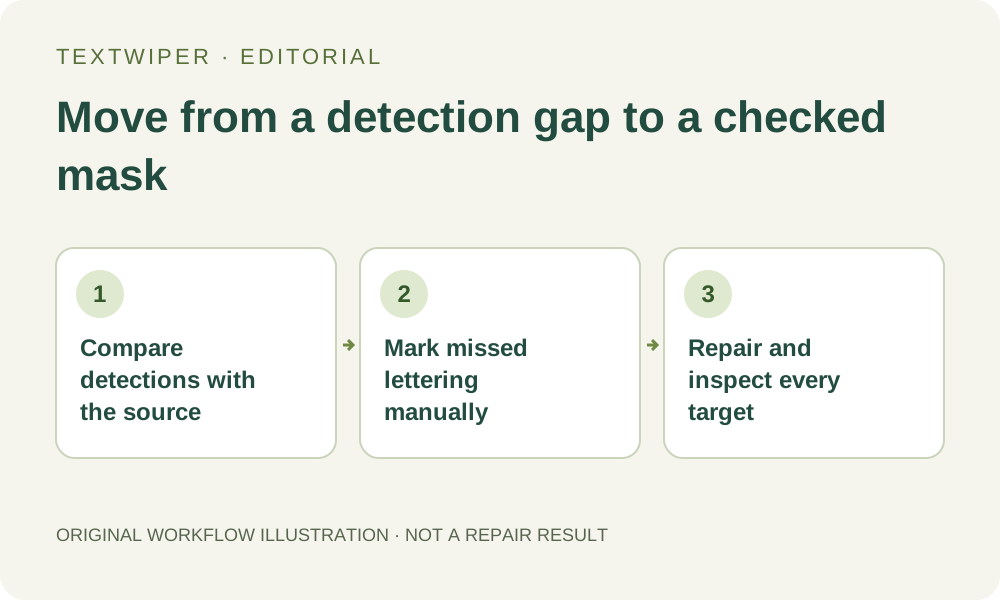
1. Check whether the word was missed or simply not selected
Start with your own image or one you are authorized to edit. Compare a visible word in the source with the detected text list and its position on the canvas. Detection starts with no text selected. A word that appears in the list but has no green removal area has not necessarily been missed; you still need to choose it.
A zero-result message means the current recognition attempt produced no usable detections. It does not certify that the picture contains no text, and it does not prevent you from drawing a removal mask. Keep the original file separately so an empty list never becomes the reason to discard the source.
2. Decide whether another recognition attempt has a concrete reason
Inspect the missed location before changing anything. A tiny caption, decorative lettering, rotation or weak contrast may explain the gap. Changing the interface language only changes the controls. The text-recognition language is a separate setting; choose only an available language that actually corresponds to the picture, rather than cycling through unrelated options.
Find text requires permission to send a resized working image to the recognition service. Repeated clicks are separate requests, not a way to reveal a hidden local result. If the source and relevant language are unchanged, use the manual fallback instead of repeatedly submitting the same picture. Recognition availability or an error does not measure repair quality.
3. Add the missing target to a deliberate selection
- Locate the missed lettering visually and enlarge that part of the canvas with the zoom controls. Use Pan to reach it without painting accidentally.
- Choose Brush and reduce its size until you can follow the letters, including visible outlines or shadows that belong to them.
- Paint the missed target. Use short strokes near edges; Area is an alternative for a compact rectangular label sitting entirely on a simple background.
- Use Erase to remove extra mask coverage, and Protect for nearby visible detail that must remain. Avoid protecting any part of the unwanted lettering itself.
- If useful detected words are already available, select only the intended ones and examine the combined green area, including your manual strokes.
- Review the whole picture for another overlooked caption before starting repair. The list is a locating aid, not a complete inventory of all writing.
4. Judge the repair independently from recognition
Try Quick repair for a small target on a relatively smooth background. Smart repair may help with texture, but can still create artifacts. Neither mode needs a successful text transcript when you have drawn a valid mask. You are repairing selected pixels, not asking the application to correct spelling or reconstruct the original text layer.
The editor displays the full result after repair. Use Show comparison to locate a suspicious change, then Hide comparison to judge the finished image. If you change the mask, run repair again before evaluating it; the old result does not automatically incorporate the additional missed word.
5. Check two kinds of omission in the downloaded copy
First check target coverage: revisit each word you intended to remove, including the one absent from recognition. A missed full word is different from a small fringe left around an otherwise repaired letter. Then check preservation: neighboring labels, fine outlines and legitimate symbols should still communicate what they did in the source.
Download the reviewed PNG or JPG and reopen it at the intended viewing size. Inspect both the corrected location and the whole composition. A small screen preview can conceal a remaining caption; a large smooth patch can conceal damaged background detail. Keep whichever version passes both checks, rather than treating a populated detection list as completion.
6. Use a different source when the boundary cannot be defended
If the letters are too blurred to separate from a face, texture or diagram line, enlarging the view does not create new source detail. Stop widening the mask. An editable design or an authorized higher-resolution original may be a better starting point. Repair estimates covered content and cannot prove recovery of the authentic hidden pixels.
Manual selection, repair and download are free during beta. Whole-image automatic cleanup is a separate limited trial requiring sign-in and separate upload permission; it is not an automatic retry for OCR failure. This workflow addresses locating a missed target, rather than promising better recognition or an unlimited sequence of service calls.