PRACTICAL IMAGE EDITING
Correct a Text Removal Selection with Undo and Redo
When a repair removes too much, revise the selection and repair again. TextWiper’s Undo and Redo restore selected text and drawn strokes in the current workspace; they do not reopen an archive of finished images.
Published 2026-10-15 · Updated
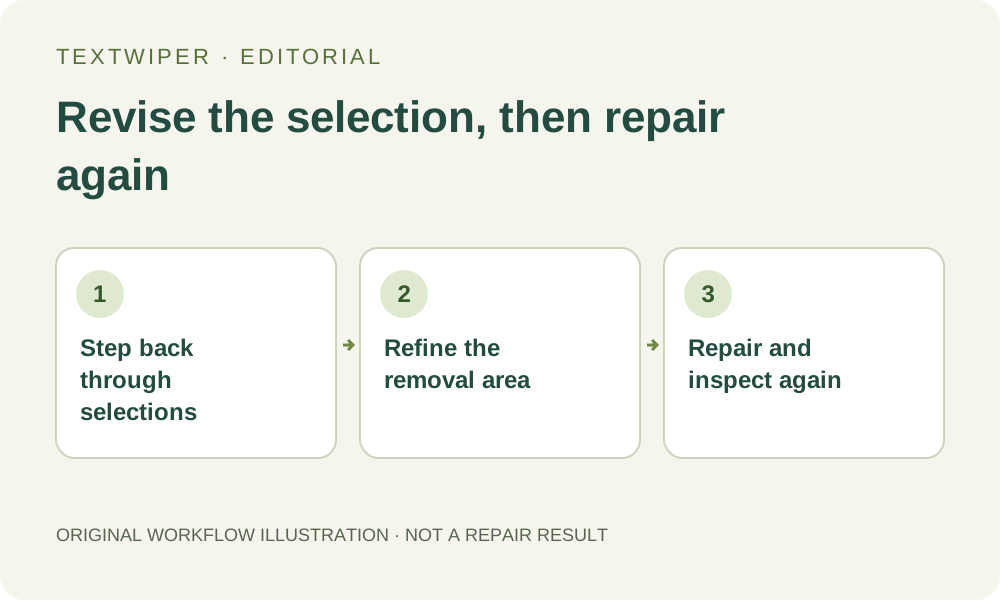
Understand the version you are changing
Imagine a poster with an old price and a short date stamp. You select the price, add a brush stroke around the date, and run a repair. If the date stroke touches a useful border, the problem is the removal area. Undo can take you back to an earlier selection so you can draw a narrower stroke. It does not restore the preceding repaired picture as a finished image.
The history stores chosen text regions and strokes, including Erase, Area and Protect marks. Restoring one of those states clears the current repair preview and shows the original image with that selection. A message asks you to repair again to preview the revised version. Keep this distinction in mind before relying on an older-looking selection as proof that an earlier output has been recovered.
Revise several areas without losing the intended removal plan
Each manual repair uses the loaded original image and the complete current removal mask. A second repair is not automatically applied on top of the first output. If both the price and the date should disappear, the revised selection must still cover both targets. Otherwise the target omitted from the new selection will remain in the next result.
- Keep the source file separately. If the current output is useful for comparison, download it before changing the selection.
- Choose Undo once and inspect the green removal area and blue protection area. Repeat only until you reach the selection you meant to change.
- Use Redo to move forward if you stepped back too far. Redo is available only while that forward selection history still exists.
- Correct the selection with Brush, Erase, Area or Protect. Check that every intended target is still covered and every important detail remains outside the green area.
- Run Quick repair or Smart repair again, inspect the complete new result, and use Show comparison if you want to compare it with the original.
Know which changes Undo does not reverse
Undo is not a general settings reset. The saved selection states do not include the zoom level, brush-size control, repair radius or choice between Quick and Smart repair. Check those controls yourself before the next repair. Switching the word-selection display between Words and Characters is also different from editing which text regions are selected.
On a desktop keyboard, use Ctrl or Command with Z for Undo, and add Shift for Redo. These shortcuts apply when the image workspace can handle them; an open dialog or a focused text field has its own behavior. The visible arrow buttons are the clearer option when you are unsure. While an operation is busy, wait for it to finish or cancel waiting before editing the selection.
Check the revised output against a short removal list
Write a small checklist such as old price removed, date removed, border retained. After repairing again, read every item against the full image. Then inspect the corrected edge more closely. This catches a common mistake: a careful new stroke fixes one area while an earlier target has silently dropped out of the current mask.
If an old brush mark is still present, Undo may have restored a state containing that mark. Continue to the appropriate earlier selection, or use Erase to trim the green area deliberately. A blue Protect stroke can exclude an area from manual repair, but it may also keep part of the unwanted text if it overlaps that text. Evaluate the selection before evaluating the repaired background.
Stop when the needed history is no longer available
Creating a new selection edit after stepping back discards the forward branch, so Redo cannot bring that branch back. The workspace retains only a limited selection history. Loading another image, clearing the workspace or refreshing the page is not a way to preserve versions. Running Find text again also starts a new selection-history baseline; do not use recognition as an Undo command.
If the required state is gone, rebuild a small selection from your retained source instead of expecting another Undo to recover it. Download reviewed versions with different file names before leaving the page. Undo also does not refund or regenerate an accepted automatic-cleanup attempt: automatic processing has its own limited trial and task status. Use the manual tools for deliberate selection revisions, and keep downloaded files as your durable copies.