PRACTICAL IMAGE EDITING
Remove Speech-Bubble Text While Keeping the Bubble Outline and Tail
An empty speech bubble can be useful when you are preparing another lettering version of your own comic. The job is to clear the old words while keeping the container that identifies the speaker. A detected text rectangle is not a command to paint the entire bubble white. Start with the source lettering layer when possible; otherwise make a local pixel selection and examine the outline, tail and interior before handing the picture to a lettering application.
Published 2026-10-21 · Updated
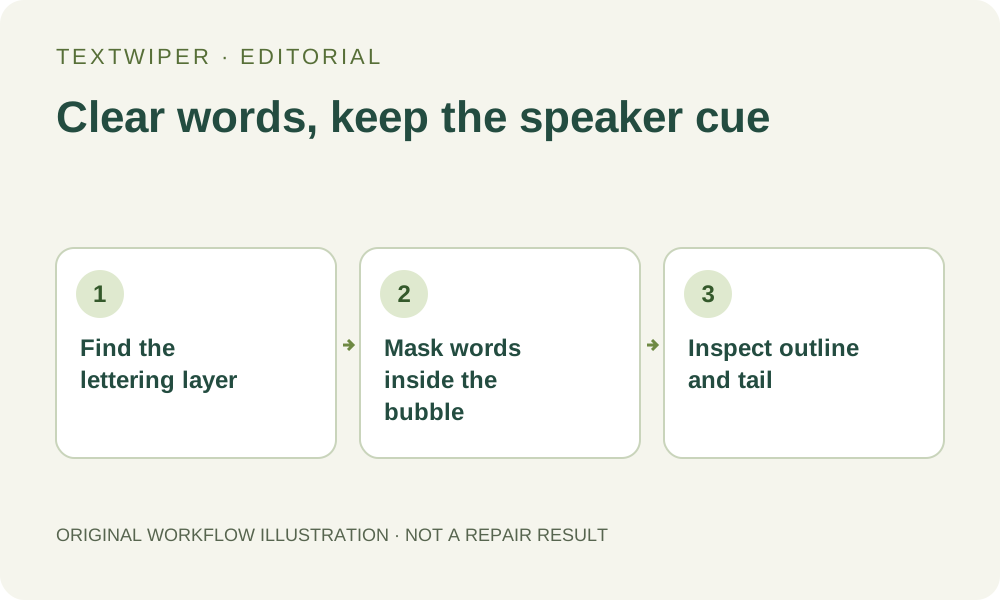
1. Choose the lettering source and define the intended change
Use artwork you own or have permission to adapt. If speech and drawing remain on separate layers, duplicate the correct comic page and hide the dialogue layer in its source application. Check whether a lettering outline or shadow sits on another layer. Export a separate image after confirming that the correct panel version and all bubble contours remain.
For a flattened image, decide whether you want an empty bubble for later lettering or merely to remove a discarded note. Record the bubble order and speaker. A small triangular tail can carry that relationship even when the main oval looks unchanged. TextWiper does not translate dialogue, add replacement words or preserve editable comic lettering.
2. Inspect the bubble interior before using a large rectangle
Look for an interior gradient, halftone, paper texture, colored fill or intentionally uneven hand-drawn edge. A pale bubble is not necessarily a flat white area. Note where letters approach the contour and whether an exclamation mark touches the top or a descending stroke enters the tail. Treat those contact points as separate review locations.
If the bubble is transparent, the visible artwork inside it belongs to the image too. Clearing a rectangular area may discard that artwork along with the text. Protect can preserve visible input details, but where lettering already covers a contour or background feature, it cannot reveal the hidden clean version. A source file is especially valuable at those overlaps.
3. Select the words instead of selecting the entire bubble
Open a JPG, PNG or still WebP and use manual Brush where letters are close to the edge. Find text is optional and requests recognition upload permission. It may miss stylized dialogue, detached punctuation or vertical lettering. Detected word and character regions are selection suggestions, not traced outlines or automatic white fills.
- Zoom into one bubble and identify all intended text, including punctuation and any lettering effects.
- Use Brush to follow close-to-edge strokes; use Area only for a text block with a clear margin on every side.
- Use Erase to remove green coverage from the bubble contour, tail and neighboring panel border.
- Protect exposed outline pixels where needed, checking that blue protection has not also preserved a letter you meant to remove.
- Inspect the complete green mask and run a repair only when the bubble boundary remains distinguishable.
4. Compare local repairs without flattening the bubble style
Try Quick repair for small lettering over an even interior. Smart repair may be worth comparing when there is paper texture or shading; use the same reviewed selection. Neither mode understands comic drawing conventions. A clean-looking interior can still be wrong if a halftone disappears or an angular contour becomes rounded.
Manual selection, Quick repair, Smart repair and downloads are free during beta without an account. Whole-image automatic cleanup is a separate limited single-image sign-in trial requiring its own upload permission and remaining allowance. It may alter details outside this local task and does not use the green mask as a bubble boundary. The manual workflow needs no automatic trial.
5. Read the empty bubble as part of the page
The editor shows the full repaired result by default. Follow the entire contour, through tight corners and into the tail tip. Check line thickness and the join between tail and bubble. Look for leftover dots that resemble punctuation, gray letter ghosts, repeated interior texture or a patch brighter than the surrounding fill.
Then view the whole panel at the intended reading size. Confirm that the same speaker is indicated and that neighboring bubbles and panel dividers remain separate. Use Show comparison to find an edited area, then Hide comparison to inspect the complete page. If you change the mask, the earlier result is invalidated and the revised selection needs another repair from the original.
6. Export for lettering or stop at an uncertain contour
Download a reviewed PNG and reopen that exact file in the application used for new lettering. Confirm the dimensions and bubble order before adding any new words there. TextWiper supplies an image, not a balloon object with automatic text wrapping. Keep the unchanged page and the new image separately so the next person can distinguish source artwork from the cleanup candidate.
Stop if a letter and the outline cannot be separated, a tail becomes ambiguous or the repaired interior no longer matches the page style. Return to the source artwork or redraw that region deliberately in a drawing application. This written workflow shows no new comic repair result and makes no claim about perfect speech-bubble restoration.