PRACTICAL IMAGE EDITING
Select Hollow Lettering Without Clearing the Background Inside It
Large hollow lettering can leave useful background visible inside an O, B or other enclosed shape. A filled word box selects that background too. For an authorized edit, follow the visible lettering with Brush and withdraw accidental interior coverage with Erase. This is a mask-control task: preserving the visible center does not recover the background hidden beneath the letter outline.
Published 2026-10-20 · Updated
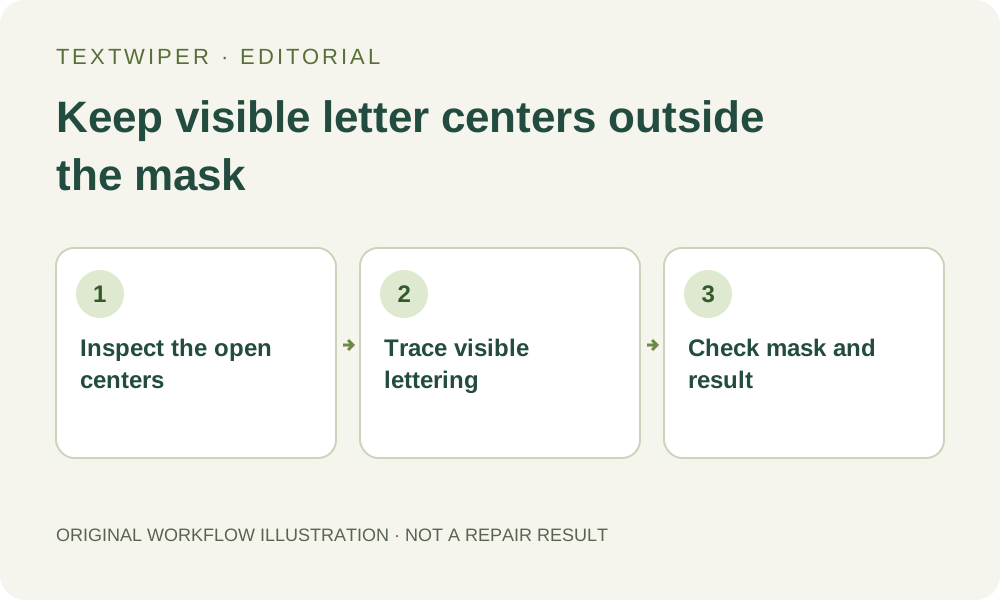
1. Distinguish an open center from a transparent file region
Open your own image or one you are authorized to edit and look closely at the large lettering. The center may show the photograph behind a hollow outline, or it may be a solid fill that is part of the design. Decide what is actually visible before trying to preserve it. A pale letter is not automatically hollow.
The background inside a letter is not necessarily transparent alpha. A JPEG can contain an O with the photo visible in its center while remaining entirely opaque. Keeping that center unchanged is about leaving source pixels outside the removal mask. It is different from cutting a transparent hole or recreating the background that the outline itself covers.
2. Check how a detected region differs from the letter strokes
Find text is optional and requests recognition upload permission. If it returns a word or character region, selecting that item fills its available detection area; it is not an automatic outline-only selection. The region can include the center of a hollow letter and gaps between letters. Character mode may make a region smaller, but does not turn it into a contour traced around ink.
For this task, start with manual Brush if the detected geometry is too broad. You can also review a selected detection and use Erase to withdraw unwanted coverage. Inspect the green mask rather than assuming a successful transcription creates the right shape. Nothing is selected automatically when recognition finishes.
3. Trace the lettering and retain useful interior pixels
The editor has no hollow-letter selection command or automatic background-island detector. When the source is too small to separate outline and center reliably, a larger view does not supply missing pixel detail.
- Zoom in until the outline and its visible edge are distinguishable. Use Pan when moving to the next letter, then return to Brush before drawing.
- Choose a brush narrow enough for the actual stroke and cover it with short movements. Include visible fringe that belongs to the lettering without filling the entire enclosed center.
- Use Erase to subtract green coverage that strays into the visible background. Check both the inside and outside edges of the same stroke.
- If a clear interior detail must remain, Protect can preserve those input pixels. Inspect it carefully because protected lettering remains too; undo a misplaced protection stroke before continuing.
- Review the complete planned mask, then run repair. If you change that mask later, the old result is invalidated and you must repair the revised selection again from the original.
4. Keep mask precision separate from the repair choice
Try Quick repair for a narrow outline over a relatively even surface, or consider Smart repair when the selected pixels cover texture. Use the same reviewed mask when comparing modes. A precise mask limits which manual pixels are replaced, but it does not guarantee that the fill will connect naturally to the preserved center.
Manual selection, Quick repair, Smart repair and downloads are free during beta without an account. The separate limited whole-image automatic cleanup trial requires sign-in, its own upload permission and remaining allowance. A green outline mask does not constrain that whole-image operation, so do not use it as an assumed substitute for this local boundary control.
5. Inspect the inner join as carefully as the outside edge
The full repaired image appears by default. Check each formerly enclosed center for accidental replacement, a leftover ring, a bright fringe or a new edge where the fill meets the preserved background. Trace any visible line or texture that passes from the center through the repaired outline. Its continuation may be uncertain even when the center itself is intact.
Use Show comparison to locate a missed stroke, then Hide comparison to evaluate the complete image. Review both enlarged and at its intended size. A visible center surrounded by a pale repair ring is still a failed cleanup. Preserving too much fringe can leave the hollow letter readable; removing too much can discard useful background.
6. Stop when letter and background cannot be separated
If the outline is only a few indistinct pixels or crosses an important detail, seek the unlettered source or the editable text layer. Do not repeatedly erase and repaint until a tiny center becomes an arbitrary new patch. This workflow cannot certify the hidden continuation of a face, line or object beneath the outline.
Download and reopen a reviewed PNG to inspect the inner and outer boundaries again. Keep it separate from the source; a JPG export re-encodes the whole image and is not the same preserved-pixel comparison. This article supplies a negative-space selection method, not a new before-and-after test, automatic contour feature or guarantee of perfect hollow-text removal.