PRACTICAL IMAGE EDITING
Need Web Artwork Without Print Marks? Choose the Export Boundary First
A print proof can contain crop marks, registration targets or color-control strips around the artwork. Removing those pixels does not automatically turn the proof into a correctly framed web image: the outside margin and bleed may still remain. Start with the intended screen boundary and obtain an appropriate source export when possible. TextWiper can locally repair an authorized still image, but it does not crop a canvas, set a trim box, remove a PDF's print settings or convert a proof into a finished web layout. This task is about preparing a separate presentation copy, not approving print production.
Published 2026-10-23 · Updated
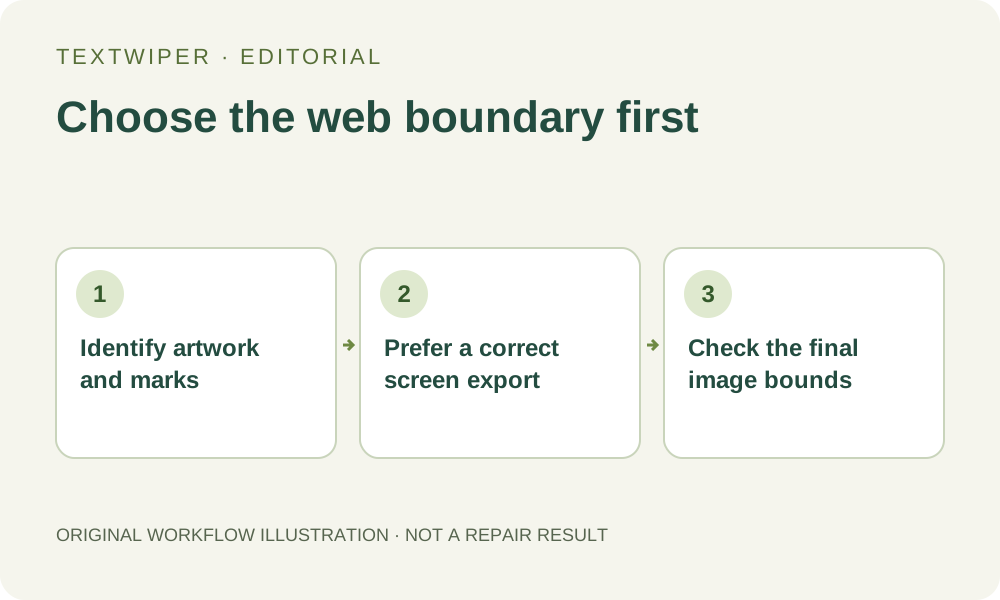
1. Ask which boundary the web image should use
Keep the original proof and identify the visible artwork you want to show online. Ask the designer for the intended content boundary when it is unclear. A thin line near a corner might be a printer's mark, a designed border or part of the illustration; its shape or position alone is not enough reason to remove it.
Distinguish the picture's whole file boundary from the intended finished artwork boundary. Additional edge artwork may have been included for print production, while control marks can sit farther out. You need a deliberate screen framing decision. Do not infer the exact trim from a low-resolution screenshot or assume every white margin belongs to disposable printer furniture.
2. Prefer a separate export without the print furniture
If you have the authorized source document, use its normal export controls or ask its owner for a screen image of the correct page or artboard without unnecessary print marks. Check its content, dimensions and framing. Turning off print marks and choosing the correct export boundary are related but separate decisions; a mark-free file can still include an unwanted outer margin.
Keep that web export separate from the production proof and source. TextWiper cannot change a layout document's bleed, page boxes or future exports. If a PDF is the only source, create an appropriate supported raster image in another application first, or obtain one from the designer. Do not treat a screenshot of the proof viewer as the best available artwork without checking the original options.
3. Decide whether local repair serves the remaining task
A few confirmed disposable marks on a plain outer margin may be suitable for local repair if keeping that whole margin is intentional. Repair will leave the canvas size intact; it will not pull the remaining artwork to the new edge or remove unused space. If the goal is a tighter frame, use an appropriate crop or source export elsewhere instead.
Do not erase a registration-like cross drawn inside the actual design, a necessary label or a border you have not identified. If a control strip or mark overlaps meaningful artwork, a smooth fill would not authenticate the hidden content. Return to the source rather than making the image look as though its correct edge has been recovered.
4. Select only the confirmed disposable pixels
Open the authorized JPG, PNG or still WebP only after the boundary decision. For graphical crosses and control strips, manual selection does not need OCR. Optional Find text asks permission to upload a resized working image; it does not classify printer marks or determine where the artwork should end.
- Locate each confirmed mark relative to the artwork boundary and record which border must stay.
- Use a small Brush or suitable Area selection for the actual mark, not the entire outer frame.
- Trim accidental coverage with Erase and protect nearby visible artwork when appropriate.
- Try a local repair only when the surrounding margin provides enough information for a useful candidate.
- Inspect the whole frame after repair, including all corners and any mark fragments beyond the first selected area.
5. Review framing as well as the repaired margin
The complete result appears by default. Check that all intended artwork remains and that the cleared mark has not become a differently colored patch. Show comparison helps locate changes; hide it to judge the whole web copy. A candidate can pass the local patch check and still fail because its outer margin makes the artwork too small or its edge has been misunderstood.
Changing the mask invalidates the previous candidate, and a new local repair uses the loaded original with the revised mask. Download the accepted file and reopen it to inspect its actual bounds. If you crop or resize it afterward in another application, check that final file again. An earlier approval of the untrimmed image does not cover newly clipped artwork or text.
6. Publish a web copy without changing the print master
Check the actual image in the intended page or content area, including its corners and visible border. Keep the source, print proof and approved web asset under distinguishable names. Removing marks from a presentation copy neither updates the printer's original file nor confirms its production settings. If a print job is also required, its proof and approval remain a separate workflow.
Manual selection, Quick repair, Smart repair and downloads are free during beta without an account. Whole-image automatic cleanup is a separate limited sign-in trial with upload choice and available allowance, and is not a trim or prepress conversion tool. Stop when the intended boundary or a mark's purpose is uncertain. A correct source export is preferable to a guessed edge.
Sources
- Adobe Illustrator: Printer's marks and bleeds — Explains printer's marks, bleed and export-related boundaries in Illustrator. This source does not provide TextWiper with crop, trim-box or prepress conversion functions.