PRACTICAL IMAGE EDITING
Proof an Edited Image Before Printing: Check the Download at Its Intended Size
A repaired photo may look convincing when fitted into a browser window and still reveal problems when printed. The useful next step is a proof of the actual downloaded file at its intended physical size. TextWiper edits image pixels; it does not provide page layout, DPI controls, printer profiles or a print-proofing service. Use your normal layout and printing application for that stage, keeping an unchanged source beside the candidate.
Published 2026-10-21 · Updated
1. Define the print use before making a repair
Decide where the picture will appear: a small flyer photograph, a full-page poster or a product insert. Record the intended placement size and ask the print provider about the requirements for that job. There is no single resolution label that makes every image suitable for every paper size, printing process and viewing distance.
Start from your best authorized source and preserve it separately. Identify necessary brand wording, prices, safety information, labels and fine lines that must remain legible. If a removed overlay covers something important, do not promise that a visually plausible repair recovers the hidden original. Obtain another source when factual details cannot be judged.
2. Repair the visible problem before doing page layout
Open the supported still image and select only the words you are allowed to remove. Brush and Area define the removal region, Erase trims it and Protect helps exclude nearby visible details. Quick repair can suit simple backgrounds; Smart repair may be worth considering for texture. Neither is a print-specific rendering mode.
Check the complete result and then the local repair at a useful zoom. Look for a repeated patch, softened edge or leftover shadow. Keep meaningful nearby wording untouched. Manual selection, these local repairs and downloads are free during beta without an account; optional recognition and the separate whole-image trial have their own upload choices and limits.
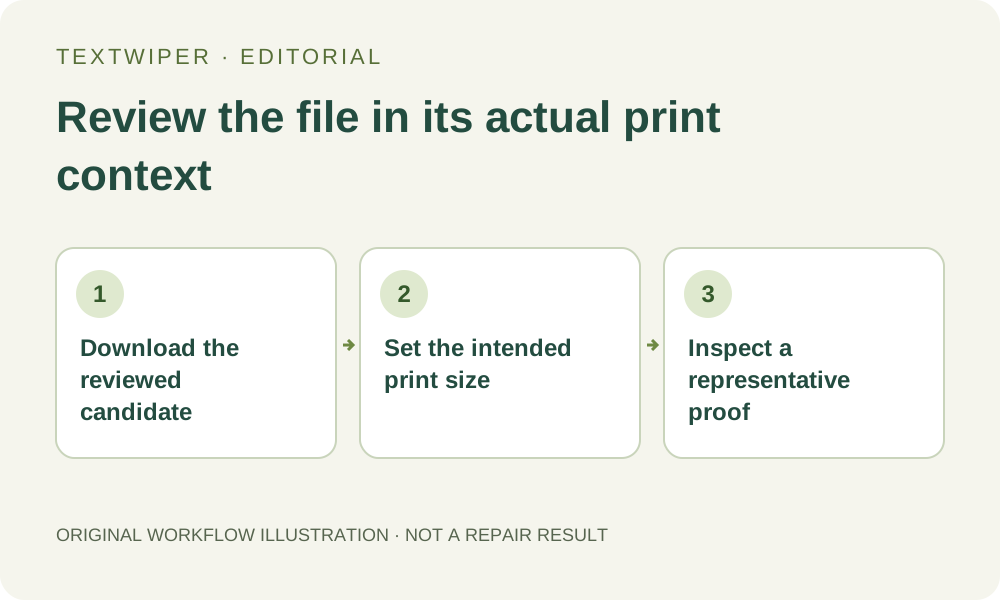
3. Place the actual download at the intended physical size
After accepting a candidate, use the real file in your usual layout or print application. A browser screenshot of the editor is not the delivery image: it can include interface elements and a different pixel size. This stage concerns placement, not another repair attempt.
- Download PNG or JPG as appropriate, then reopen that exact file and check its pixel dimensions and appearance.
- Place it in the document that will actually be printed, using the intended width and height rather than a convenient screen fit.
- Check whether the application has cropped, stretched or substituted the image during placement.
- Follow the printer or print provider’s documented requirements for this job; TextWiper does not set its output profile or page settings.
- Create a representative proof at the intended size. If you print only a relevant section, keep its scale unchanged and include the repaired area.
4. Judge repair quality at the scale people will see
Inspect the proof at an appropriate viewing distance, then look more closely at the repaired patch and its surroundings. A seam can become visible on a large poster even when it is unobtrusive on a small screen. Conversely, excessive screen magnification may show details that are irrelevant to a small placement. Use the intended output as your decision context.
Check other required content too. Confirm that small type, thin rules, product edges and any code needed for the intended use remain usable. Do not infer usability from the disappearance of the unwanted text. If a crucial detail is unclear, compare the unchanged source and ask the responsible reviewer before approving a print run.
5. Separate a repair issue from a printing issue
A visible defect already present in the downloaded image should be handled before printing again. Return to the source, reduce an excessive selection or reject the candidate when the background cannot be reconstructed acceptably. Do not keep enlarging a poor result and expect a printer setting to restore missing detail.
If the downloaded picture looks acceptable but the proof differs, inspect the placement and print workflow with its own tools and documentation. TextWiper does not promise CMYK conversion, color-profile preservation or calibrated print matching. Keep those questions with the application, device or provider responsible for printing instead of changing unrelated repair selections.
6. Approve a specific file, placement and proof
Record which downloaded version was checked, its placement size and the proof that was accepted. Keep the source, repair candidate and print document under distinct names. If you revise the picture or resize its placement later, review the changed item rather than assuming that an earlier approval still covers it.
This workflow is a practical review process, not a measured print-quality result or a guarantee for a particular printer. For an important job, a small representative proof can support a decision before a full run. Stop when essential content or required print conditions remain uncertain; a smooth background is only one part of a usable printed image.
Sources
- Image size, resolution, and resampling — Explains pixel dimensions, physical print size and resampling; no single PPI setting guarantees every print job.