PRACTICAL IMAGE EDITING
Check That Your Edited Image Actually Downloaded
A repaired preview, a generated export and a file saved on your device are three different checkpoints. Complete the handoff deliberately: choose the reviewed result, start its download, find the new file and reopen it. This workflow checks delivery of your edit, rather than judging every visual detail or comparing PNG with JPG in general.
Published 2026-10-17 · Updated
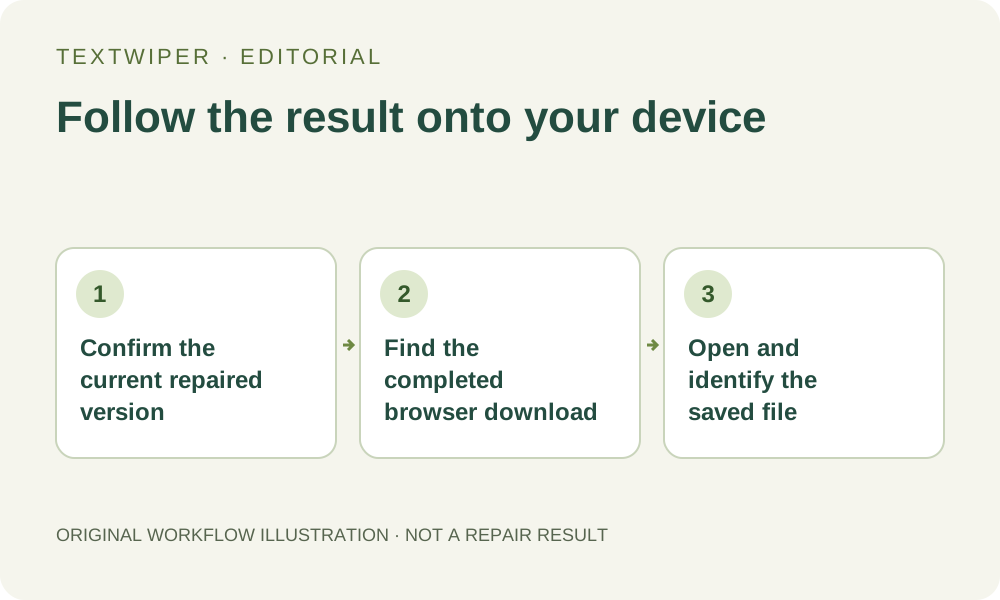
1. Identify the result you intend to keep
Finish the repair on a picture you own or can edit, and look at the complete preview. Show comparison is useful for locating a change, but return to the full result before deciding which revision to deliver. The comparison divider is a viewing aid; it is not a crop that makes the download contain only the repaired half.
Make a short note outside the editor of the edit you approved: for example, the lower-left SALE overlay is gone while the product name remains. This gives you a concrete revision check when several files look similar. TextWiper does not provide an account image history from which you can later retrieve every intermediate result.
2. Understand what the download message confirms
When you choose a format, the browser creates an image from the current result and starts a download through a temporary file link. The ready message confirms that this export step ran. It cannot confirm that you accepted a save prompt, that the browser completed its transfer to disk or that you opened the intended file.
Keep the editing tab available until you have checked the actual saved copy. A blocked download, an unfinished browser prompt or a mistaken destination is a delivery problem even if the preview looks right. Repeating a download from an existing result does not require another repair; do not consume an automatic-cleanup attempt just to obtain another copy.
3. Complete one controlled download
- Choose Download PNG or Download JPG for the reviewed result. Use one format first so the newest entry is easy to identify.
- If your browser asks where to save, choose a location you can find again. Complete any normal save confirmation yourself.
- Open the browser download list or its equivalent and find the most recent image. Check whether it is complete rather than pending, blocked or canceled.
- Reveal that entry in its folder when the browser offers this action. Work from the new file, not a similarly named original or an older export.
- Open the saved image with a viewer on your device. Check its reported dimensions and format as well as the visible revision you noted.
- Keep the original separately. Only close or clear the workspace after the saved copy opens and you know where it is stored.
4. Check identity, dimensions and format together
An export name is derived from the source name with a cleartext suffix, but it is not a reliable version history. The browser can rename repeated downloads, and different source names may become similar after unsafe filename characters are replaced. Confirm the new download entry and the actual content together instead of treating a familiar filename as proof.
Read the image dimensions in your viewer or file information. Compare them with the working image dimensions shown in the editor, rather than the on-screen zoom percentage. A browser screenshot or a saved preview thumbnail can have different dimensions. Check the reported image format too; changing a filename extension does not convert the underlying file.
5. Rule out an old revision or an unfinished replacement
If the saved file still shows the old lettering, first verify which file you opened. Close the older viewer tab, return to the newest download entry and reopen that exact file. Use the particular removed overlay and preserved product word as identifiers. Avoid rerunning repair until this simple file-identity check is complete.
If you changed the mask after approving the earlier result, the editor returns to the original for the next repair. Run repair on the updated selection, inspect the new full result and then download again. Moving the comparison slider alone does not make a new edit. A successful older export does not certify that the revised selection has been processed.
6. Resolve delivery trouble before leaving
If the browser reports a failed or canceled download, keep the valid result open and try the download action again. Check the browser message and available device storage rather than guessing that the repair failed. If export itself reports an error, follow its instruction; a PNG retry can be appropriate when JPG creation did not succeed.
Finally open the saved file in the application where you will use it. Confirm that it is the reviewed revision and that the destination accepts its dimensions and format. This does not prove a repair is flawless or that an upload elsewhere has succeeded. It closes a narrower gap: the image you approved has become a usable file you can locate on your own device.