PRACTICAL IMAGE EDITING
Remove an Editable Text Layer or Repair Image Pixels? Choose the Source First
Before brushing over unwanted words, check whether you still have the document in which they were added. Removing an editable layer and estimating the pixels beneath flattened text are different operations. TextWiper repairs an image; it does not open design layers or delete text objects. Choose the source route first, then use pixel repair only when an appropriate editable version is unavailable.
Published 2026-10-20 · Updated
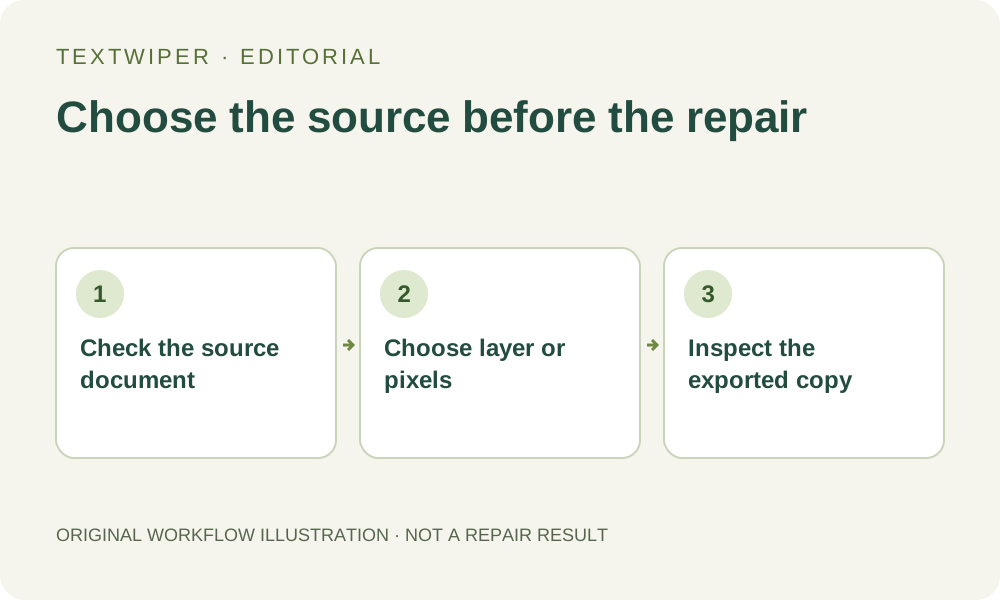
1. Find the file that created the visible wording
Keep the current image and look for the original design, presentation, photo project or other document used to add the words. Use only material you own or are authorized to change. A file that opens in a design application is not automatically an editable source: it may contain only a placed photograph with the caption already embedded.
Identify the version that produced the image you actually intend to revise. An older project might have a different crop, object arrangement or background. Removing a caption from the wrong source can create a clean but outdated picture. Compare the full composition before deciding which file should become the new master.
2. Check actual editability rather than the filename
In the source application, inspect whether the unwanted phrase is a separate text object, annotation or layer. On a duplicate, try hiding that object and inspect the area it occupied. If the background becomes visible without a fill operation, the source provides information the flattened image does not. The precise controls depend on that application; TextWiper has no layer inspector.
Text may instead have been converted into shapes, merged with other objects or flattened into the image. A separate shape group can still be removable in its own editor, but an OCR transcription is not an editable design layer. Finding the words in TextWiper provides selection help; it does not extract the original typography or reveal covered pixels.
3. Use the source route when the unwanted object is separable
This route does not require an OCR request or an image-repair attempt. If the correct background already exists in the source, avoid replacing it with an unnecessary estimate. A successful export still needs review because visibility settings and export choices can change the delivered picture.
- Make a duplicate of the correct source and identify only the object you are authorized to remove.
- Hide or remove it using that application, then check whether a shadow, outline or duplicate caption belongs to another object.
- Inspect the newly exposed background and the whole composition. Confirm that unrelated objects or necessary disclosures have not disappeared.
- Export a separate supported still image using the source application. Check the actual dimensions, framing and transparency required for delivery.
- Open the exported file and compare it with the intended source version. Keep the editable document separately for later revisions.
4. Use local pixel repair only for an appropriate flattened copy
If no usable source exists, open an authorized JPG, PNG or still WebP in TextWiper. Use Brush or Area to select the unwanted pixels, Erase to trim excess coverage and Protect for nearby visible detail. Keep the selection close to the actual lettering and its effects. Find text is optional and asks for recognition upload permission before sending a resized working image.
Try Quick repair on a suitable simple patch or consider Smart repair for texture. Both estimate a replacement within your selection; neither deletes a hidden text layer. Manual selection, these local repairs and downloads are free during beta without an account. Whole-image automatic cleanup is a separate limited sign-in trial with its own upload permission and allowance; it is not a source-document editor.
5. Review according to the operation you actually performed
For a layer edit, check that all intended wording and associated effects are gone while the underlying source objects remain correct. For a pixel repair, inspect the complete result for a fill patch, broken edge or invented texture. The editor shows the full result by default; use Show comparison only when you want to locate changes.
Download or export the reviewed candidate and reopen that exact file. Compare essential wording elsewhere, the frame and any transparent edge. Do not call a repaired background the recovered source merely because it resembles one. Conversely, do not assume a source export is correct just because no generative repair was involved.
6. Stop when the available version cannot support the task
Pause if the only source is outdated, the target object is inseparable from necessary content, or repair would require inventing an important detail. Ask for the correct project or an unmarked image when possible. A source decision can save unnecessary work, but it cannot make an unavailable background exist.
Keep the unchanged image, editable source when available and approved output under distinct names. This article is a decision guide for choosing an editing level, not a translation workflow, a new repair test or a promise that every flattened caption can be removed. The right next step may be obtaining the source instead of processing the picture again.