PRACTICAL IMAGE EDITING
Remove Answers from Your Own Practice Image While Keeping the Questions
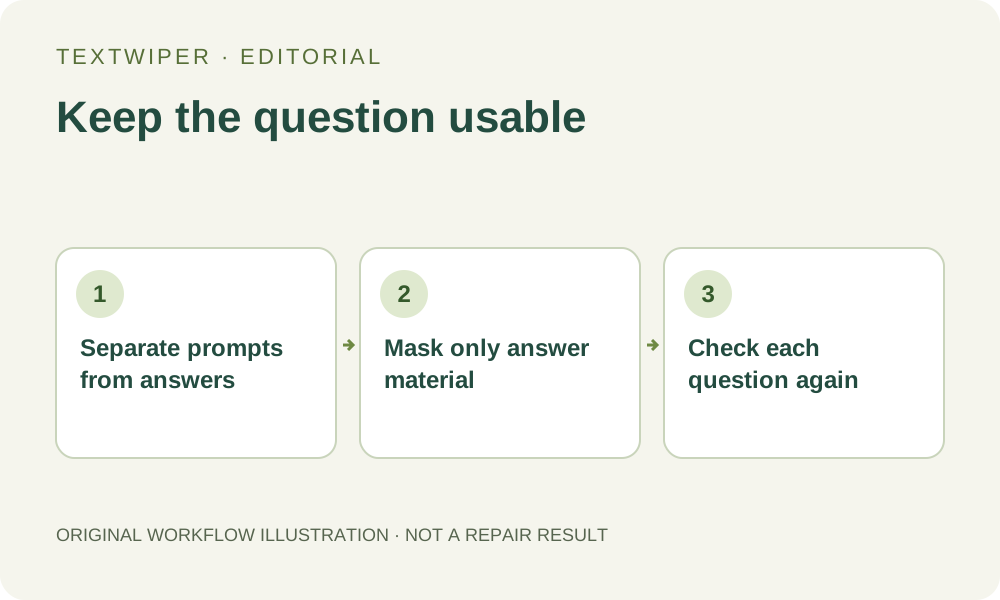
To turn your own worked exercise image into a student copy, identify the answer material first and leave each question usable. An answer can be a number, a tick, a colored explanation or a mark inside a diagram. Selecting every numeral or every colored word would also remove legitimate question content. Prefer an answer-free export from your teaching source; use local image repair only for separable answer marks in an authorized flattened copy.
Published 2026-10-22 · Updated
1. Make a question-by-question answer inventory
Keep the teacher version unchanged. On a separate list, identify the question number, the material students should receive and the answer material to omit. Include worked calculations, correct-option ticks, arrows that reveal a choice and explanations printed below a response. Do not infer that blue handwriting always means an answer: it might be part of the prompt.
If the worksheet or slide source still has separate answer objects, hide those objects on a duplicate and export the student version there. Check that question numbering and pagination still match. TextWiper edits a still image; it does not understand assessment structure, generate replacement questions or create a separate answer key.
2. Keep blanks and clues distinct from answer marks
Read one entire question before selecting anything. Underlines, empty boxes, graph axes, units beside a blank and option letters can be necessary response structure. A small tick beside an option may be disposable, while a similar tick in the question’s illustrated example may be essential. Record the distinction rather than applying one color-based rule across the sheet.
Look for indirect answers too: a completed first row, a highlighted branch, a circled word or a written total. Removing the most obvious answer does not make the exercise answer-free. Conversely, removing a hint that belongs to the intended student task changes the difficulty. Decide the teaching version before deciding the mask.
3. Select one answer without selecting the shared characters
Open a JPG, PNG or still WebP copy. Manual selection needs no text-recognition request. Optional Find text asks for recognition upload permission; it may group an answer and its prompt together, miss a tick or include a question number. Nothing starts selected. Matching a repeated number is therefore insufficient to identify an answer.
- Zoom into the first listed answer and Pan until the full question and response space are visible.
- Use Brush for a short tick, worked line or answer close to a prompt; use Area only for an isolated answer block.
- Use Erase to withdraw green coverage from the question number, option letters, units and response lines.
- Protect nearby visible question strokes and diagram details. Protection retains input pixels, so an answer over the same pixels also remains.
- Review the complete question and mask before repair; keep ambiguous crossings out of the operation.
4. Repair a small candidate and inspect the writing space
Quick repair can be a candidate for an isolated answer on a fairly even page. Compare Smart repair when the paper or illustration needs another local fill, using the same selection. Neither mode knows where a blank should end. Reject a candidate that shortens an underline, fills a checkbox or changes a diagram clue, even if the answer itself disappears.
Manual selection, Quick repair, Smart repair and downloads are free during beta without an account. Whole-image automatic cleanup is a separate limited single-image sign-in trial with its own upload permission and available allowance. It is not an answer-key detector and may affect legitimate lesson text. This student-copy workflow can use the manual route without that trial.
5. Solve the remaining task from the student view
The repaired image is shown in full by default. Read each retained prompt without consulting the removed solution, and confirm that it still specifies what the student must do. Check all question numbers, choices, units, diagram labels and spaces for working. Compare the inventory to the whole image so a second answer elsewhere is not overlooked.
Use Show comparison when locating changes, then Hide comparison to judge the student copy. Check at the size at which learners will view the image. If you adjust the mask, the previous result is invalidated and the original view returns; repair again before continuing the review. Selection changes alone are not a new completed student version.
6. Reopen the student file and keep the teacher version separate
Download PNG and open that exact file. Confirm the intended page, question order and remaining answer spaces again before placing it in a lesson or document. Keep teacher and student copies under distinct names, with the original teaching source available. The image does not become an interactive form, editable worksheet or accessible text document through pixel repair.
Stop when an answer covers a necessary diagram clue, the intended blank is unclear or removing the answer would require inventing part of the question. Return to the teaching source and render the correct student task explicitly. The useful result is a complete, unambiguous exercise, rather than a page from which the largest amount of ink has disappeared.