PRACTICAL IMAGE EDITING
Avoid Partial Keyword Matches Before Removing Image Text
A short removal keyword can occur inside a longer word. TextWiper offers Contains phrase and Whole word or phrase, but those choices control matching of recognized text, not the exact pixels surrounding individual letters. Check the matching rule and the resulting green mask separately before starting a repair.
Published 2026-10-17 · Updated
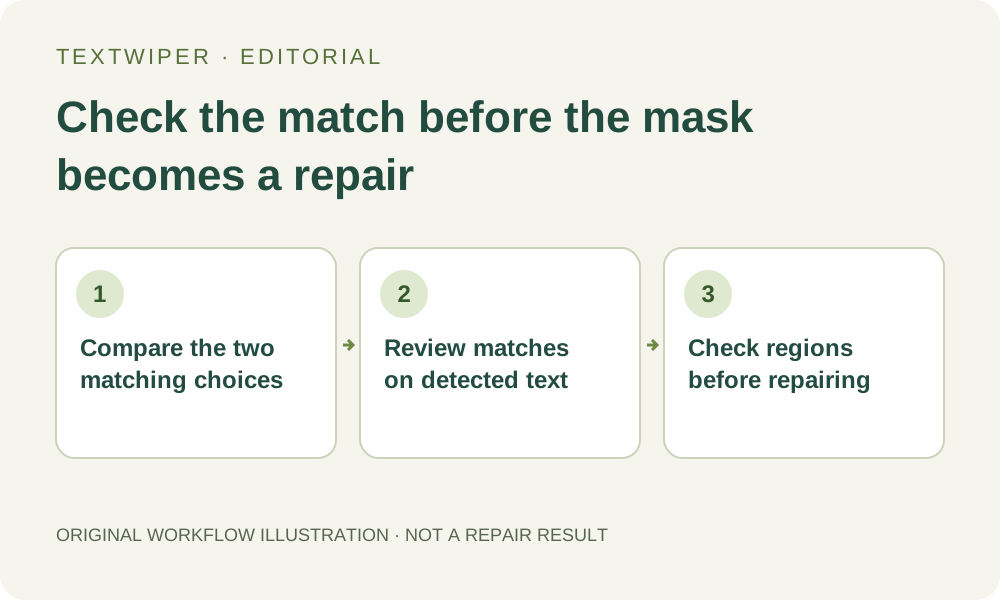
1. Name the unwanted occurrence, not just a convenient fragment
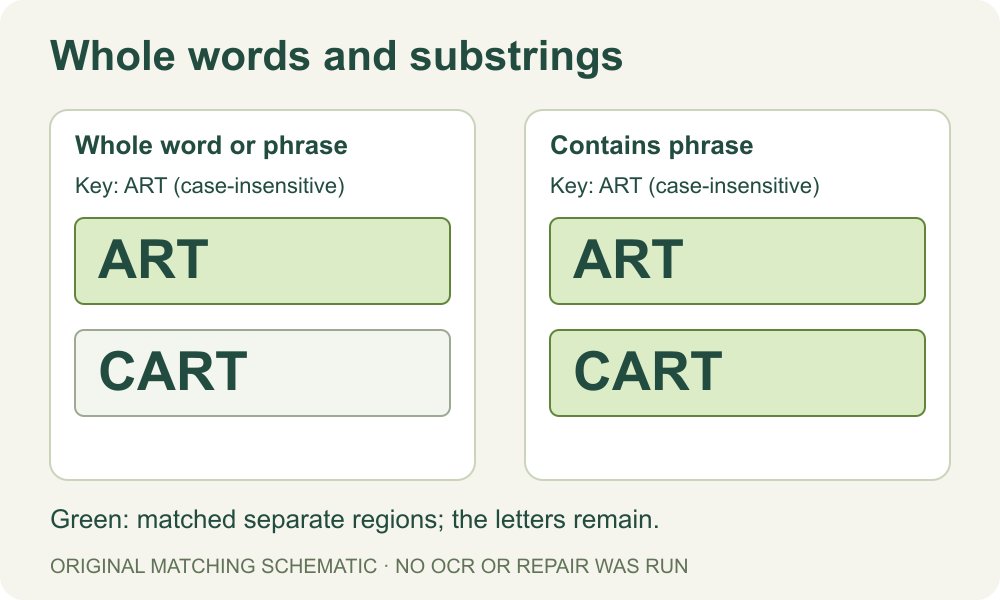
Work on an image you own or have permission to change. Identify one unwanted word and nearby words that must remain. Imagine an illustrative label containing ART beside CART. Entering art is a different instruction from selecting only the standalone label. This example explains a rule; it is not a recorded recognition result or an assurance about any particular photograph.
Use a distinctive word or phrase when it expresses the task accurately. Do not shorten a long annotation to two common letters merely to obtain more matches. Matching cannot decide which occurrence is obsolete, decorative or significant. If identical wording should stay in one place and disappear in another, you need spatial review as well.
2. Choose the actual matching option and understand its boundary
Open Use your keyword library and inspect Match style. Contains phrase allows a keyword to occur within a larger recognized string. Whole word or phrase checks word boundaries; with correctly recognized Latin text, a standalone ART can match while the embedded letters in CART do not. Whole does not mean that the entire image, line or detection must equal the entry.
Matching normalizes text and folds letter case, so this is not a case-sensitive exact search. Word boundaries also depend on the recognition text and available language segmentation. Languages without spaces and punctuation-heavy labels need direct checking. The interface does not offer a universal promise of linguistic understanding, regular-expression search or accurate character-sized removal.
3. Compare rules without unnecessarily submitting the image again
- If you choose Find text, read and approve the recognition upload permission first. Inspect the recognized wording before relying on any keyword.
- Enter the intended removal word or phrase, choose Whole word or phrase where appropriate, and use Apply to detected text on the existing detections.
- Inspect which locations turn green. Read each selected occurrence in context, rather than accepting the selected count as proof of correctness.
- If necessary, change to Contains phrase and apply it to the same detections to understand the difference. Applying a rule uses the existing recognized positions; scanning is a separate action.
- Remove unintended selections and inspect old manual brush coverage too. Changing Match style does not make earlier hand-painted areas disappear.
- Keep Scan & erase matches for a rule you understand and have checked. It scans and repairs matched areas without the same pause for reviewing that new mask.
4. Separate a text boundary from a geometric boundary
A match may overlap a real detected region that contains additional characters. The application can select that available region; it does not invent precise letter coordinates by dividing a box into equal widths. A correct match therefore does not prove that every green pixel belongs to the intended word. Inspect punctuation, adjacent words and any merged detection.
Words and Characters change how available detected positions are presented; they do not guarantee finer source information. When the region is too coarse, clear the unsuitable selection and use Brush, Erase or Protect to define a defensible boundary. This task checks matching scope first; removing one letter within an already chosen phrase is a separate spatial editing problem.
5. Review the combined mask before judging the repaired image
Apply to detected text replaces the detected removal selection with the current matches. Existing manual strokes may still contribute to the mask, while matching keep rules can protect regions. Examine the visible green and blue areas together. A correct Whole word setting cannot neutralize a broad rectangle you painted earlier over the wrong word.
Run Quick repair for a simple background or consider Smart repair for texture, then inspect the complete result. Use Show comparison only when needed. After changing a rule or mask, run repair again to evaluate that selection. Check preserved neighboring words at reading size and enlarged; they should remain readable and visually intact.
6. Accept the result only after checking the retained wording
Download the reviewed PNG or JPG and compare the intended removal locations with the original. Also read the words you wanted to retain, including longer words containing the same fragment. A lower match count is not automatically better: the right outcome is removal of the intended occurrences without damage elsewhere.
If recognition is wrong or its regions cannot isolate the target, use manual selection or return to an editable source. Do not keep rescanning solely to force a preferred match count. Manual editing is free during beta; the separate whole-image automatic cleanup trial is not a replacement for choosing an appropriate text rule.