PRACTICAL IMAGE EDITING
Remove One Word from a Detected Phrase Without Erasing the Rest
A recognition box is not always a single word. If you only want one part removed, check whether the editor has a smaller real boundary before selecting the whole phrase.
Published 2026-10-14 · Updated
Why one click may select several words
Recognition services can return a line or phrase rather than usable character positions. TextWiper offers Words and Characters views, but it does not invent precise character boxes from a phrase-only result. The interface warns when some text can only be selected as a phrase.
A keyword match inside a phrase is not proof that only those letters can be selected spatially. If the selected outline encloses text you need to keep, refine it before repair.
Move from detection to a precise manual selection
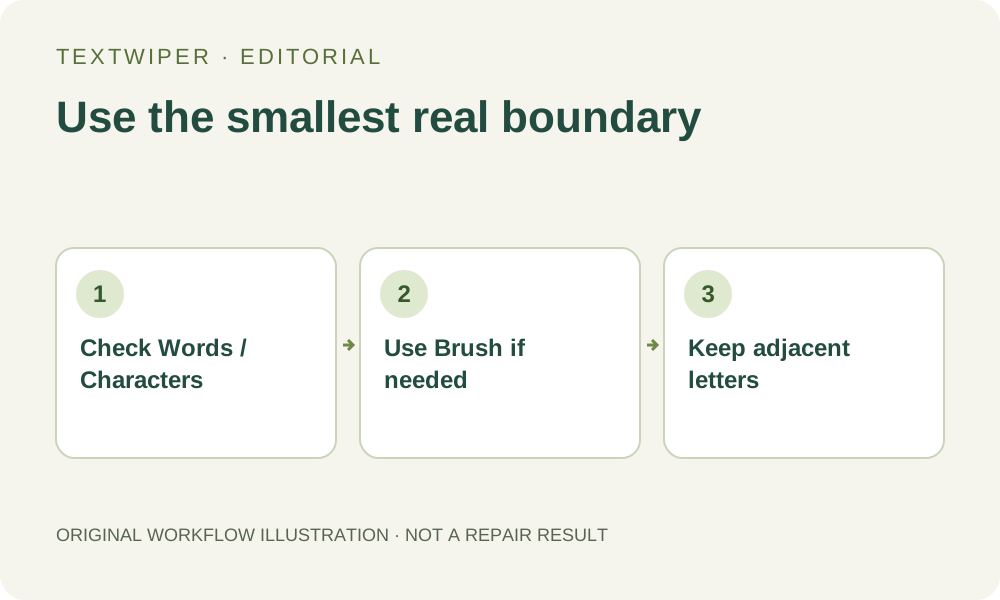
- Use Find text only if it helps; read the upload-permission prompt and choose the recognition language when necessary.
- Switch between Words and Characters. Check the green image selection and the selected count rather than relying only on the list label.
- If there is no suitable smaller box, deselect the phrase and paint over the target word with Brush. Zoom in for the boundary.
- Use Erase to narrow a stroke, or Protect on adjacent lettering. Repair and inspect the complete result.
Leave enough room for the letter effects
Cover the outline and shadow of the unwanted word without brushing through nearby letters. Tight spacing may make this difficult: even a correct word match cannot separate overlapping strokes or reconstruct a covered letter with certainty.
When the original design file exists, edit its text layer instead. If you proceed on a flattened image, inspect both the removed word and the neighboring word at original size before downloading.
This is selection, not text replacement
Removing a word does not automatically reflow the remaining sentence, move letters together, translate it or create a new editable caption. Use a layout tool afterward when the remaining spacing or wording needs redesign.