PRACTICAL IMAGE EDITING
Remove an Added Slide Note While Keeping Formulas and Small Symbols
A short review note beside an equation can be disposable, while a much smaller dot, exponent or minus sign is essential. In an authorized slide or lecture illustration, identify the intended mathematical expression before selecting the note. Preserve visible formula pixels and check the expression against the source afterward. Text recognition, a smooth image repair and mathematical correctness are separate questions; TextWiper does not typeset equations or validate their meaning.
Published 2026-10-21 · Updated
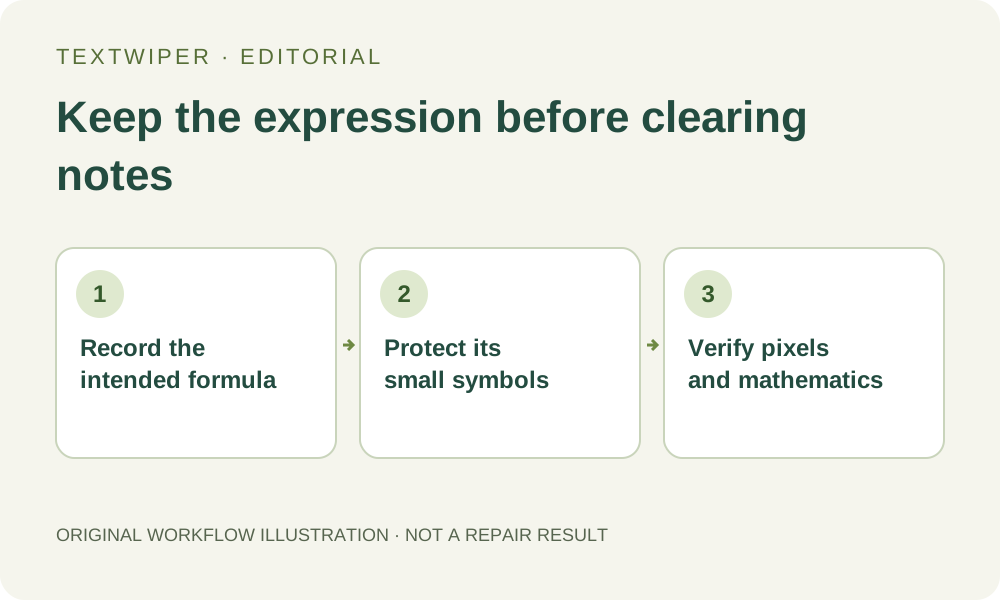
1. Find the slide source and identify the disposable note
Use your own presentation or material you may edit. Distinguish a later note such as “check spacing” from a term, condition, citation or explanatory label belonging to the lesson. If the note is still an independent object in the slide source, remove it there on a duplicate and export the intended slide version. Preserve any speaker notes separately if they are still needed.
For a flattened image, retain the unchanged version and an authoritative reference for the expression. Write down superscripts, subscripts, fraction structure, parentheses, units and stated conditions. A formula read from the same low-resolution screenshot is not an independent check. If the intended expression is uncertain, resolve that uncertainty before making a cleaner illustration.
2. Inspect the smallest meaningful marks at the note boundary
Zoom into the note and adjacent formula. Look above and below the main text line for exponents and index labels. Identify decimal points, primes, overbars, vector arrows, radical strokes, inequality signs and fraction bars that are actually present. Those marks may be smaller than the unwanted note but can change the expression completely.
Find text is optional and requests recognition upload permission. It may miss small mathematical symbols, combine a note with a formula or return an imperfect transcription. The editor’s word and character selections do not create a structured equation. A recognized phrase is therefore a location aid, not proof that an operator, number or unit is correct.
3. Select the added note without enclosing the equation
Open a JPG, PNG or still WebP image. Use Brush for a note close to small symbols and Area only for a separate note box. A wide rectangle spanning the equation’s baseline can also swallow an exponent above it. Review the full height of the selection, not merely the line on which most letters sit.
- Pan to a clear enlarged view of the note and the neighboring expression.
- Paint only the disposable note, including any effect that clearly belongs to it.
- Use Erase to withdraw green coverage from mathematical strokes, units and necessary conditions.
- Protect visible formula details beside the note, checking both above and below the baseline.
- If note and formula overlap on the same pixels, stop and return to a source where the correct formula can be rendered explicitly.
4. Use a local repair and keep equation verification separate
Quick repair can be a first candidate for an isolated note over a plain slide background. Smart repair may be useful to compare on a textured presentation image, but neither mode understands algebra or distinguishes a hyphen from a minus sign by mathematical context. Keep the same reviewed mask and reject a fill that clips a formula stroke even if the note vanishes.
Manual selection, Quick repair, Smart repair and downloads are free during beta without an account. The separate whole-image automatic cleanup option is a limited single-image sign-in trial requiring its own permission and available allowance. It may affect the entire slide and is not a protected-equation mode. The manual route above does not require using that trial.
5. Read the expression twice: as pixels and as mathematics
The editor shows the full result by default. First compare visible strokes against the unchanged input: check small symbols, spacing around operators, numerator and denominator boundaries, and the ends of radical or fraction bars. A small repair fragment may look like a dot, while an accidentally widened gap may separate what should be a single symbol.
Then compare the complete expression with your trusted source or ask the appropriate author to review it. This second check addresses meaning, not image smoothness. Use Show comparison to locate edits and Hide comparison to evaluate the complete slide. When the mask changes, repair again from the original; do not assume the previous candidate still represents the revised protected area.
6. Export a reviewed teaching image or stop at lost information
Download PNG and reopen the actual file at the display size used in the presentation or handout. Read superscripts and subscripts again after any placement or downscaling. Keep the source slide, unchanged input and reviewed image separately. A PNG preserves the image format; it does not make formulas editable, searchable, accessible or mathematically verified.
Stop if the input cannot resolve a small sign, the note conceals a term or a reviewer cannot confirm the intended expression. Re-render the equation from the correct source instead of accepting a plausible generated stroke. The useful outcome is a reliable teaching illustration, which may require source editing rather than another attempt to repair the screenshot.