PRACTICAL IMAGE EDITING
Remove Your Added Notes from a Paper Scan While Keeping Original Strokes
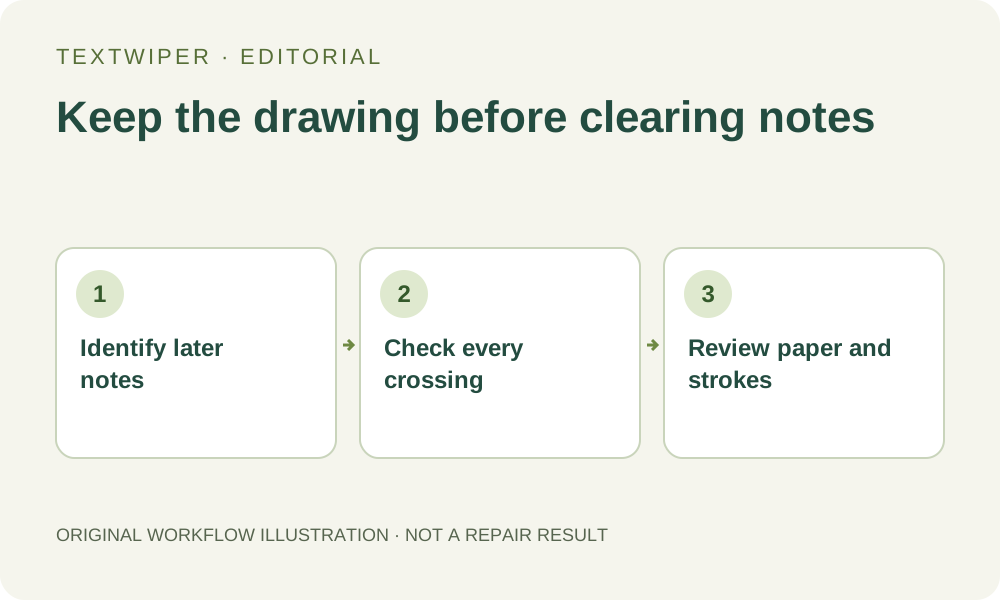
For a scan of your own sketch, draft or paper artwork, remove a later added note only after separating it from the original strokes. A light paper patch can contain pencil detail that is easy to overlook. Keep the unchanged scan, prefer the annotation source when available and review every crossing before accepting a presentation copy.
Published 2026-10-19 · Updated
1. Define the later note without rewriting the original
Start with your own work or a paper image you have permission to edit. Identify a later review label such as your own added “move title” note, rather than assuming that every faint mark is disposable. Separate the original drawing, construction lines, signatures and intentionally retained annotations. If you are unsure which stroke belongs to which stage, keep it.
Preserve the unchanged scan and any editable annotation layer. When the later note is still separate, remove it in the source application instead of repairing flattened pixels. This article concerns a presentation copy of ordinary artwork or a working draft. It does not describe altering a signed record, revising a source document’s contents or producing an authenticated clean scan.
2. Open an image copy and examine the paper first
TextWiper opens JPG, PNG or still WebP images; it is not a PDF editor or scanner. If your scan is in a multipage PDF, prepare an appropriate image copy with another application and retain the original document. Do not mistake a single edited image for an updated multipage file, searchable document or editable text layer.
Inspect the area around the note before selection. Paper can have uneven lighting, grain, a crease, a faint erasure or very light pencil lines. Follow original strokes toward the note and identify where they become obscured. A bright fill that removes paper texture or a faint drawing line is not automatically a better scan.
3. Select the added note without swallowing the drawing
Find text is optional, requires recognition upload permission and can miss handwriting or faint notes. Detection also cannot decide what belongs to the artwork. An empty result still permits manual selection; it does not justify repeated scans or selecting all returned text.
- Open the image copy in TextWiper and zoom in until pencil strokes and note edges are distinguishable. Use Pan to move around the page.
- Choose Brush for individual note strokes or Area for a small note box that lies entirely on unused paper. Cover a visible note shadow if one was added.
- Use Erase to withdraw green coverage from original lines. Add Protect to exposed drawing strokes and nearby marks that must remain.
- Inspect each crossing. Where note and drawing share pixels, protection retains both; repair cannot reveal the exact hidden pencil stroke.
- Try a small isolated part first. If you extend the selection, keep all intended note areas selected and repair the revised mask again from the original.
4. Choose a local repair without whitening the whole sheet
Quick repair can be a first candidate for a small note on relatively even blank paper. Smart repair may be worth comparing on visible paper texture. Use the same mask for comparison and inspect light pencil lines as well as the removed word. Neither option has access to the clean original paper under the note.
Manual selection, local Quick or Smart repair and downloads are free during beta without an account. Whole-image automatic cleanup is a separate limited sign-in trial requiring its own upload permission and remaining allowance. It can affect unprotected content throughout the page; it is not an automatic paper-whitening, document-restoration or original-stroke verification feature.
5. Review tone, texture and line continuity separately
The full repaired result is shown by default. Check the paper patch for a rectangular bright area, a gray smear, repeated grain or a crease ending suddenly. Then follow each nearby original line through its visible course. Look for a shortened pencil end, merged shading, a thickened contour or a line that appears newly invented.
Use Show comparison to locate edits and Hide comparison to judge the full sheet. Review the faintest details close up and at the intended presentation size. Do not increase contrast by imagining that a barely visible source line should be dark; this workflow removes notes and does not certify a restoration of the artist’s original intent.
6. Keep an honest presentation copy or stop
Stop where removing a note requires inventing an important drawing contour, signature or uncertain mark. Keep the annotation visible, return to the layered version or rescan an unmarked original if one exists. An unchanged scan plus a separate explanatory note may serve the audience better than a polished but ambiguous reconstruction.
Download and reopen a reviewed PNG, then keep it separately from the source and identify it as an edited presentation copy where relevant. Verify that the intended page, orientation and dimensions are correct. This guide supplies no new scanned-paper result, handwriting-recognition accuracy claim or claim that the saved image preserves the document’s original evidentiary meaning.