PRACTICAL IMAGE EDITING
Select Text Manually Without Sending an OCR Image
You can select unwanted lettering with Brush or Area and run a manual repair without using Find text. That path keeps the working image, mask and manual result in browser memory. It does not mean the entire website runs offline or makes no network requests. Decide which action you intend to use before opening an ordinary image you own, and read the separate choices for recognition and automatic cleanup.
Published 2026-10-18 · Updated
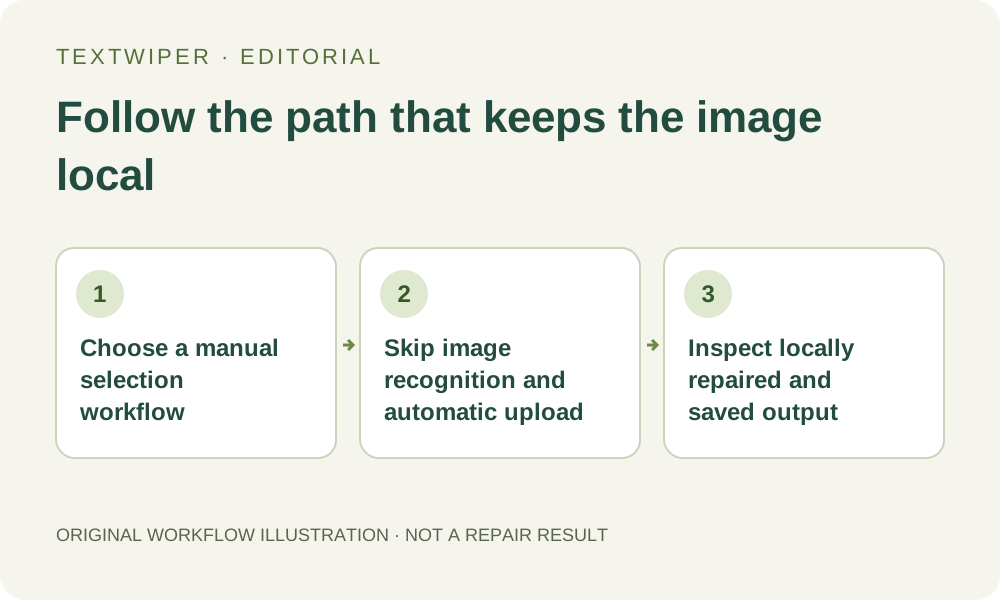
1. Distinguish opening a picture from sending it for recognition
Choosing a local JPG, PNG or still WebP loads it into the editor. It does not automatically scan, repair or download the image. You can zoom, pan and paint a removal area without requesting text recognition. The file picker may be labeled as an upload action in the interface, but selecting a file alone is not an OCR submission.
This is a workflow distinction, not a blanket privacy guarantee for every browser action. The page still needs application files and may check service availability. Use a non-sensitive practice image if you are learning. TextWiper is not designed as a confidential-data redaction system, and this article does not certify it for regulated material.
2. Complete the manual path without a text list
Use Brush to trace unwanted letters, or Area for a suitable rectangle. Erase withdraws accidental removal coverage; Protect marks visible details to retain. A green selection is sufficient to request manual Quick or Smart repair. An empty recognition list is expected when you have not scanned, not evidence that the brush cannot work.
The first Smart repair may need substantial application or model files to download to your browser. Processing then runs on your device, and performance depends on that device. “Local repair” describes where image processing occurs; it does not promise that an uncached website will load or finish every task without an internet connection.
3. Follow the manual sequence deliberately
- Keep an untouched source and open a permitted, non-sensitive image in the text editor. Check its dimensions before selecting.
- Skip Find text and keyword scan actions. Use Pan to position the image, then Brush or Area to mark only the unwanted overlay.
- Inspect the green mask. Use Erase and blue Protect coverage to refine boundaries without assuming any detected words exist.
- Choose Quick or Smart repair and run it. This manual operation uses the browser engine, not the separate whole-image automatic trial.
- Inspect the complete result, use comparison only as needed and download PNG. Reopen the file before publishing.
- Keep your source and saved export on your device. Closing or reloading the page is not a way to preserve a reopenable image project.
4. Know what changes if you choose Find text
Find text asks permission before sending a resized working image to TextWiper and its text recognition service providers. The permission covers images you explicitly scan on that page, including batches, and resets when the page closes or reloads. It is not a promise of a new dialog before each image in the same page session.
Recognition returns positions and text that you can inspect and select; repair remains a separate action. TextWiper states that it does not save recognition images or recognized text, while providers handle their processing under their own policies. Recognition has temporary availability and usage limits. You can decline the upload choice and continue with manual selection.
5. Treat whole-image automatic cleanup as a different upload
The watermark editor also offers a limited automatic cleanup trial that requires sign-in and separate upload permission. It sends the whole working image for image processing. The manual green mask does not restrict that request to your selected lettering. Blue protection restores covered original pixels in the browser after the result arrives; it does not keep those pixels out of the uploaded working image.
TextWiper does not save that input image and keeps the result privately for up to one hour under the published policy; service providers have their own policies. This limited trial is optional and subject to allowance and availability. Skipping recognition does not make an automatic cleanup request local, and signing in alone does not authorize an image submission.
6. Keep account storage and ordinary site requests in view
Optional accounts synchronize settings and user-written keyword templates, not a cloud image album. The site may also receive ordinary page and service requests with network information such as an IP address. Country suggestion uses the server’s local lookup. Optional analytics loads after explicit consent on the configured site; its stated event fields exclude images, recognized text and filenames.
Read the current privacy page for the full storage and consent boundaries, including the limited automatic result. A downloaded file remains on your device even after the workspace is cleared. For a manual task, the useful operational choice is simple: mark the area yourself and avoid the two explicit image-sending workflows, without claiming that all network activity has disappeared.