PRACTICAL IMAGE EDITING
Recover a Password Account Without Losing the Setup Behind Your Image Edits
If you forgot the password of a TextWiper password account, the supported recovery path uses its saved recovery code. Recovery sets the new password you enter and issues a replacement recovery code, ends previous account sessions and keeps the account’s saved editing setup. It does not restore a closed image workspace. A Google-only account has no TextWiper password or recovery code; use its Google sign-in instead.
Published 2026-11-02 · Updated
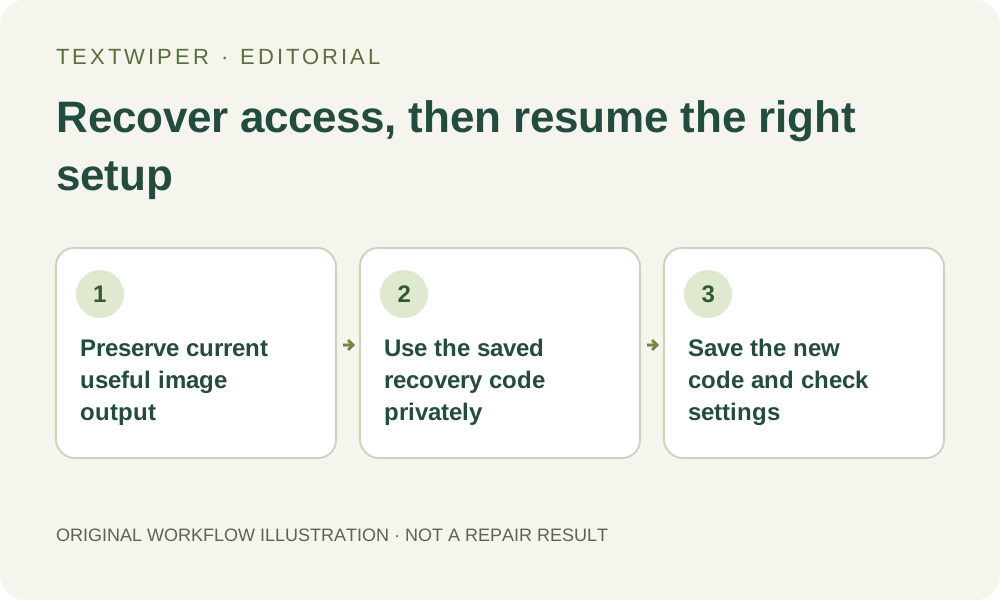
1. Decide whether recovery is the action you need
An expired sign-in message is not the same as forgetting a password. If you still know the account’s password, sign back into the same account through its normal method. If you are already signed in and only want a new password, Change password asks for the current password. Recovery is the separate path for a password account whose saved code you possess.
Check how the account was created. A Google-only account says it has no TextWiper password or recovery code; its provider sign-in is the appropriate route. A password account that later connected Google may use that connected identity to sign in. Do not create another account merely to replace an inaccessible list of useful templates.
2. Preserve image work before changing account access
Keep any useful current page open and download a reviewed image result before navigating away. Recovery concerns the stored account, not the canvas state. A source picture, recognition list, manual strokes and completed result are not cloud image projects that the account will send back after a reset.
Keep the original image separately and note any reusable rule you need through a suitable private record. Do not copy the current image’s whole recognized transcript into a template as a supposed backup. Templates store deliberate user-entered phrases; they are not a private archive for extracted image content.
3. Enter the saved code only in the legitimate recovery form
Open Sign in, choose Recover, and use the existing account’s email identifier, saved recovery code and a new TextWiper password. The form requires at least eight characters and permits a longer password up to its stated limit. Use a distinct private password rather than treating eight as the maximum length.
TextWiper does not send a verification or password-reset email for its password accounts. If a code is missing and the password is forgotten, this version has no email or manual recovery route to promise. Do not share the saved code in a support post or try someone else’s identifier. Anyone holding that code can use it to recover its account.
4. Read the result before attempting another reset
Submit the intended reset once and wait for the response. A successful reset signs this page into the account and presents a replacement recovery code. It revokes the previous code and previous sessions, so an older device may need to sign in again before accessing saved preferences. That session change is different from deleting the settings themselves.
If the result is uncertain, preserve the page and read its current state before submitting again. The old code may already have been exchanged; repeated requests with it are not a way to retrieve a replacement code. An explicit incorrect-email-or-code message also does not identify which part was wrong. Follow the displayed limit or error rather than repeatedly guessing.
5. Save the replacement code before continuing
The replacement code is shown once. Store it in a private location you control, then acknowledge that it has been saved before continuing to Account. If Copy code does not work, the interface lets you select and copy the displayed code yourself. Do not close the only visible copy while assuming that a future email will contain it.
Keep the new code distinct from any superseded code and do not place it in an image filename, keyword template, screenshot for publication or shared editing notes. A successful reset changes account access; the recovery code is not needed by a collaborator who only needs the finished PNG. Share the reviewed deliverable, not account-recovery material.
6. Check recovered preferences before the next image task
Read the returned account’s saved templates and supported preferences. Loading them may change the current repair mode, recognition language or other supported controls when the editor is safe to update. Choosing a template still fills phrases only; inspect its match style and actual image positions before any recognition or manual repair.
Open the permitted source independently if the earlier image page has gone. Do not interpret an empty canvas as lost cloud image storage, because the account never held that manual project. This is an explanation of the implemented recovery workflow, not a newly executed reset test. Free manual image editing remains available without recovering an optional account.