PRACTICAL IMAGE EDITING
Before Refreshing the Editor, Save the Result You Want to Keep
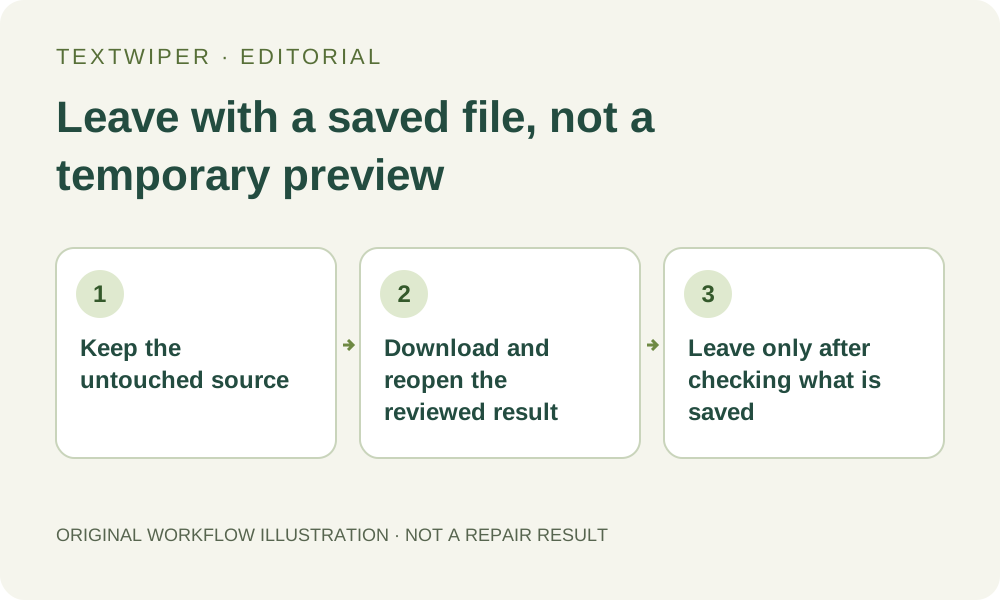
A finished preview is still temporary until you save a file. TextWiper keeps manual images, selections and results in the current page’s memory. Signing in does not turn that workspace into a cloud draft. Before refreshing the page, clearing an image or leaving the tab, decide what must be saved and verify that it exists outside the editor.
Published 2026-10-19 · Updated
1. Know what the current page is holding
The loaded image, detected text, brush strokes, protection, undo history and manual repair result belong to the active workspace. They are not a reopenable project stored with your account. The website address identifies a tool page; copying it does not package those selections or carry them into another browser.
Application files may remain in browser cache, but cached editing software and a saved editing project are different things. A page that opens quickly after refresh has not necessarily recovered your photograph or mask. Keep the untouched input file on your device so that losing a temporary workspace never also means losing the only source.
2. Decide whether you have a result or only a selection
A green mask records where you intend to remove pixels; it is not an output picture. Before leaving, check whether repair has actually finished and whether the resulting image has passed your inspection. Download controls require a real result. A screen capture of a green selection is not a substitute for exporting the edited file.
If you have only a carefully drawn selection, the current interface does not provide a downloadable project or mask file that restores it later. Either continue until you have a result worth saving, or accept that you will rebuild the selection from the source. Do not assume that account sign-in, a saved preference or an open browser history entry changes this limitation.
3. Use a deliberate exit check
- Finish or explicitly cancel the active manual operation before deciding what to keep. A processing message alone is not an export.
- Inspect the complete result, with comparison hidden when evaluating the finished image. Check the selected region and necessary retained detail.
- Download PNG or JPG using the editor’s result controls. Keep the new output separate from your original and any earlier reviewed candidate.
- Open the exact saved file in an image viewer. Verify that it contains the intended edit and has suitable dimensions; a download notification alone is not that check.
- Only after the required files exist outside the page, refresh, clear the workspace, load another picture or close the tab.
4. Understand what account settings and templates save
Optional accounts can store preferences and user-written keyword templates. Those can help repeat a recognition language or matching rule, but they do not contain the loaded photo, the locations of your brush strokes or a completed image. A keyword template can suggest a future selection after recognition; it cannot reproduce an old geometric mask by itself.
Likewise, Save review & back in batch editing saves a review into the current page’s queue. It is useful for that session, not a cloud backup. Closing or reloading the page removes the temporary queue. Download the successful results you need before leaving, and inspect the files or ZIP contents rather than relying on a row marked complete.
5. If you already refreshed, restart from a known file
Look for the untouched source and any result you actually downloaded. The editor does not offer a restore-last-project command for the lost manual workspace. Browser history and a familiar page URL do not supply its old mask. Do not claim that a downloaded image includes editable strokes, recognition boxes or undo history; it is a raster output.
For a fresh revision, reopen the source and rebuild the required selection. If the task is a deliberate second pass on an already reviewed output, open that saved image and treat it as a new input. Preserve the earlier candidate so the new result can be compared. Do not repeatedly refresh in the hope that a missing unsaved selection will eventually appear.
6. Keep temporary automatic results separate from saved manual work
The optional automatic cleanup trial has its own processing and short-lived private result handling. It is not a permanent image album or a backup of a manual mask. This exit checklist does not promise that an automatic attempt can be recovered after the page is closed. Follow its visible status and published availability rather than submitting another attempt merely to test recovery.
The reliable checkpoint is a file you downloaded, reopened and reviewed, alongside the source you retained. That file remains on your device after the workspace is cleared. This guide concerns continuity when leaving the page, not a sharing workflow or an archival guarantee. Manual selection, repair and download remain free during beta; saving a useful result should precede an avoidable refresh.