PRACTICAL IMAGE EDITING
Save Keyword Rules for Repeated Image Edits
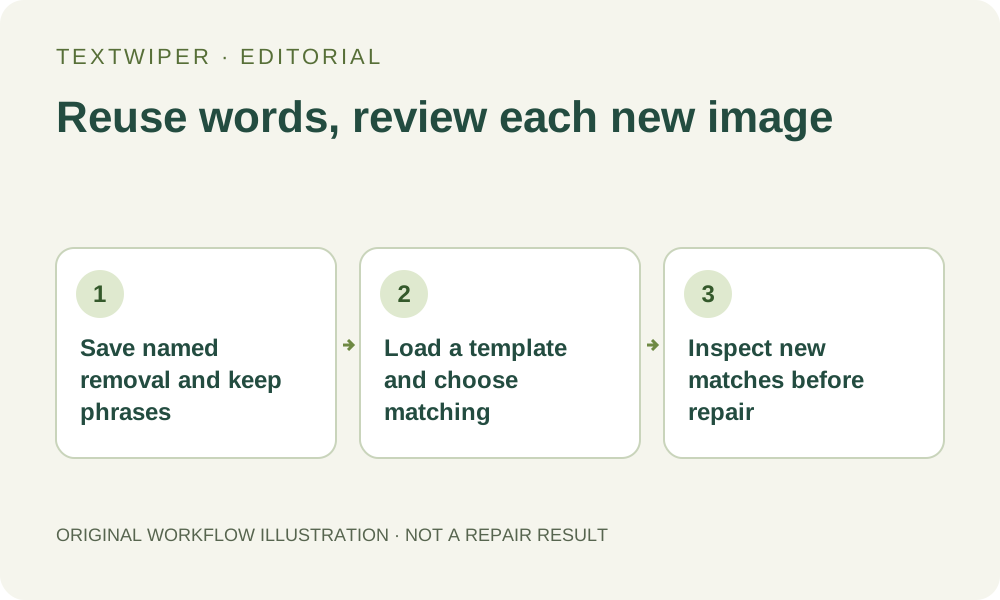
A recurring edit can start with reusable words without reusing the previous picture or its mask. TextWiper account templates store the removal and protection phrases you enter. They do not store a painted selection, a repaired image or instructions to process future uploads automatically. Set up the rule once, then confirm its meaning and matches for every new job.
Published 2026-10-17 · Updated
1. Separate the rule from the image geometry
Suppose you often remove an old WEEKEND DEAL overlay while keeping a brand word. A named phrase template can save that pair for reuse. The words describe what to look for; they do not specify where the letters will be in the next photograph. A different crop, language or layout needs fresh recognition and a new review.
Painted Brush strokes, Protect areas, text positions and finished results remain part of the editing workspace. Saving a keyword template does not upload those elements as a cloud editing project. Likewise, an account preference such as repair mode or brush size is a setting, not a saved repair and not evidence that any image has been processed.
2. Prepare a small, explicit rule
In Use your keyword library, enter the unwanted phrase under words to remove and any genuinely necessary brand or protected phrase under words to keep. Use your own terms. Separate entries with commas, semicolons or new lines. Begin with specific phrases rather than a broad fragment that could also occur in product information.
Protection takes priority when a detected area matches both lists. This helps retain intended text, but it can also preserve part of an unwanted overlay. Check the meaning of each rule before saving it. Do not put sensitive client information into a synchronized phrase list merely because it happened to appear in a recognition result.
3. Save and verify the named template
- Enter removal or protection phrases in the editor, then choose Save these rules as a template. At least one of the two phrase lists must contain a rule.
- Sign in through the optional Account dialog if needed. Manual editing does not require an account; synchronization does.
- Give the proposed template a descriptive name and review both phrase fields in the account form before saving.
- Wait for the account confirmation. If saving fails, keep the text you entered and resolve the displayed error; a filled form is not a confirmed save.
- Check that the named entry appears among your account templates. The current interface allows up to ten templates; edit or remove an older entry when appropriate.
- Close the account dialog and choose the intended template in the editor. Recheck the populated phrase fields before using it on an image.
4. Choose matching behavior for the current job
Selecting a saved template fills the removal and protection phrase fields. It does not start recognition, apply a mask or repair an image. The saved template contains its name and the two phrase lists; it does not include the Contains phrase versus Whole word or phrase choice. Set that choice deliberately in the current workspace.
Use Apply to detected text when suitable recognition results already exist. Otherwise choose Scan & match my words and read the separate recognition upload permission. Recognition can miss small, curved or decorative lettering, and its positions are suggestions. Enlarge the new green removal areas and blue protection, including any manual strokes already present, before deciding what to repair.
5. Keep reuse distinct from automatic execution
For a first image using a new rule, prefer matching and inspecting before repairing. Scan & erase matches is a separate explicit action that can continue into repair; merely saving or choosing the template does not authorize that action. An empty removal list is not a command to erase all recognized text.
For a batch, selecting reusable phrases still does not confirm every image. Review the batch workflow, the current match mode and each picture’s proposed areas. A phrase can occur in an old promotion on one picture and in legitimate packaging on another. Saving preferences does not start a queued batch or create a background schedule that watches future files.
6. Maintain rules without mistaking them for history
On another device, sign in to the same account to retrieve the saved preferences and phrase templates, then open that device’s image separately. Expect no cloud copy of the previous photo, detected wording or painted mask. If you need the finished file, download it on the device where the edit was performed and keep your original separately.
Use Edit in Account to revise an existing entry and save the update; it replaces that template rather than repairing past outputs. Remove obsolete phrases when a campaign ends. Before the next job, inspect the actual fields and matches again. A useful template saves retyping, while the decision about what may be removed stays with the person reviewing the current image.