PRACTICAL IMAGE EDITING
Sign-In Expired While Saving a Keyword Template? Resume the Same-Page Draft Carefully
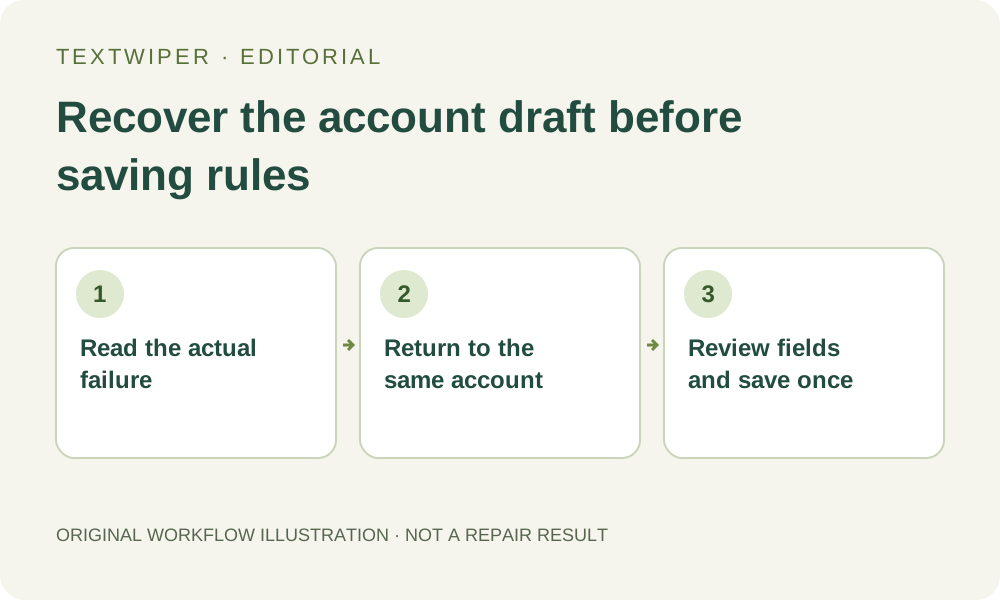
If an account save explicitly asks you to sign in again, keep the current page open. TextWiper retains the unfinished non-password account fields for a return to the same account within that page. This is a narrow recovery path, not automatic saving, cross-account transfer or a way to recover a closed editing project.
Published 2026-11-01 · Updated
1. Identify an explicit expired-sign-in state
Read the account dialog after the failed action. The specific Please sign in again message follows an expired account response; the interface returns to its sign-in form. A network error, a busy service or a missing save confirmation is a different observation. Do not infer that every failed-looking request needs another login.
If the save outcome is unknown, inspect the current saved-template list when the service becomes available before submitting the same entry again. A timeout does not prove that the server rejected the earlier save. This guide addresses the explicit sign-in-again path, not a recipe for repeatedly sending uncertain account changes.
2. Keep the working page and useful image output
Leave the current page open instead of refreshing as a first response. The expired-sign-in path retains the current image, selected areas and local keyword fields, along with the unfinished non-password account form values. A useful completed image should still be downloaded and checked before you leave the workspace.
That retained form is page memory, not a confirmed cloud save. It does not include passwords, and it cannot promise recovery after a closed tab, refresh or lost page state. Your account also does not store the picture, recognized transcript or hand-painted mask as an image project. Keep the source separately.
3. Sign back into the account that owned the draft
Use the existing sign-in method for that account in the dialog. Return to the account where the intended template belongs; do not create a replacement account merely to dismiss the message. An optional Google confirmation and the ordinary email/password form are account actions, not image-upload permission.
The page restores this account draft only when the returned account is the same owner. Signing into another account discards that pending account-form restoration rather than copying its rules across identities. Verify which account you intended before continuing. An email label alone is not a reason to create or link another identity as a recovery shortcut.
4. Inspect the returned fields and the save mode
After the account view returns, read the template name, removal phrases and words to keep, together with any preferences you were changing. Treat restored values as a draft awaiting your decision. Their presence in a form does not mean they have been saved or applied to the image.
If you were editing an existing template, inspect the button: Update keyword template replaces an entry, while Save keyword template creates one. If that original saved entry no longer matches what the page can find, the draft can return as a new-entry form. Review the existing list before saving, especially if the entry was changed on another device.
5. Save the intended rule and verify its confirmation
Choose a clear name and inspect both phrase lists before the deliberate save. If the form is in new-entry mode and you meant to revise an existing entry, preserve your intended phrases privately before choosing that saved entry’s Edit button: it replaces the visible fields. Reconcile the intended text before saving rather than creating a duplicate because the restored fields look familiar.
Save the intended change once and wait for the account confirmation and updated list. The current account supports up to ten templates, and updating an entry is different from adding an eleventh. If the result is uncertain again, preserve the entered phrases privately and inspect state before trying another save; do not assume that repeated clicks are a recovery procedure.
6. Recheck the actual image workflow independently
Return to the editor and read its current settings and keyword fields. Saving a template does not scan, select or repair the loaded image. Choosing a template fills its phrase fields; match style and actual detected positions still require review before Apply to detected text, or before an intentional recognition action with its separate permission.
Continue manual editing only after you understand the current selection, useful blue protection and full result. Download and reopen any accepted output. This tutorial is based on the implemented expired-session workflow, not a new login or synchronization test, and it does not promise an image archive or recovery of a draft that has already left page memory.