PRACTICAL IMAGE EDITING
Sync Editing Preferences Across Devices Without Transferring an Image Project
To use the same setup on another device, explicitly save your supported preferences in Account, then sign in to that account on the other device. Bring the source image separately and review the applied settings before editing. TextWiper synchronizes settings and user-entered keyword templates; it does not transfer the current picture, recognition list, removal mask or manual result as a cross-device project.
Published 2026-10-27 · Updated
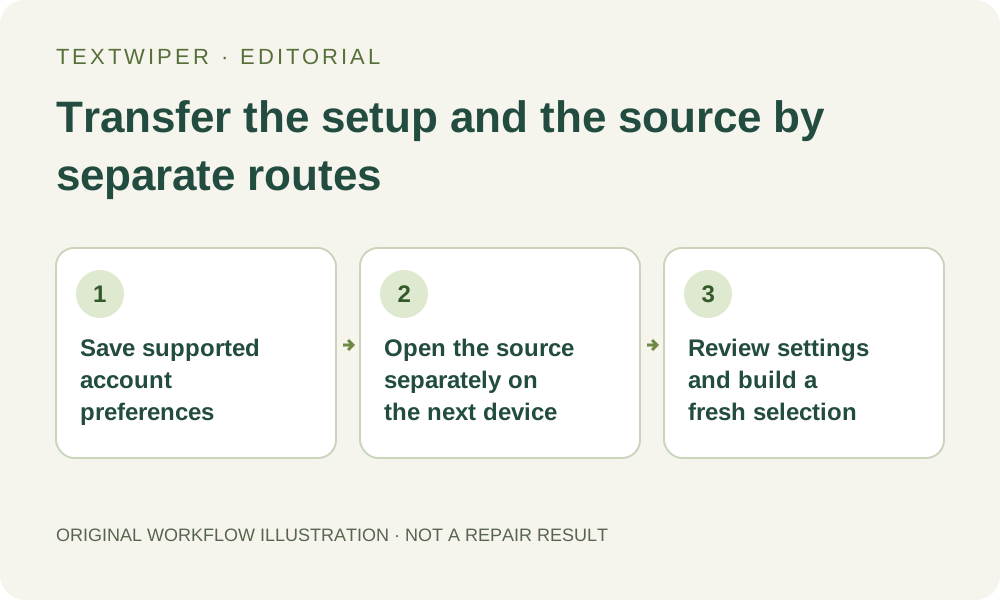
1. Separate a reusable setup from an unfinished image
A repair mode or preferred brush size can be reused without describing a particular photograph. A selected word, painted boundary and finished candidate belong to that photograph in the current page. Before moving devices, decide whether you need only the setup, the original for another edit, or a reviewed finished output. Those are different items to preserve.
Download a useful candidate and keep the original separately before leaving the first device. Signing in is not a project-save command. Your account does not receive the loaded image or recognized transcript, and an open page on one device is not a remote workspace that another device can pick up by entering the same email.
2. Save the supported fields explicitly in Account
Open Account after signing in and review the preferences form. The supported fields are Repair mode, Text language for recognition, Selection style, Brush size, Repair radius and Batch ZIP format. Choose suitable values and use Save preferences. Moving a brush slider while editing is not by itself a confirmed account-preference save.
Wait for the account save confirmation rather than assuming a filled form has synchronized. If saving fails, keep the intended values and resolve the displayed error. Keyword templates have their own named entries and save controls in the same account. They store user-entered removal and keep phrases, not automatically captured recognized text or a positional mask.
3. Read what these preferences do and do not contain
Text language controls recognition, not translation of the image or the interface language. Repair radius affects Quick repair and does not become a Smart repair strength setting. Batch ZIP format supplies the batch export choice; it does not decide whether you may use the individual PNG and JPG buttons after a single-image result.
The synchronized preference fields do not include the current zoom, pan position, selected occurrences, drawn strokes, source filename, interface-language choice or current Contains versus Whole word match style. A template also does not save that match-style decision. On the next device, review the controls relevant to the current picture rather than assuming every visible state came with the account.
4. Sign in on the next device, then verify the received setup
Open the secure TextWiper website on the second device and sign in through the account method you already use. Successful account loading applies the saved preferences when the editor is safe to update; an operation already running is allowed to finish before a pending settings application. Read the actual controls after the busy state ends, rather than treating a changed setting as a newly generated result.
If the account service is unavailable, manual editing remains usable, but do not assume saved preferences were fetched. The current interface is not a live multi-device settings broadcaster: another already open page is not promised immediate updates whenever you save elsewhere. Preserve any local work before using an account or page recovery action to load the current saved setup.
5. Open the permitted source independently and make a new plan
Use your normal authorized file-transfer method to make the source available on the second device, then upload that local file into the editor. Verify the displayed picture and pixel dimensions. TextWiper account sync is not that transfer method. If you instead open a prior repaired output, you are starting from those output pixels, which is a different task from revising the original mask.
Build the selection for this image again. Optional Find text needs the recognition upload choice in the current page; earlier permission on another device does not populate its detections. Selecting a saved template fills its phrase fields but does not scan, apply a mask or repair. Review the current match style, real positions, green removal and blue protection before proceeding.
6. Verify the new device’s actual output independently
Run the appropriate manual repair and inspect the complete result. Matching settings do not establish identical performance, resource readiness or acceptable texture on another device. Use optional comparison, then download and reopen the accepted file on the device that actually produced it. Keep that result distinct from the original and any candidate downloaded elsewhere.
Manual editing remains free during beta without an account; the account is useful for a reusable setup, not required for producing a file. This guide is based on the current saved-field and application workflow, not a new multi-device synchronization test. It does not promise a cloud image archive, a persistent editable mask or automatic continuation of unfinished work.