PRACTICAL IMAGE EDITING
Recognize Different Languages Across an Image Batch
When authorized images in one collection contain different languages, decide the recognition approach before starting a queue-wide scan. TextWiper uses the batch language for the cards that a batch run targets. It does not automatically maintain a different planned recognition language for each pending picture. You can scan and finish individual images with their appropriate available settings, or separate the collection into suitable groups. Neither approach translates the pictures or guarantees recognition quality.
Published 2026-10-27 · Updated
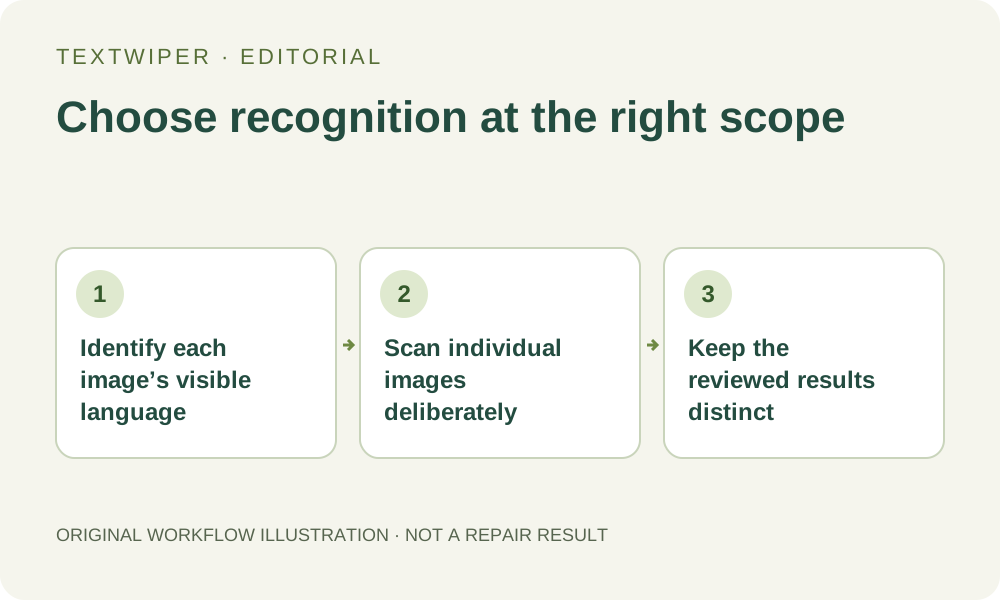
1. Separate the interface from the writing in each picture
List the language of the visible target and the words that must remain for each image. An English promotion and a Japanese product note can need different recognition choices even when you use the same interface for both. The language of the buttons is independent of the language requested for recognition; changing the interface does not scan, translate or select either picture.
Use the options actually enabled by the current recognition service. The interface language list is not a promise that every matching recognition option is available or equally accurate. If an appropriate option is disabled or the returned writing cannot be checked reliably, use manual selection or ask someone who can read it to review the image.
2. Choose a shared scan only when the collection warrants it
For a sufficiently uniform group, choose its recognition language or Detect automatically in the batch controls, then explicitly choose Find text in queue. A run processes one image at a time using that batch setting. Automatic detection can be useful, but it is not a verified per-card language assignment and can miss mixed writing or small marks.
Find text in queue targets cards not already marked as detected. Changing the batch language afterward does not automatically replace detections already stored in other cards. Read the actual text and status on each item instead of assuming that every card was rescanned under the language currently visible above the queue.
3. Use the individual editor for a different language
With the queue idle, open Review image for the particular card, or Inspect result if it already has an output. In its editor choose an available Text language suited to that picture, then deliberately choose Find text if recognition is useful. The first recognition on the page asks permission to send a resized working image to TextWiper and its recognition service providers. Loading the card alone does not make that request.
Wait for the visible outcome rather than repeatedly clicking because a scan is slow. Recognition has bounded waiting and current usage protection; a pending scan is not evidence that another submission is needed. If the request fails, read the message and decide whether a later deliberate retry is appropriate. Brush and Area remain options that do not require recognition.
4. Complete the card before moving to another language
Check the returned wording against the actual image, select only the intended regions and keep required writing protected. Recognition starts without detected words selected. An available word or character view is only as precise as the real returned positions, so inspect any region spanning target and retained writing before repair.
For the clearest per-image workflow, run the chosen manual repair inside that editor, inspect the full result and use Save review & back. Confirm that the card now offers its result downloads. Repeat on the next image with its own recognition choice. Merely choosing a language and saving an unscanned draft does not perform that language’s recognition.
5. Understand which later actions ask for recognition again
A completed result is not regenerated when the batch language changes. A saved detection also remains a saved detection until you explicitly replace it. To rescan a particular image, open that image and run Find text deliberately, then review its new regions. Existing detected-text selections are cleared by successful recognition, while ordinary drawn work can remain and needs another check.
Scan & erase matches is a different action: it recognizes and repairs eligible unfinished cards using the current batch language and rules. Do not use it as a harmless way to finish a collection whose per-image recognition choices you meant to keep. If you need one uniform operation, group the sources accordingly instead of expecting a per-card language plan to override a queue-wide run.
6. Review language-specific details in the delivered files
Download the actual accepted results and reopen them. For each image check accents, punctuation, joined strokes, digits and retained names as complete readable units. A tidy-looking repaired patch does not establish that the rest of a language you cannot read is correct. Keep a record of any unverified wording rather than presenting it as approved.
This workflow is recognition and image editing, not translation or text replacement. Manual selection, Quick repair, Smart repair and downloads are free during beta; recognition has current availability and usage limits. The separate limited whole-image cleanup trial is not a multilingual batch mode, and no collection of language settings guarantees an acceptable repair.