PRACTICAL IMAGE EDITING
Add Images to an Existing Batch Without Redoing Finished Results
You can add more authorized images to an existing TextWiper batch while it has room and no operation is running. The important decision is what each card already contains. A newly added picture has no inherited selection, a reviewed draft may still need repair, and a finished card keeps its current result. Adding another file or changing a batch control does not automatically regenerate that result. Read the collection as individual states before choosing the next action.
Published 2026-10-25 · Updated
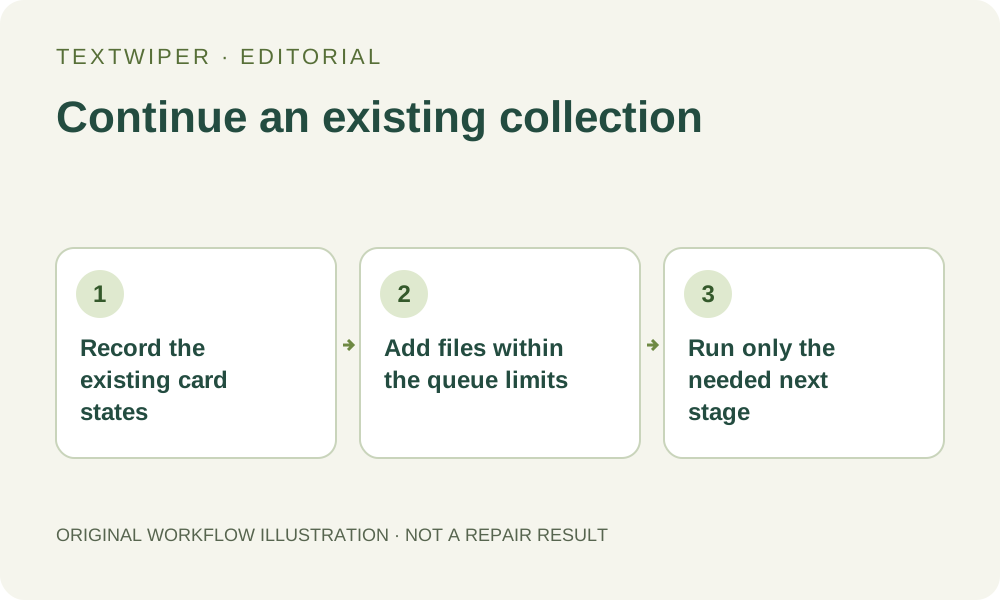
1. Keep the existing work before expanding the collection
Leave the current page open and wait until processing and image loading have finished. Download any completed candidate you need to preserve before reorganizing the queue. An in-page result is useful working state, but it is not a separate saved file. A download also does not remove the corresponding card or free its stored result automatically.
Take note of which cards have a result, which have reviewed selections, and which have not been scanned. This is particularly useful when the first group already contains several kinds of progress. Do not use Clear queue as an add-files action: clearing discards that collection rather than opening another slot while retaining everything.
2. Add the next files within the current collection limits
Use Choose images in the batch workspace to add supported static JPG, PNG or WebP files you own or may edit. Adding is available while the queue is idle and has fewer than ten items. Existing cards count toward the ten-image, forty-megapixel and source-storage limits; the remaining capacity is not a fresh allowance for the new group.
Read any rejection beside the queue after adding. A partially accepted file selection does not mean every chosen file is present. Compare the visible names and total with your intended list before continuing. Adding files does not run recognition, apply a removal rule or create an output, and a new thumbnail is a preview of its source.
3. Do not treat the new cards as copies of the old ones
Each accepted file starts with its own source and an unprocessed state. The first image’s brush strokes, text positions, protection and repair are not copied onto it. Even two pictures with matching dimensions can place the unwanted label differently. Reusing a keyword rule is not reusing verified coordinates.
For recognition-based work, check the batch recognition language and choose Find text in queue deliberately. That action targets cards not already marked as detected; it does not refresh every existing detection because a new file arrived. Recognition asks the page’s upload permission and uses current service availability. You can instead review a new image and select it manually without scanning.
4. Distinguish a reviewed draft from an existing result
Repair reviewed images acts on eligible reviewed selections that do not already have a result. A source-only card is not eligible merely because an older neighbor was approved. Open the new image, inspect or draw its intended mask, and save the review back to the queue before expecting a reviewed repair to include it.
Use selections & repair is a separate explicit approval of eligible current selections. Scan & erase matches is another route that intentionally recognizes and repairs keyword matches; it is not a neutral refresh button. Choose the action that matches the unfinished work rather than running a broad command to make all cards look alike.
5. Change a finished item only through a deliberate revision
An existing result is not silently recalculated when you change the repair mode, recognition language or export format in the batch controls. Inspect that card’s actual result before deciding it needs another version. Changing the ZIP format chooses an export representation; it does not provide a newly repaired background.
If a completed candidate needs a different selection, save the useful version first, open Inspect result, revise the selection in its editor and save the review back. A mask change invalidates the old candidate and requires another repair. Do not confuse a new control setting with proof that the card now contains a candidate produced under that setting.
6. Reconcile the expanded collection with the downloaded files
Inspect each result in full, then download individual images or a ZIP of existing successful results. Compare the actual archive contents with your source list. Newly queued files, drafts without a result and skipped no-match items do not acquire an output just because other cards are ready. Keep an explicit note for anything intentionally left unchanged.
The expanded queue still lives in the current page memory. Account settings and keyword templates do not save its files or masks, and closing or refreshing is not a later-resume mechanism. Manual selection, Quick repair, Smart repair and downloads are free during beta. Whole-image automatic cleanup is a separate limited single-image sign-in trial; it is not the batch operation described here.