PRACTICAL IMAGE EDITING
Match Batch Downloads to Their Sources When Image Names Are the Same
Two pictures from different folders can both be called photo.jpg. TextWiper can show the same name on separate batch cards, so the name alone is not enough to identify the output. Review the visible source and record the corresponding download before replacing files. The batch export adds a numeric prefix, but it is not a permanent source catalog.
Published 2026-10-20 · Updated
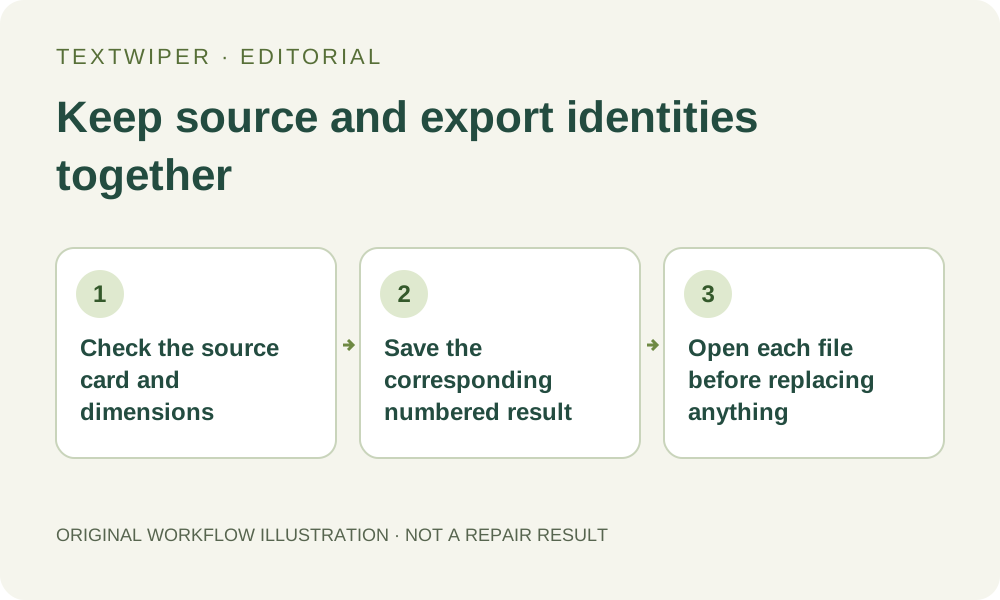
1. Establish identity before adding ambiguous inputs
Keep every original in its source folder and decide how you will tell similar files apart. If convenient, give working copies distinctive names in your device’s file manager before selecting them. TextWiper does not provide an in-queue source-renaming field, and editing the image does not rename the original on your device.
For an illustrative task, two authorized catalog views from different folders are both named photo.jpg. One shows a handle on the left and the other on the right. Those visible features and the dimensions are useful checks, while the shared filename is not. This example explains identification; it is not a newly processed batch or a claim about your files.
2. Inspect the right batch card before approving a repair
Each card shows a thumbnail, the source name and pixel dimensions. Use Review image, or Inspect result once a result exists, to open the corresponding item in the editor. Check its actual picture and intended removal before saving the review back. A row position or a selected-word count cannot establish which source you are inspecting.
If two sources have the same name and dimensions, compare distinctive content. If they are still hard to distinguish, process and save one at a time, or return to separately named working copies. Do not make a batch approval merely to discover later which images were included. Recognition and repair are separate stages, and each output still needs a visual check.
3. Use the exported filename as one part of the mapping
- Inspect a completed item and compare its distinctive features with the retained original. Check the intended change before downloading.
- Download that item’s PNG or JPG using its own card controls. Note the actual saved filename alongside your source reference.
- Expect a page-assigned numeric prefix, a cleaned version of the source base name and -cleartext before the output extension. If two admissions are numbered 1 and 2, photo.jpg can yield 1-photo-cleartext.png and 2-photo-cleartext.png.
- Treat those names as illustrative examples of the rule. The prefix is not necessarily the current row number, a product identifier or a stable number in another page session.
- Open the saved file and compare its content and dimensions with the intended source before marking that pair as checked.
4. Allow for filenames that change during export
The batch name removes the source extension, replaces characters outside its allowed simple filename set with underscores, and limits the retained base name to 90 characters. Long names or names containing other scripts can therefore lose useful distinctions. The numeric prefix helps separate entries in the current page; it does not recover information removed from the name.
Keep your own short mapping if the source names matter to another system. For example, record a local source-folder reference, visible view, dimensions and checked output name. That is a note you make, not an export manifest generated by TextWiper. Do not assume the application embeds the original path or a permanent cross-batch relationship in the saved picture.
5. Audit ZIP contents against successful results
Download results as ZIP includes only items that currently have a result. Skipped, failed or unfinished pictures do not gain a fake output to keep the archive count equal to the input count. Choose the ZIP image format deliberately, then inspect the extracted files rather than treating the archive name as a complete list.
The archive name includes the number of successful results, such as cleartext-results-2.zip for an illustrative pair. Within it, the same numbered image naming rule is used. Match each extracted image to its source note and open it. A file can have a distinct name yet still contain the wrong view for the product slot you intend to replace.
6. Replace destination images only after the mapping passes
Check source identity, intended removal, retained content and destination dimensions together. If any pair is uncertain, leave the destination unchanged and resolve the mapping first. There is no benefit in uploading a visually good edit to the wrong product or page. Keep originals and earlier accepted candidates until the replacements have been checked in their actual destination.
The batch queue is temporary page memory, not a cloud history of these relationships. Save the outputs and your own mapping before closing or clearing it. This workflow adds identity checks to ordinary batch review; it does not add automatic file organization, source renaming or permanent asset management. Manual batch editing and downloads remain free during beta.