PRACTICAL IMAGE EDITING
Move a Single Image Edit into a Batch Without Mistaking Import for Approval
If you started with one image and later need to work through a set, the editor’s Batch button can bring that current image into the batch queue. You do not have to download the source and reconstruct every current selection first. Check the import message, however: a draft is not a finished repair, and an imported result still needs inspection. This transfer remains inside the current page; it is not a saved cloud project or a copy of the entire undo history.
Published 2026-10-24 · Updated
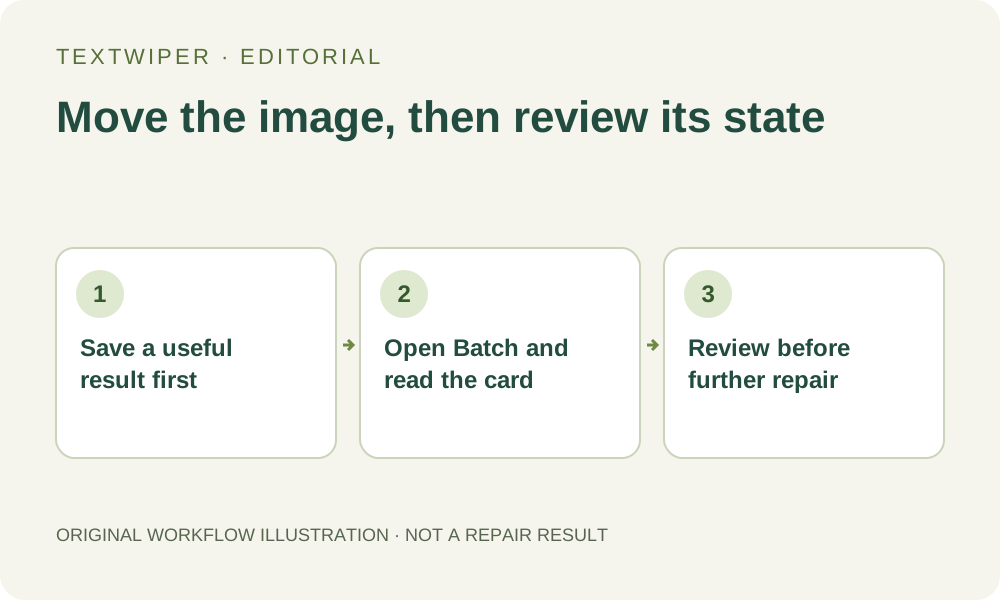
1. Decide what you need to preserve before switching
Keep the untouched input file. If the single-image editor already has a candidate you want to retain, download it and reopen the saved file before reorganizing the work. A batch import keeps an available result in page memory, but it is not an independent download. The separate saved copy is useful if you later clear a card or change its selection.
Wait until image loading and any active operation have finished. The Batch control does not transfer an operation in progress. Note whether the current workspace contains only a picture, a drawn or detected selection, or an actual finished result. These states have different next steps; moving them together does not make their completion status identical.
2. Use the editor’s Batch control rather than opening another tab
Choose Batch in the single-image editor. When the queue has room, the current file, detected positions, selected regions, strokes and relevant settings are captured as an in-page draft. If a current manual result exists, it is retained with that item. The editor then clears its single-image workspace and shows the collection. This is a move into the queue, not two independently editable versions.
An existing queue also counts toward the limits: at most ten images, forty megapixels overall and separate source and result storage limits. If the import reports that the queue or result storage is full, keep the current image and save useful outputs before deciding what to remove. Do not clear unrelated completed cards merely to make the message disappear.
3. Read the imported card before choosing a batch action
An imported result displays “Imported result. Inspect before downloading.” A draft without a result displays “Imported from your editor. Review before batch repair.” The thumbnail is a source preview; its appearance alone does not prove that a repair has been retained or lost. Use the status and the card’s available actions.
- For a card with a result, choose Inspect result and review the complete candidate.
- For a draft, choose Review image and inspect its current removal and protection areas.
- Make any deliberate changes, then use Save review & back to return the reviewed state to the queue.
- Only request another repair when that card actually needs one; adding more files does not approve their selections.
4. Keep restored state separate from editing history
Opening the imported item restores its saved selection state and available result. It does not recreate the sequence of every earlier Undo and Redo step. Treat the restored mask as the current starting point. If you need to recover a particular earlier state, use a separately saved source or candidate rather than assuming the batch card is a full project archive.
Changing the mask invalidates the old candidate. Repair again from that item’s loaded original, inspect the new full result and save the review back. Merely returning to the queue after changing a stroke does not make an earlier result match the new selection. Save a candidate you need before making a revision.
5. Add the remaining files without treating them as copies of the first
Use Choose images in the batch workspace to add the other authorized files within its limits. Each has its own source, mask, review and result. A good selection on the imported picture is not automatically placed on the others. Optional Find text in queue requests recognition permission for work that needs scanning; importing already available detections is not itself a fresh scan.
Repair reviewed images acts on eligible reviewed selections without results. Use selections & repair explicitly approves current eligible selections. Scan & erase matches is a different route that scans and repairs keyword matches. Choose deliberately: a prepared first item is not a reason to run an immediate keyword workflow across unfamiliar layouts.
6. Save the accepted collection outside the page
Inspect each completed item, download its PNG or JPG, or download a ZIP of existing successful results. Check the actual files against the intended collection. A draft card, a skipped item or a selected region without a result is not a repaired file silently included in the archive. Keep source-to-output names clear when the first item entered through a different route.
The queue disappears when cleared or the page is closed or refreshed. Account preferences and keyword templates do not store these images or restore their masks. Manual selection, repair and downloads remain free during beta. This guide explains the implemented transfer and review decisions; it reports no new repair test or guarantee about a particular image.