PRACTICAL IMAGE EDITING
Cancel a Batch Without Losing Completed Image Results
Cancel current run stops the batch you are running; it is not a command to discard every image. Completed results and existing reviews remain in the current page. Before you leave, identify which items actually have a result, save those files, and choose a deliberate next operation for everything unfinished.
Published 2026-10-18 · Updated
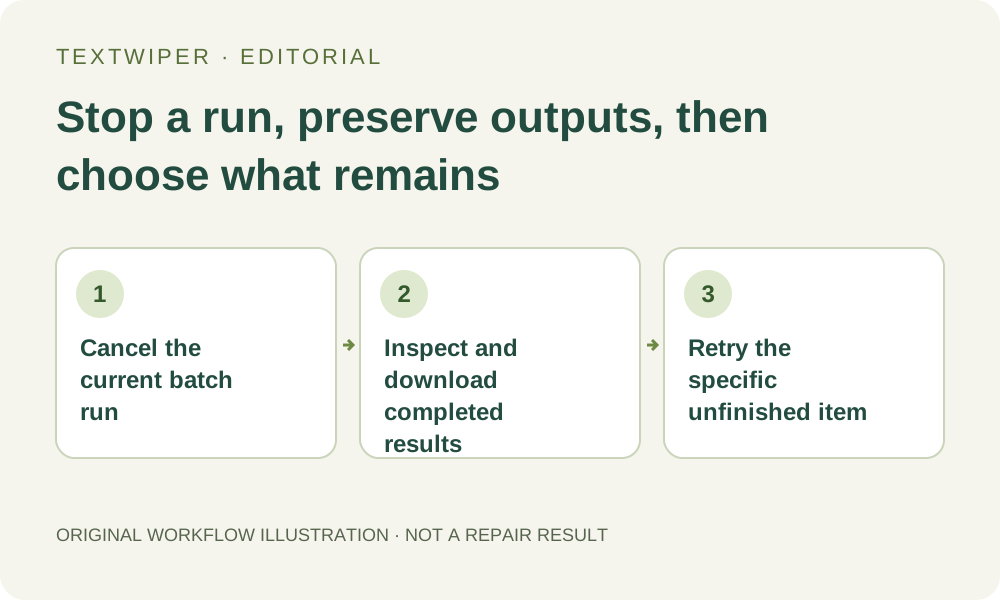
1. Separate stopping from clearing the collection
Use images you own or are permitted to edit. In the batch workspace, Cancel current run is the stop control shown during processing. Clear queue removes the collection from the page; Remove discards an individual card. These actions have different consequences. Do not clear the queue merely because one image is slow or you want to change the remaining work.
The batch processes one image at a time. Canceling interrupts the active operation and stops the run from starting its later targets. It does not retroactively undo completed images, turn every queued image into a finished file, or save the queue to an account. Keep the page open until you have checked what remains.
2. Cancel once and read each item afterward
- Press Cancel current run when you want this batch run to stop. Wait for processing to end and for the batch controls to become available.
- Look for the batch message that completed results and existing reviews are kept. Then read the status on each card instead of assuming every card now shares one state.
- An item with Repair ready and download buttons has a stored result in this page. Use Inspect result to check it before exporting.
- The interrupted item can show Canceled and offer Retry this image. It has not become a usable repair merely because part of a progress indicator advanced.
- Items that had not started retain their prior state. They may still need recognition, selection review or repair; cancellation does not approve them.
- Leave failed and no-match items distinguishable from completed results. No removable keyword matches means the original was kept without generating a repair output.
3. Save the finished subset before doing more work
Open each completed result and inspect the target, surrounding background and content that should remain. You can download an individual PNG or JPG, or choose a ZIP image format and use Download results as ZIP after the run is no longer busy. The ZIP includes items with an existing result, not a placeholder for every input card.
Canceled, failed, unprocessed and no-match items without a result are therefore absent from the ZIP. Compare its actual files with the cards you intended to deliver. The filename includes the item number and a sanitized source name; do not infer a complete original collection from the archive name. Reopen downloaded files and retain the originals separately.
4. Retry the stage that actually needs another attempt
Failed and canceled cards provide Retry this image. That action targets the card rather than rerunning every successful result. It retries the recorded operation: a canceled recognition attempt can require recognition again, and a canceled Scan & erase matches operation can scan and match again before repairing. Read the current rule and language first.
If you want a different mask, choose Review image, inspect or edit the selection, and save the review back to the queue. Repair reviewed images acts on eligible reviewed selections without an existing result. Use selections & repair explicitly approves the current eligible selections. Neither button should be treated as a harmless way to inspect them. Any recognition request still follows the page upload permission and current service availability.
5. Understand what cancellation does not preserve
The collection lives in the current page memory. Cancel is not Pause, there is no resumable server queue for this manual batch, and closing or refreshing the page does not restore its drafts. Account settings and saved keyword templates do not store the image files, masks or manual repair outputs. Saving keyword rules is not a substitute for saving finished images.
Existing drafts can remain available, but partially completed recognition or calculation is not a saved result. If no prior reviewed selection existed when an operation was interrupted, do not expect new intermediate detections to have been committed. Open the card and inspect what is actually present before deciding how to continue.
6. Reduce the next run to a manageable decision
The queue accepts up to ten images within its aggregate limits; stored result blobs are also limited. Saving completed files first gives you a safe stopping point, but a download does not automatically clear those result blobs from the page. Only remove a card or clear the collection when you no longer need its in-page copy or review state.
For the next run, choose between one canceled card, remaining recognition work, or reviewed repairs based on their actual states. Do not repeatedly restart an entire collection to fix one failure. This article documents cancellation and output handling in the current implementation; it is not a new batch test and does not promise that every retry will succeed.