PRACTICAL IMAGE EDITING
Practice Text Removal on a Built-In Example Before Opening Your Own Picture
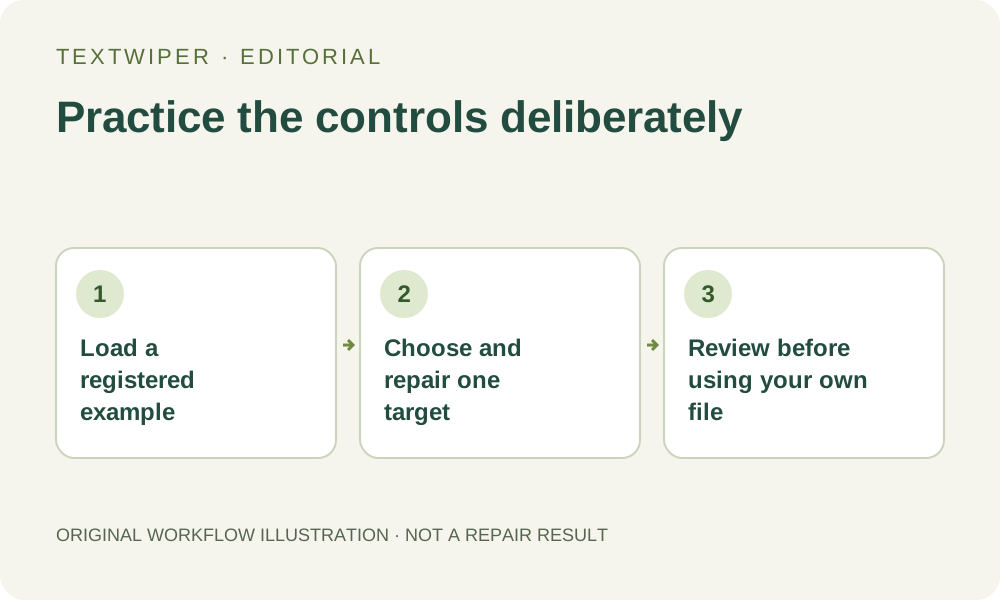
You can learn the editing sequence with a built-in example before choosing a personal photograph. Start from a guide’s explicit example link, inspect the loaded source, select a small target and request a manual repair yourself. Loading the example does not automatically scan, repair or download it. A successful practice edit teaches the controls; it does not establish how a different background or watermark will behave.
Published 2026-10-23 · Updated
1. Choose a practice task with a known source
The keyword guide includes a self-created label containing SALE, OLD OFFER, NOVALE and WHOLESALE. Its worked example shows a recorded input, mask and actual Quick repair export. That makes it useful for understanding which words are meant to go and which are meant to stay. The published output is an existing record, not a result generated merely by opening the guide.
Before following an example link, download any reviewed image you need from the current workspace. Navigating to a guide or loading another picture is not a backup step. Use a fresh workspace for practice, keeping personal work separate. Do not expect account sign-in to restore an unsaved mask after you leave its page.
2. Load the sample without confusing it with a result
In the keyword guide, choose Try this example in the editor. This explicit action opens the registered sample source; it does not fetch an arbitrary address supplied by a reader. Check that the label with the intended words appears, and distinguish its filename and contents from any personal picture you planned to edit later.
Nothing is selected simply because the example loaded. No recognition request, removal operation or saved word rule is implied. If a sample cannot load, read the visible message and try an authorized local file or return later. Do not keep reloading a page that contains personal work, and do not invoke the whole-image trial as a sample-loading workaround.
3. Learn one manual selection before adding recognition
For a first exercise, select a small part of the unwanted SALE lettering with Brush. This practices the visual boundary without sending a recognition image. A partial practice selection is not a finished cleanup of all unwanted words; decide which target you intend to inspect before pressing repair.
- Zoom until the target and adjacent retained words are readable; use Pan when you need to move the image.
- Choose Brush and paint the intended lettering, including any visible edge belonging to that target.
- Use Erase to withdraw excess green coverage from nearby content rather than trying to erase picture pixels directly.
- Inspect any blue protection separately, because protected input pixels remain even where removal overlaps them.
- Choose Quick repair for this simple-label exercise, then inspect the full candidate instead of immediately downloading.
4. Add the keyword exercise only when you want that step
For the guide’s recognition-based task, read and choose the separate recognition upload permission first. Enter SALE and OLD OFFER as separate removal rules, NOVALE as a keep word, and use Whole word or phrase. Scan & match my words helps inspect suggested locations before repair. It is different from the explicit Scan & erase matches action that proceeds to repair matching areas.
Read the current detections rather than assuming a recorded sample guarantees identical recognition every time. Check that WHOLESALE is not selected as a whole-word SALE match and that the visible removal and protection boundaries make sense. If a box is too broad or a word is missing, revise manually. Recognition is optional; practicing Brush does not require completing this additional request.
5. Review what your practice actually demonstrates
After repair, the complete candidate appears by default. Look for the intended missing letters, any fragment left at a boundary and changes beside retained words. Open comparison when useful, then return to the full result. If you revise the mask, the old candidate becomes invalid and you must repair again; a selection change alone does not update a finished image.
Do not infer a general success rate, processing speed or quality guarantee from the sample. A plain geometric label is not a portrait, textured fabric or dense transparent overlay. Likewise, a recorded example image on a guide is not evidence that your current device just completed that operation. Treat the exercise as an opportunity to identify states and inspect a real candidate of your own.
6. Move to your own image with the right expectations
If you want a practice checkpoint, download your reviewed sample result and reopen the actual file. Mark it as sample practice when sharing it. Then select your own authorized picture as a new input, make a new removal plan and inspect its actual boundaries. Do not carry a sample’s word list into another image without checking which words should remain there.
Manual selection, Quick repair, Smart repair and downloads are free during beta without an account. Smart repair may need additional resource loading; the whole-image automatic cleanup trial is a separate limited sign-in route with its own permission and allowance. This exercise needs no automatic attempt. Your own image should be accepted only after its own result passes review, regardless of how smoothly practice went.