PRACTICAL IMAGE EDITING
Quick or Smart Repair? Choose by the Background Around the Text
Try Quick repair on a simple background first. Consider Smart repair when texture makes that result distracting, and compare the same selection rather than changing several variables at once.
Published 2026-10-14 · Updated
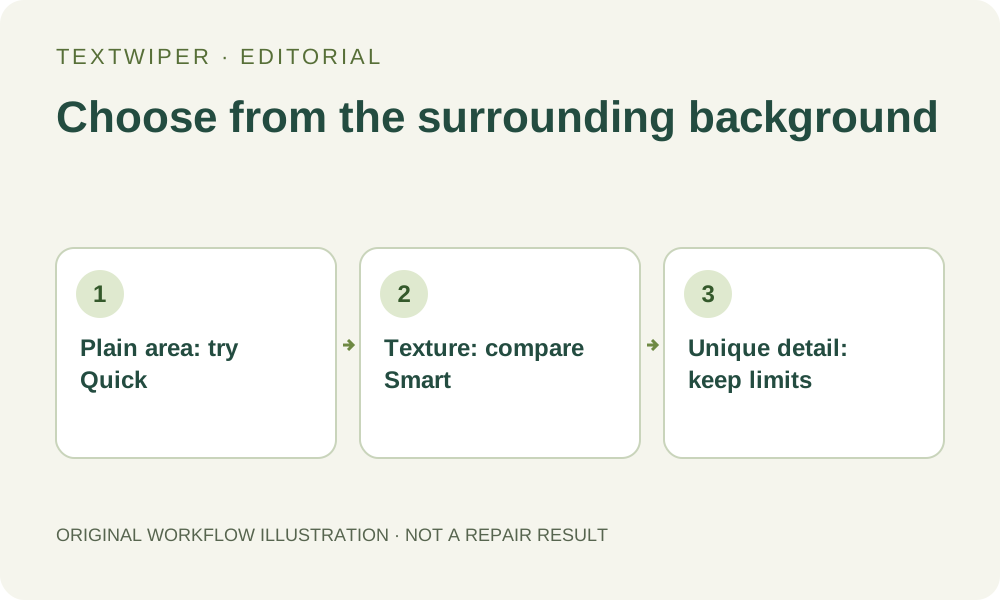
The useful question is what the text covers
A word on a flat label, a word across a knit shirt and a word covering a unique product edge are different repair problems. A mode that looks good on the label is not proven on the other two. Begin with the smallest practical selection and preserve nearby details.
Quick repair uses surrounding color and structure and is useful to try on simple areas. Smart repair may help with texture, but it can still create artifacts. Its required files may take several minutes on the first use of a slow connection; there is no universal completion-time promise.
Compare modes fairly
- Keep the input image and removal mask the same. Include the text outline and shadow, and avoid unrelated objects.
- Run Quick repair, inspect the full result and keep a download if it is useful.
- Switch to Smart repair only if the background warrants another attempt. The complete new result appears automatically.
- Use Show comparison to inspect what changed; judge the downloaded image at the intended display size as well as zoomed in.
When neither mode is the right answer
Fine repeating patterns, partially hidden faces and distinctive product geometry can be impossible to restore faithfully from the visible surroundings. A believable texture is not evidence that the hidden original detail was recovered. Use the original design file, choose another authorized photograph, or crop when appropriate.
Protect can preserve selected nearby details; it does not reveal missing pixels under the unwanted text. Treat a slightly different product contour as a reason to reject a result rather than an acceptable shortcut.
Smart repair and automatic cleanup are separate
Quick and Smart repair work with your manual removal selection. Optional automatic cleanup uses the whole image, requires sign-in and separate upload consent, and depends on trial availability. Do not switch to it merely because the names sound similar.