PRACTICAL IMAGE EDITING
Move a Baked-In Web Headline into Real Page Text
If your own website banner contains a headline burned into its pixels, you can sometimes keep the photograph and present the headline as real page text instead. Prepare that text in the website or CMS before removing it from the picture. TextWiper can help with the visual image copy; it does not create HTML, translate the wording or update your website. The finished job is the usable page, not merely a text-free download.
Published 2026-10-25 · Updated
1. Identify text that belongs to the page rather than the subject
A headline added above your own product photograph is different from words printed on the product itself. Decide which wording describes the page and which is part of the photographed subject. Keep meaningful labels, logos and necessary disclosures. Do not remove genuine packaging text just to make every visible word into a separate HTML element.
For an original planning example, a banner may show a landscape with your added “Workshop schedule” title. Moving that title into a page heading can make later wording changes independent of the photograph. It does not require claiming the landscape was originally empty or altering text that belongs to a real sign within the scene.
2. Prepare the replacement text before deleting its image copy
In your website or CMS, create the intended heading or other appropriate text element using the correct wording. Check its relation to nearby content and any link or button. Keep dates, names and required details accurate; an editing tool cannot decide whether a headline remains true. Save a draft so the information is not lost during the image change.
The W3C WAI guidance linked below favors actual styled text when practical because readers can adjust its presentation. Its images-of-text guidance also describes exceptions, including essential logotypes. This is a presentation decision with context, not a rule to strip all photographed words or an automatic accessibility certification for the finished page.
3. Prefer an available unlettered source; repair only when suitable
Look for your own original photograph or design source first. If the headline remains a separate text object, export the image without that object in its source application. That retains genuine background rather than estimating what the flattened headline covered. Check that the export uses the same intended composition and that shadows or duplicate title objects have also been handled.
When only a suitable flattened picture is available, open an authorized working copy in TextWiper. Select the added lettering and its effects with Brush or Area, refine with Erase and protect important visible details. Find text is optional and requests upload permission. Local repair estimates background, so stop if removing the headline would require inventing important scene content.
4. Repair and assemble the page as two separate steps
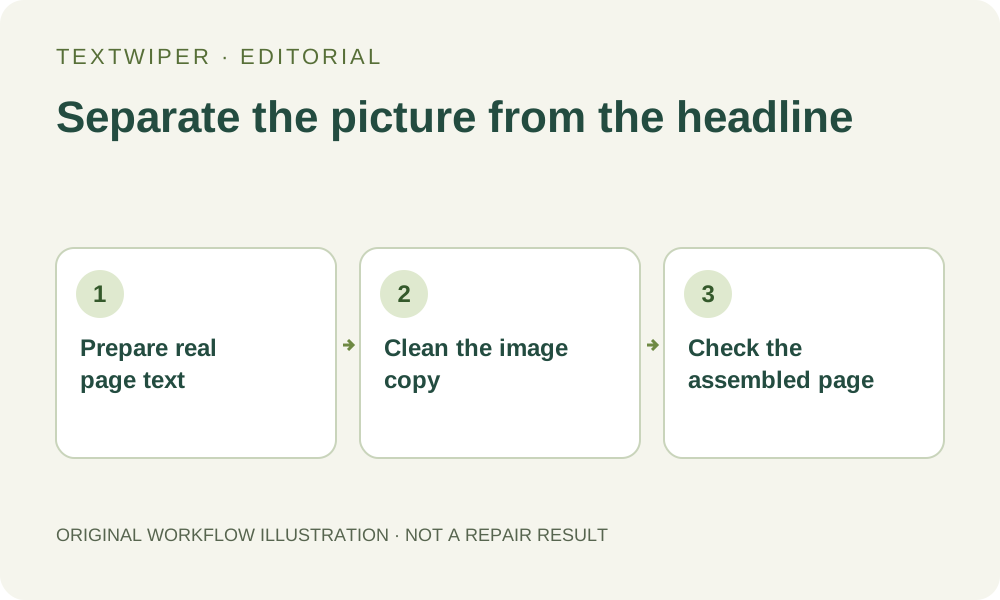
Keep the source and the previous web version while you prepare a replacement. Use this sequence for a cosmetic edit without pretending the image editor controls the publishing system.
- Inspect the proposed selection, covering the unwanted title without sweeping through unrelated details.
- Use Quick or Smart manual repair as appropriate, then review the complete image for visible artifacts.
- Download a PNG or JPG and reopen that exact file before adding it to the website.
- Replace the intended image in the page draft and retain the real-text heading prepared earlier.
- Check that the headline appears once in the visual layout, rather than remaining baked in beneath its new copy.
- Preview the assembled page on the layouts your audience uses before publishing it.
5. Test reading and layout instead of only matching the old look
Try selecting the heading text in the page and increasing the browser text or zoom presentation. At narrower widths, check that words remain visible, that the image does not cover them and that important controls are still usable. The placement can be beside the image rather than over it if that produces a clearer result. These checks happen in your site editor and browser.
Review the image alternative in its new context too. A photograph does not automatically become decorative when its headline moves. Describe its actual contribution without using alt text as a hidden duplicate marketing headline. If the picture is a link, review its purpose with the surrounding link text. The separate alt-text guide below covers that authoring decision in detail.
6. Keep the new architecture in later revisions
For the next headline or language change, edit the real text in the site rather than repeatedly repairing and re-encoding the same photograph. Keep the reviewed image master and the website content as separate maintained assets. If a social card still requires a raster headline, prepare and label that as a distinct derivative; do not silently put it back into the website image slot.
Manual TextWiper selection, repair and download remain free during beta without an account. This article offers a source-to-page workflow, not an HTML export feature or a new accessibility test. It does not promise search rankings, compliance or an acceptable repair on every banner. Confirm both the image and the actual published text before replacing the old page.
Sources
- W3C WAI: Understanding SC 1.4.5 Images of Text — Read October 25, 2026. Actual text where presentation permits, with exceptions; this is not a whole-page conformance assessment.
- W3C WAI: Images of Text — Read October 25, 2026. Styled real text and meaningful alternatives for image-based text.