PRACTICAL IMAGE EDITING
Write Useful Alt Text After Cleaning Your Own Image
Cleaning an image changes what a website reader can see, so its text alternative may need a fresh review too. Download and inspect your final picture first, then write the alternative in the website or publishing system where the image will appear. TextWiper edits image pixels; it does not automatically create, attach or publish the HTML alt attribute for you.
Published 2026-10-17 · Updated
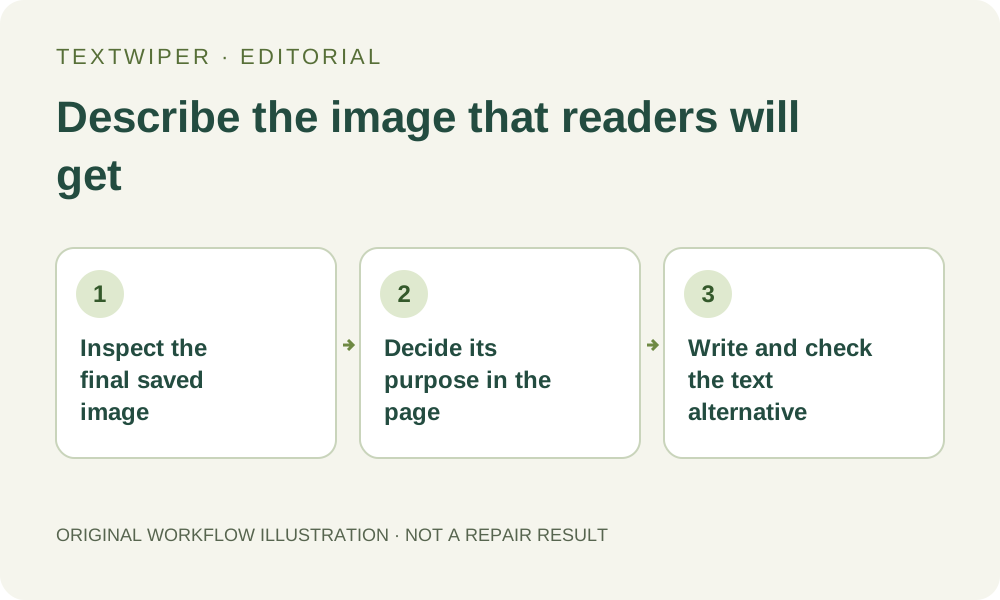
1. Start with the final file and the intended page
Work from the actual edited file, not a memory of the original or an unfinished preview. Identify what was removed and what remains visible. Then read the paragraph, product information or instructions that will surround it. An illustration supporting a how-to step has a different job from a picture used only to make a banner look pleasant.
Write a brief purpose note in your draft: for example, this photograph shows which handle belongs to the blue mug. This is an original planning example, not a result produced by this article. Its purpose helps you decide whether the handle, color and remaining printed name matter to a reader who cannot see the picture.
2. Choose the right kind of alternative
W3C WAI’s Images Tutorial organizes text alternatives by an image’s purpose. For a simple informative image, communicate the important information. A purely decorative image can use an empty alt attribute. An image that acts as a link or button needs a useful description of its action or destination.
Those are decisions for the page author, not automatic consequences of removing text. A product photo does not become decorative because its sale caption disappeared. Equally, a decorative flourish does not need a list of every visible color. Check the W3C tutorial sources below when the image also contains a chart, instructions or several related parts.
3. Draft a description around the remaining information
- Inspect the final picture and identify the object, relationship or action that matters to this particular page.
- Compare that information with the nearby visible text. Decide what the image contributes that a reader would otherwise miss.
- Draft a short, concrete alternative in the page’s language. Name the useful subject or function rather than the editing software.
- Check any meaningful lettering that remains in the image. Represent necessary wording, or supply the full information in suitable adjacent page text.
- For a functional image, check the surrounding link or button text and the intended destination together before assigning its alternative.
- Enter the alternative in your website’s image field or HTML, then preview the actual page. Saving a JPG or PNG in TextWiper does not perform that publishing step.
4. Do not keep obsolete wording or lose essential words
If you removed an expired “Spring sale” overlay from your own mug photograph, an old alternative describing that promotion is now misleading. An original possible replacement for an informative catalog image is “Blue mug with a wide handle.” Use it only if those details are accurate and relevant on your page; it is an example to adapt, not a universal template.
W3C’s Images of Text guidance favors real text when practical and says alternatives for images conveying text should carry the same wording. Its Informative Images examples also emphasize information in context. If the remaining picture supplies an opening time or a crucial instruction, do not replace it with a generic object description that drops that information. Repair cannot authenticate words that were hidden or damaged.
5. Keep accessibility separate from promotion claims
Avoid turning the alternative into a string such as “best free AI watermark remover image text tool.” That example describes a marketing target, not the cleaned mug or its purpose in the page. Also avoid claiming that an edit is perfect, that a picture is authentic or that hidden original details were recovered merely because the overlaid words are gone.
Use the visible caption or article body when the audience needs to know that a displayed example was edited. Alt text still needs to serve the image’s actual role. If you are publishing a before-and-after teaching pair, explain which image is which and what the pair demonstrates in the surrounding content, without passing a source picture off as a repaired output.
6. Check the published relationship, not only the field
Read the surrounding text and your proposed alternative in sequence. Would the combination communicate the image’s useful contribution, or repeat the same description without adding anything? W3C’s Decorative Images guidance treats redundancy and page context as reasons to consider an empty alternative. Do not omit the alt attribute simply because you chose decoration; an explicitly empty attribute and a missing one are different choices.
Finally verify that the page uses the edited file you inspected and that its alternative matches the current revision. If an image becomes a link later, or moves to a different article, revisit its purpose. These checks are an authoring workflow, not an automated accessibility certification, a promise of search rankings or a feature that stores alt text inside your TextWiper account.
Sources
- W3C WAI: Images Tutorial — Read October 17, 2026. Select alternatives by the purpose of the image in the page.
- W3C WAI: Informative Images — Essential information and surrounding context; examples in this article are our own.
- W3C WAI: Images of Text — Meaningful text and the role of real page text.
- W3C WAI: Decorative Images — Explicitly empty alt attributes and contextual redundancy.