PRACTICAL IMAGE EDITING
The Desktop Image Is Clean but Mobile Still Shows Old Text? Check Every Website Variant
A website can display different image files on different screens. Replacing one uploaded picture may leave an older mobile rendition, art-directed crop or thumbnail in use. If old text appears only in one placement, inspect which file that placement actually displays before repairing the image again. TextWiper supplies an edited image; your website or publishing system controls its responsive variants, page markup and deployment.
Published 2026-10-23 · Updated
1. Start with the actual accepted output
Keep the reviewed full edited file and its authorized source under distinct names. Open the saved output directly to confirm that the targeted text is gone. If it is still present there, the problem belongs to the edit or the chosen file. If the standalone output is correct, repeatedly changing the repair mask will not update a website that still references another image.
Record where the image is used: the main article, a narrow-screen layout, a listing card or a social preview may each have a separate asset. Do not assume they all read the same upload. An image that looks similar in a content-library thumbnail can still be an earlier revision, so identify the chosen item rather than relying on its familiar appearance.
2. Ask which responsive source can be selected
In HTML, an img element can offer a srcset of candidate images; a picture element can offer alternative sources. A publishing system may create these renditions from an uploaded master or let an editor choose separate crops. The exact behavior belongs to that site. TextWiper does not generate, inspect or replace your site’s responsive HTML.
Use your CMS’s image settings or ask the site maintainer to identify the active candidates and fallback. A responsive choice depends on the page and browser conditions, so a clean desktop view alone does not confirm every candidate. If a developer inspects the selected source, use that evidence to locate the file rather than assuming a width change always selects a particular URL.
3. Replace the intended family without losing useful framing
Work in your normal publishing environment, with whatever access and review the site requires. Replacing a source, regenerating a crop and publishing a page are separate actions, and their labels vary by system. This is not a procedure that TextWiper carries out on your behalf.
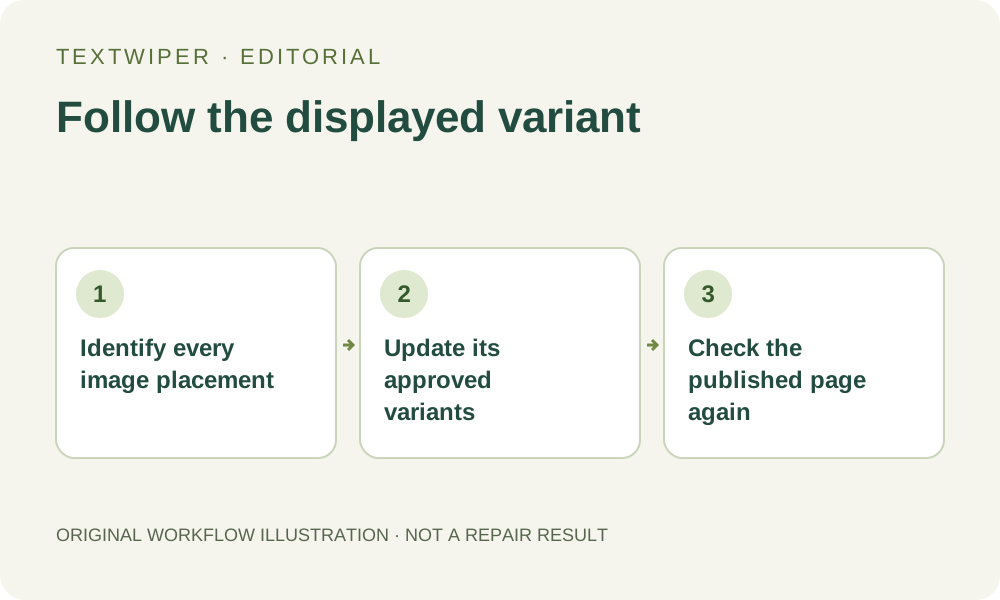
- Identify the reviewed master file and list each placement that should use the corrected image.
- Replace or regenerate the corresponding responsive renditions through the site’s supported workflow.
- Inspect deliberate mobile crops separately so a useful subject, label or explanation is not cut away.
- Check that the page’s image choices and fallback reference the intended new versions.
- Publish the approved changes, then open the actual page rather than treating an asset-library preview as the public result.
4. Separate an old rendition from a display crop
Old text visible in the served image suggests that an unchanged file may still be selected. A missing edge or caption, however, can result from how the page frames a correct file. Compare the served image with the standalone edited output and the page’s visible crop. Do not erase more pixels merely to compensate for a layout that hides part of the intended composition.
Some systems also have caches or delivery transformations. Use the site’s documented update and cache-refresh process where appropriate, and confirm which image is delivered afterward. Do not repeatedly delete unrelated assets or rename files at random. A new filename by itself does not establish that every page reference, mobile source and generated thumbnail has been changed.
5. Review the page in its actual contexts
Check relevant desktop and narrow-screen views, plus any separate card or preview included in the task. Where possible, verify on the target device as well. These checks cover the conditions you observed, not every browser choice. Read retained text, examine the former repair area and confirm the framing still serves the surrounding explanation.
Review the caption and text alternative after the visual asset changes. An alternative that still describes an expired promotion is out of step with a corrected image. Conversely, a clean image does not authorize removing a necessary qualification from nearby page text. Editing pixels, updating accessible descriptions and approving website content remain separate decisions.
6. Record the website revision, not another repair claim
Keep a short note of the accepted image version, placements updated and live views checked. If one placement still shows the previous text, identify its source or publishing state before attempting another image edit. Escalate a site-specific build or cache problem to its maintainer; TextWiper has no access to that hosting environment or its content records.
Manual editing and downloads are free during beta. Whole-image automatic cleanup is a separate limited sign-in trial with its own upload choice and allowance, and is unnecessary for fixing a stale website reference. Completion here means the approved file family is published and the relevant views have been checked; it does not certify universal browser coverage, search indexing or traffic improvement.
Sources
- Using responsive images in HTML — Explains multiple image candidates and responsive choices; it does not describe a TextWiper publishing feature or guarantee one chosen file on every device.
- The picture element — Explains source alternatives and the fallback img; updating a single reference does not establish that every other candidate was replaced.