PRACTICAL IMAGE EDITING
Make a Contact Sheet from Your Reviewed Image Exports
After reviewing several image edits, a contact sheet can help a recipient find the right output without opening every file first. Build it from the actual downloaded candidates in a separate local layout tool, label each thumbnail with a stable reference and keep the individual files alongside it. TextWiper does not generate contact sheets, add labels to an overview or embed clickable file references in a delivery package. The sheet is a navigation aid, not evidence that a tiny preview passed detailed inspection.
Published 2026-10-27 · Updated
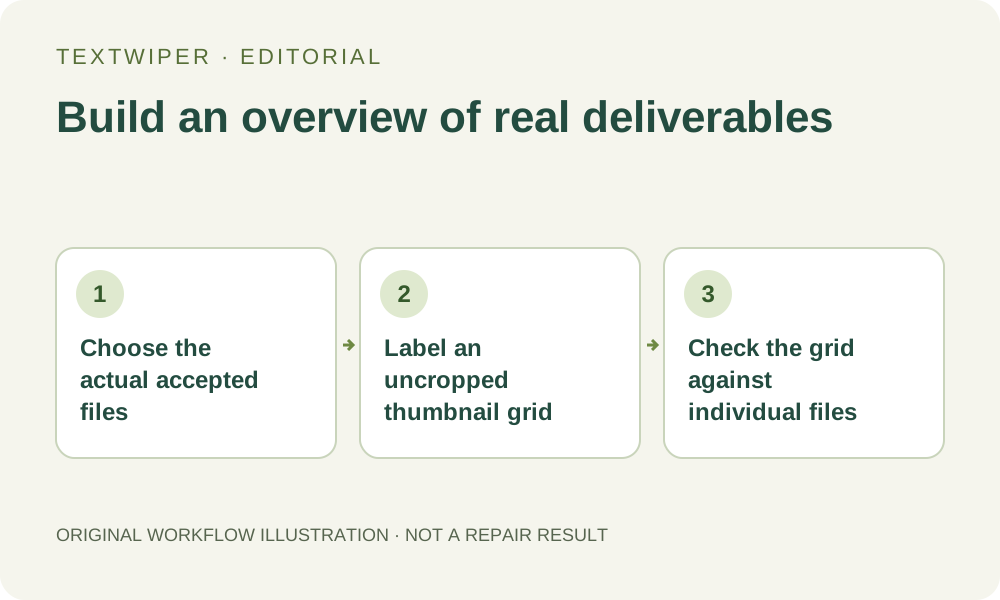
1. Decide whether an overview solves the handoff problem
Use a contact sheet when the recipient needs to choose among several views, match picture identifiers or check the broad composition of a small collection. Agree on the identifier and sort order before making it. A useful overview answers “which file is this?” rather than claiming to show every repair detail.
Keep a contact sheet distinct from a before-and-after comparison. The overview may contain only accepted outputs; if it also contains sources or rejected candidates, label those statuses explicitly. Permission to edit an image does not automatically permit sharing every source, so include only files the recipient is allowed to see.
2. Gather saved outputs rather than queue thumbnails
In TextWiper, inspect each full result and download the accepted PNG or JPG. For a batch, use the result cards’ individual downloads or extract the ZIP of existing results. Open the saved files and identify the versions that belong in this handoff before moving them into a separate delivery folder.
Do not capture the batch card thumbnails as though they were final outputs: those thumbnails preview the sources. Do not fill a missing result slot with an unchanged input unless it is intentionally being delivered as unchanged and labeled accordingly. A card without a result has not produced a candidate for your edited-output overview.
3. Arrange a separate grid in a local layout application
Use a trusted local application that can place images and text on a page. Insert the actual accepted files into consistently sized cells, fit the complete image within each cell and leave space for its label. Avoid a fill-and-crop setting that hides a corner or edge the recipient needs to identify.
Choose a simple reading order, such as left to right by your recorded identifier. Put the identifier and exact output filename, or an unambiguous short reference, beside each thumbnail. These are labels you create in the layout application; TextWiper does not add them to the individual edited files or synchronize them with later filename changes.
4. Preserve meaningful differences without implying a size test
A uniform thumbnail cell can make a portrait and landscape picture appear similarly sized on the sheet. Do not describe that as evidence that their actual pixel dimensions or destination fit are identical. Record dimensions separately when the recipient needs them, and retain the complete outputs for inspection.
For transparent artwork, choose a clearly disclosed preview backing that makes the subject visible. A white or dark rectangle behind a thumbnail is part of this overview layout, not proof that the individual PNG was flattened to that color. If transparency is important, state that the standalone file must be checked in a suitable viewer.
5. Export the overview and reconcile every label
Export the grid as a separate overview file using the layout application’s normal controls. Open that exported overview, check that labels remain legible and confirm that no thumbnail has been duplicated or swapped. Compare the sheet’s count and identifiers with the actual files in the delivery folder.
For each entry, open the named individual file and verify that it matches the thumbnail’s subject and accepted revision. A correct-looking grid with wrong filenames can misdirect the recipient as effectively as a missing image. If an output is revised afterward, update both the delivery folder and the overview, rather than leaving a stale thumbnail as the apparent current version.
6. Deliver the overview as an index, with the real files
Keep the contact sheet alongside the individual outputs and a concise note that detailed approval applies to the identified files. A tiny grid can conceal faint letter remnants, texture artifacts and damaged retained text. The recipient should open the relevant standalone image at a suitable size before using or approving it.
This extra layout step does not require another recognition request or repair; it uses files already accepted. Manual editing and downloads are free during beta. Making a contact sheet externally adds organization, not cloud storage or a reopenable TextWiper project, and no overview illustration here represents a new measured repair result.