PRACTICAL IMAGE EDITING
Make an Honest Before-and-After Presentation from a Real Image Edit
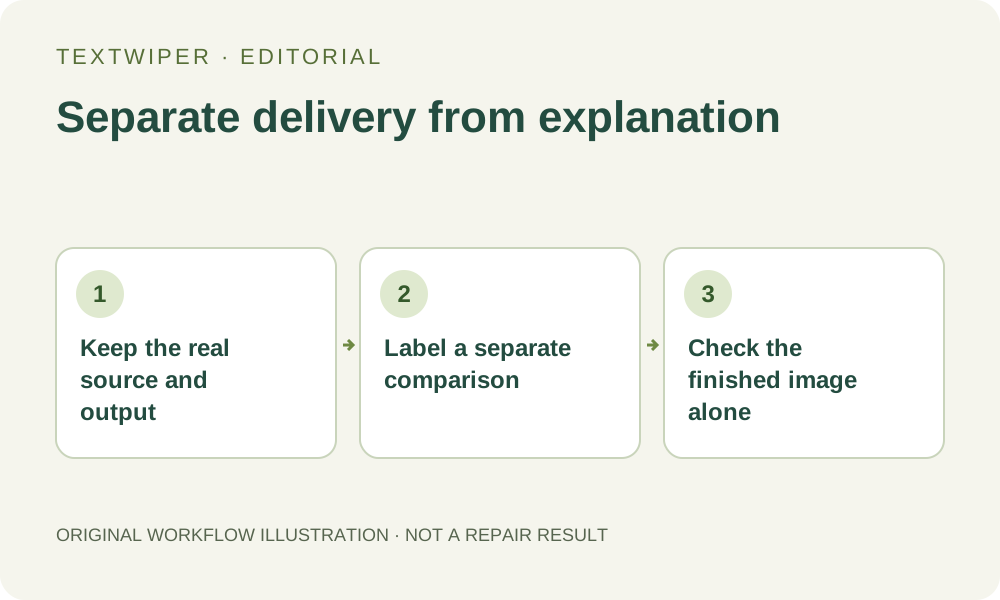
A comparison illustration and a finished edited image have different jobs. A reader may need a labeled pair to understand what changed, while the person using the result needs the whole accepted image. Create a presentation separately from the unchanged input and the actual saved output. TextWiper’s optional comparison view helps review; it is not a built-in collage exporter or permission to substitute an untouched clean source for a repair.
Published 2026-10-23 · Updated
1. Identify the two files before designing the comparison
Keep the authorized marked input and the specific output you downloaded, reopened and approved. Note which input produced that output. If you have several candidates, do not choose a more attractive clean photograph from another version and label it as the result. A pair is evidence of this particular edit only when its relationship is accurate.
Check whether both files may be published. Permission to make a private edit does not automatically mean you may display the original publicly. Use your own registered example or another properly authorized pair when the source cannot be shared. A fictional diagram can explain steps, but must be identified as a diagram rather than a measured before-and-after outcome.
2. Finish the image review before making a teaching layout
Inspect the entire repaired result in TextWiper, where the full result is the default. Open Show comparison only to locate changes; return to the complete candidate when deciding whether it is acceptable. Review retained lettering and important features as well as the removed area. A convenient divider position can otherwise hide a defect on either side.
Download the actual candidate rather than using a screenshot of the editor as the only result file. If you revise the mask, the previous candidate is invalidated and repair must run again from the original. Keep the final accepted export distinct from earlier candidates so the presentation does not accidentally show a rejected attempt or imply that a changed mask already has a new result.
3. Assemble a separate, clearly labeled pair
Use a normal layout or presentation application for the illustration. TextWiper does not place two files on a new comparison canvas or add labels to them. Retain the accepted standalone image separately; the teaching pair should not become the only deliverable.
- Place the unchanged input and accepted saved output in separate panels with comparable framing.
- Label the panels clearly, such as Before and Actual edited output, without covering the important regions.
- Use the same viewing scale when showing a local detail; state when a panel is a crop rather than the full image.
- Add a short caption naming the intended change and any relevant limitation you observed.
- Export the comparison as a separate file and review it at the size where readers will actually see it.
4. Keep the visual comparison fair
Avoid changing brightness, crop, sharpness or magnification on only the result panel to make the edit appear stronger. If a necessary layout crop affects both panels, keep it equivalent and retain access to the full views when practical. A tiny thumbnail can conceal repair artifacts, while an enlarged crop can omit important content that changed elsewhere.
For a whole-image automatic result, inspect the whole frame before choosing a detail to demonstrate. That route can change details outside the apparent watermark and is a separate limited sign-in trial with its own upload choice and allowance. A local manual repair and whole-image processing should not share a caption that promises an identical preservation boundary.
5. Explain the actual operation without expanding the claim
A useful caption says what the input contained, which workflow produced the displayed output and what you checked. Mention visible softening or remaining fragments if they matter to the example. Do not add a processing time, success rate or “perfect restoration” statement unless you actually measured or established that claim for the stated scope.
Repair estimates replacement pixels; it does not prove what was hidden beneath a mark. An attractive pair therefore demonstrates one observed image edit, not that every photo will behave the same way. If the pair comes from a registered sample, name it as a sample. Do not present it as another person’s success, a customer review or a new test performed for the article.
6. Check the comparison and the delivery as separate outputs
Open the exported teaching graphic and verify that the panels are not reversed, labels remain legible on a phone and the caption points to the correct pair. Follow any included link to the appropriate editor or walkthrough. A screenshot with a half-visible divider should not be mistaken for the complete image that users will download.
Finally open the standalone edited file on its own. It should show the full accepted result, without a before panel, presentation label or unintended split added by the teaching layout. Keep that file, the original and the comparison under distinct names. Manual editing and downloads are free during beta; making an explanatory layout elsewhere does not require another recognition or automatic-cleanup attempt.