PRACTICAL IMAGE EDITING
Erase Labels from Your Diagram While Checking Every Connection
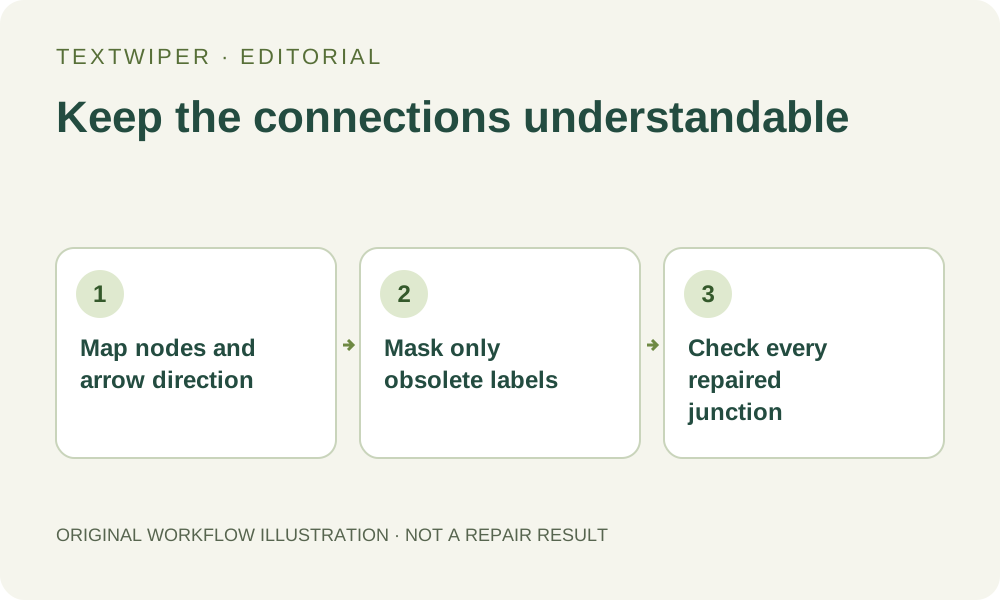
A diagram can look tidy after text removal and still communicate the wrong process if an arrowhead or connector has changed. For your own flattened diagram, select labels separately from the lines, repair a small area first, and check the connections before treating the image as a reusable background.
Published 2026-10-15 · Updated
1. Prefer the diagram source when labels are still editable
If the chart exists in a slide, diagram or vector application, remove its text objects there. That retains the original line geometry and editable connections. TextWiper works on image pixels, not nodes and edges; it does not understand which arrow means approval, rejection or a loop back to an earlier step.
For an image-only copy that you own or may edit, retain the unedited version as a reference. Export a JPG, PNG or still WebP if necessary; an SVG diagram cannot be opened directly in this editor. Prefer a clearly rendered image where thin connectors are visible before you begin, rather than trying to repair a tiny preview.
2. Record what each line must still connect
Before erasing a label, note its node, the incoming and outgoing lines, the direction of each arrowhead and any branch words that must remain. A blank branch is not automatically self-explanatory. If your next step is relabeling in another application, keep a separate connection map so the revised chart preserves its intended meaning.
Look especially closely at dotted lines, junctions and lines passing behind text. A connector visible on both sides of a label is still hidden beneath the letters. Repair can estimate that region, but it cannot certify the original route or restore an editable connector.
3. Build a label-sized selection in the editor
- Open the image in the TextWiper text remover. Zoom into one obsolete label where its boundary is easy to inspect.
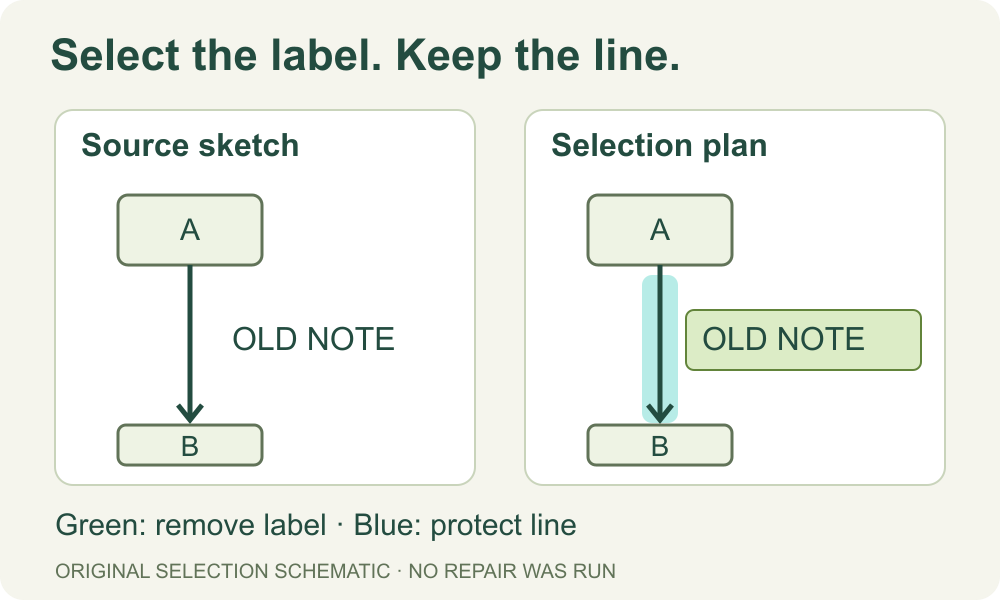
- Use Brush to cover the label, including its shadow or outline. Use Area only when its rectangle will not also enclose nearby connectors or node borders.
- Trim overshoot with Erase. Apply Protect to visible arrowheads and line segments that lie outside the unwanted lettering; blue protection keeps those input pixels out of the removal mask.
- Check the green mask before repair. If text and a line occupy the same pixels, do not expect protection to keep only the line while deleting the letter.
- Try Quick repair on a plain diagram background. Inspect the result before expanding the selection to other labels; changing the selection requires another repair from the original.
- Keep a visible connector unselected even if leaving a narrow gap makes brushing less convenient. A large rectangular fill is easier to draw but may remove the structure you need.
4. Verify topology, then inspect the line appearance
The complete repaired image is shown by default. Follow each affected connector from its starting node to its destination, checking arrow direction, junctions and branch separation. Open Show comparison to locate the edited area if useful, then Hide comparison to read the whole chart as its audience will.
Next examine line width, color, dotted spacing and corner shape at original size. A connector can remain attached yet become misleading through a missing arrowhead or an accidental extra junction. Also check that the old label has not left fragments that resemble a minus sign, number or small branch annotation.
5. Export an image, not an editable process model
Download PNG and reopen it in a viewer or the destination layout application. PNG avoids the additional whole-image JPEG encoding step, but it cannot turn repaired pixels into editable arrows. Recheck thin lines at the display size used in the slide, document or help page, since downscaling can hide a break that is obvious close up.
If you add replacement labels elsewhere, compare their branch meanings with the saved connection map. A successful image download says nothing about whether the underlying process is correct. Keep the original diagram available until the revised version has passed both a visual and a meaning check.
Stop when an important connection needs reconstruction
If a label covers a small arrowhead, dense junction or crossing that cannot be distinguished, return to the source chart or redraw that section in a diagram editor. TextWiper cannot add or reconnect vector lines. Do not accept a plausible-looking reconstructed arrow as evidence of the original flow; in a diagram, an apparently minor line change can reverse the message.