PRACTICAL IMAGE EDITING
Edit Arabic Image Text Manually When Recognition Is Unavailable
Arabic interface controls and manual image editing are available, while TextWiper’s Arabic recognition is currently disabled. Do not change the recognition label to English to imply that Arabic positions have been verified. For a clearly identifiable, authorized target, use manual selection and have a reader familiar with the text check what remains. The temporary recognition restriction does not stop you from editing an otherwise supported image by hand.
Published 2026-10-30 · Updated
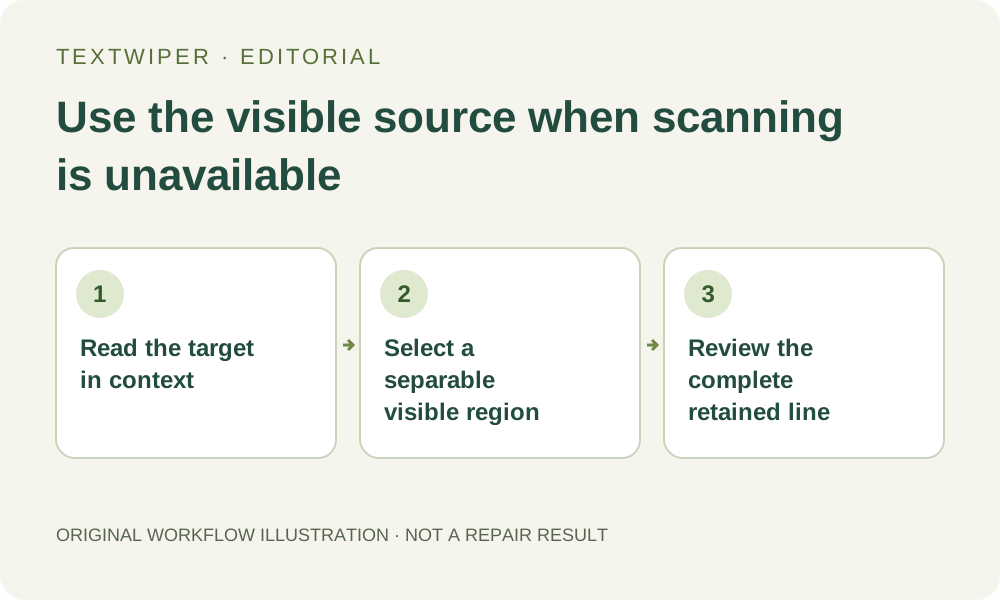
1. Define the removable text with someone who can read it
Keep the original and identify the exact disposable line or annotation by its location and purpose. If you do not read the writing confidently, ask an appropriate reviewer to mark the intended region and explain what must remain. Guessing from the shape of a word is not enough to decide whether its neighboring marks belong to another word.
Check for a layered design before repairing a flattened picture. Editing the actual text object there can preserve the intended typography. A replacement Arabic line also belongs in a suitable layout application: TextWiper removes selected pixels and does not translate, typeset or create a corrected editable text layer.
2. Read the current recognition state rather than trying another label
The present Arabic scan option is unavailable because its recorded ordering behavior was not suitable for reliable checking. Automatic detection is not a dependable workaround for obtaining approved Arabic positions. Use the actual current controls and messages; this is a product availability boundary, not a claim that the language can never be recognized or that every mixed-language image is uneditable.
Switching the interface to Arabic changes the controls, not the text in the file or the underlying pixels. It also does not mirror the image to create a new selection orientation. A supported interface language is not evidence that the corresponding recognition option is enabled. Avoid unnecessary repeated scan requests while this specific availability condition is unchanged.
3. Establish visual landmarks before drawing a mask
Open the supported authorized still image and check the complete target in context. Use zoom and Pan to reach it without drawing. Locate the line’s visible extent and the neighboring material that must remain; do not infer its boundaries from a left-to-right expectation or from how a filename appears in a list.
Inspect connected strokes, detached dots or other marks, and any adjacent Latin text or digits. A small mark can change the retained reading. Do not divide a joined word into equal-width imaginary character boxes. If the removable annotation cannot be separated from required letterforms, obtain the source design instead of treating a smaller brush as proof that the edit is safe.
4. Build and inspect a deliberate manual selection
Choose Brush and cover the unwanted visible lettering, including its intended outline or shadow. Area is suitable only for a genuinely isolated block whose rectangle excludes retained text. Use Erase to withdraw excess green coverage, and examine the whole line again after drawing. You do not need a successful transcript to create a manual removal mask.
Protect can retain visible details beside the target. Where unwanted and required strokes share source pixels, blue protection keeps what was actually in those pixels, including the unwanted overlay. It cannot separate the earlier layers or invent a correct missing join. Stop if an important word or number would need reconstruction whose correctness you cannot verify.
5. Judge the retained reading as well as the repaired surface
Run an appropriate manual repair once the boundary is defensible. Quick can be a candidate for a small even patch; Smart is another option for texture and can also produce defects. The complete result is shown by default. Ask the reviewer to read the entire retained line, including detached marks and any numbers, rather than approving only a blank space where the annotation stood.
Inspect the patch for residual strokes that resemble real punctuation or dots. Use comparison to locate doubts and then hide it to read the composition naturally. A plausible-looking reconstructed character is not proof of the original word. If the selection changes, repair again from the original before reviewing the revision; the earlier result does not automatically incorporate the new boundary.
6. Verify the actual saved file in the intended layout
Download an accepted PNG or JPG and reopen it. Review the retained wording and numbers at the size in which the image will be used, and keep the original separately. If replacement text is added elsewhere, have that finished layout checked too. A good cleanup does not establish correct translation, letter joining or text direction in the other application.
Manual selection, Quick repair, Smart repair and downloads remain free during beta without an account. Optional recognition has its own upload permission and current availability; whole-image automatic cleanup is a separate limited trial and does not certify Arabic typography. Use a better source or a suitable text-editing workflow whenever the retained reading remains uncertain.