PRACTICAL IMAGE EDITING
Character Selection Still Covers Several Letters? Check the Real Region
If switching from Words to Characters still selects several visible letters together, inspect the actual region before repairing. TextWiper keeps the positions supplied by recognition rather than dividing a broad box into guessed equal-width slices. Connected glyphs, combined marks and coarse recognition regions can make a smaller logical text choice different from a safely separable pixel area. Use a manual selection only when the visible boundary can be checked; otherwise return to the editable text source.
Published 2026-10-25 · Updated
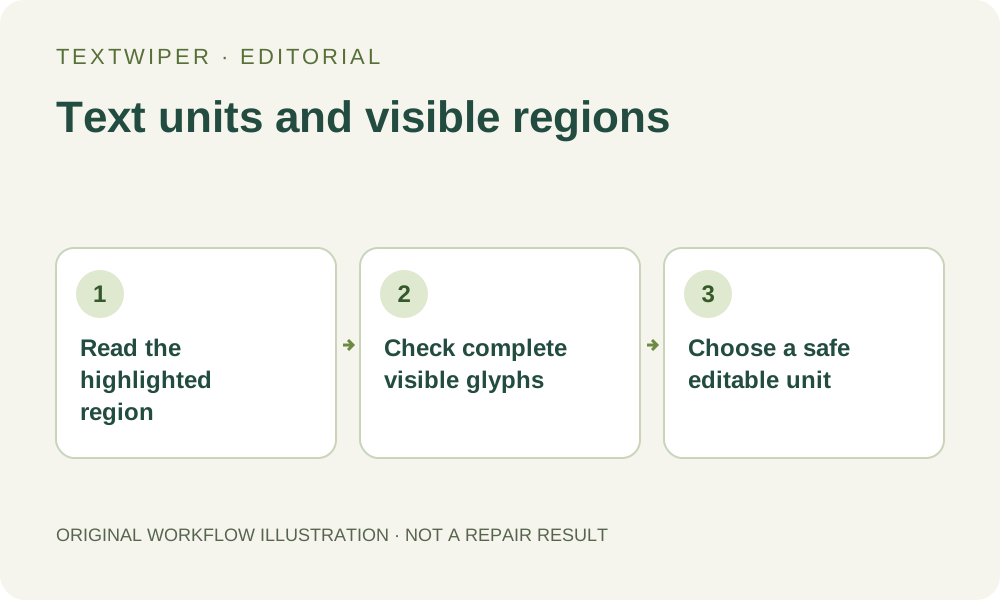
1. Separate the recognized text from the painted shape
A label in the text list is a reading of the picture. The region on the canvas is location information for that reading. Neither is an editable font layer. A spelling can be correct while the available region contains a larger piece of lettering than the one you want to remove.
Fonts may show a sequence such as fi with a ligature, and visible letterforms can overlap even when the recognized string contains separate characters. Accents and other marks can sit away from the main body of a letter. Do not assume that counting characters tells you how many independent rectangles or disconnected patches exist in the pixels.
2. Inspect what the current selection view actually offers
Use an image you may edit, and choose recognition only if its optional uploaded working image is suitable for your task. After recognition, leave unwanted suggestions unselected while comparing the list with the image. Change between Words and Characters to inspect the grouping of the available positions; this view change does not itself request another scan.
The editor retains actual native regions when finer aligned positions are unavailable. A supplied region shared by several text segments can remain one selection rather than being cut at imaginary letter boundaries. Read any whole-region limitation and inspect the highlight. A character option is not a promise that every letter in every typeface has a separate verified box.
3. Decide whether the smallest visible unit is safe to change
Zoom in on the wanted target and the adjacent lettering. Identify which visible strokes belong to what must stay. A dot, accent or joined stem can be essential to the retained reading; removing it can change the word even if most of the main letter remains. Consider the whole visible unit rather than only a character name in the list.
If the target is clearly separate and the recognized region is simply too wide, deselect that region and use short Brush strokes instead. Use Erase to reduce the pending mask before repair. This is a visual manual decision, not a new detection that proves the exact outline. Leave enough background for a plausible repair without casually absorbing the neighboring stroke.
4. Do not ask protection to separate shared source pixels
Protect can retain original visible pixels around the target. It is useful when a nearby mark belongs to a letter you need to keep. But if an unwanted stroke and a necessary one share the same pixels in the flattened source, protecting those pixels keeps both contributions as they appear; it cannot disentangle their earlier font layers.
When a narrow manual boundary still cuts an essential join, stop shrinking the mask as if smaller always means safer. You may need to remove and recreate the complete word in an external design file, or obtain the original editable text layer. TextWiper does not retype the retained letter or infer the intended font and kerning for you.
5. Check readability after the repair, not only a clean gap
Run the selected manual repair and review the full candidate. Temporarily use comparison to inspect the boundary, then hide comparison to read the whole word naturally. A blank gap can look neat while leaving a broken character, a doubled accent or a fragment that resembles another letter.
Read the word at the intended use size as well as at close zoom. Ask a fluent reader to check unfamiliar writing instead of approving it from the outline alone. If the selection changes during a correction, the previous candidate no longer represents the new mask; repair again before judging that revision. Repeatedly scanning does not establish a safe boundary between physically joined strokes.
6. Keep the source and choose an honest stopping point
Download PNG and reopen the actual file, retaining your original separately. Check the complete retained wording, spacing and all detached marks. If a faithful small change cannot be made from the flattened picture, preserve the useful candidate as an option rather than describing it as an exact typographic edit. An editable source is often the clearer next step.
This guide explains the selection boundary, not a newly measured recognition improvement. Manual selection, Quick repair, Smart repair and downloads are free during beta without an account. Optional recognition requires upload permission; the separate limited whole-image cleanup trial is not a mechanism for producing missing character coordinates or guaranteeing the original letterform.
Sources
- MDN Web Docs: font-variant-ligatures — Documents common font ligatures including fi and ffi. This supports the distinction between a sequence of letters and its displayed glyphs; it does not establish recognition accuracy or separate character positions in TextWiper.