PRACTICAL IMAGE EDITING
Connect Google to the Existing Account That Holds Your Keyword Templates
If your editing preferences and keyword templates already belong to a TextWiper email/password account, sign into that account first and use Connect Google inside Account. The connection requires its current TextWiper password and a new Google confirmation with the same email. A matching-looking email on the sign-in screen is not an automatic account merge.
Published 2026-11-02 · Updated
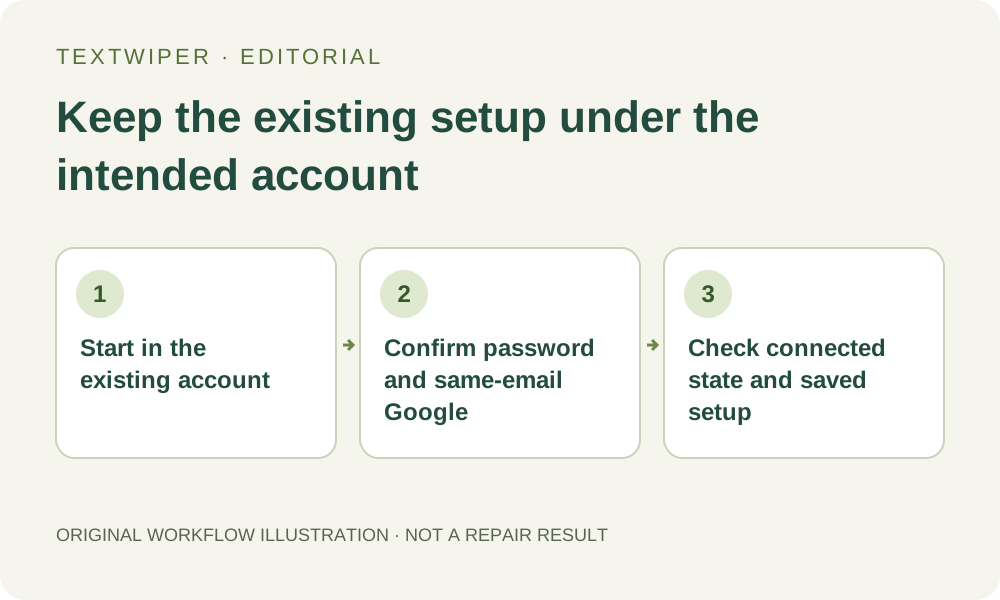
1. Establish which account owns the reusable setup
Open Account and read the signed-in identifier and saved keyword-template list. Start from the account that already holds the setup you intend to keep. If you are signed out, use that account’s existing email and TextWiper password before attempting the connection. Do not begin by making a new Google-only account to see whether the old templates appear.
A current picture and its drawn areas are page work, while the stored phrase lists and supported preferences belong to the account. Download any useful reviewed output and keep the source separately before changing sign-in arrangements. Connecting a provider does not upload an image project or make a cloud copy of its mask.
2. Use the connection control inside Account
For a password account that is not yet connected, choose Connect Google. The form asks for Current password and offers Continue to Google. Enter the current TextWiper password for this account, not a Google password, and follow the official Google confirmation shown by the page. A Google password belongs only in Google’s own legitimate sign-in flow if it requests one.
If Account already says Google is connected, this is not a request to connect another identity. Read the current account state instead of repeating the operation. A Google-only account also has a different state: it has no TextWiper password and does not need this password-account connection procedure.
3. Choose the same-email Google identity deliberately
Read which Google identity is being confirmed, especially on a browser with several signed-in accounts. The connection must use the email of the current TextWiper account. A different address is not a method for renaming the account or transferring its phrase templates. Stop if the identity is not the one you intended.
Read the actual provider confirmation and decide whether to continue. This guide does not operate that confirmation for you, request mailbox access or ask you to share a password, code or token. Closing or canceling an unwanted confirmation is preferable to approving the wrong account merely to make a button disappear.
4. Treat a conflict or expired confirmation as its own state
If Google sign-in reports that the email already has a TextWiper account, the intended path is to sign in with that account’s password and connect from Account. The application does not silently attach an unrelated identity on the basis of an unverified email field. An identity already attached elsewhere is also a conflict, not approval to merge two sets of saved templates.
A confirmation may expire or fail to finish. Read the displayed state and check Account before deciding on another deliberate attempt; do not repeatedly click while the outcome is unknown. If the provider path is unavailable, you can keep the original password sign-in and continue free manual editing. There is no need to replace the account or erase its settings as a troubleshooting shortcut.
5. Verify the connected account and its stored rules
After a successful connection, the account message says that Google is connected and either sign-in method can be used. Read the signed-in account and check the existing template names and phrase fields. The goal is access to the same setup, not a second empty account that happens to be visible in another browser tab.
Selecting a saved template later only fills its removal and keep phrases. It does not scan, select or repair the current picture, and it does not carry the current match-style choice. Review those controls and actual detected positions before applying a rule. Changing the way you sign in is not a reason to trust a new image’s selection without inspection.
6. Keep account access and image delivery separate
You do not have to sign out of a working page simply to prove that the new method exists. Preserve the image work you need first. On a later normal visit, use either supported method for this connected account and check the setup that actually loads; another device still needs its own authorized source image.
This article describes the implemented connection decisions, not a newly performed identity-linking test. It does not promise account merging, an email-change feature or automatic continuation of an unfinished picture. Optional recognition and limited whole-image cleanup keep their own permission and availability boundaries; free manual editing does not require this connection.