PRACTICAL IMAGE EDITING
Clean a Label from a Nine-Slice Panel, Then Test Its Stretch Regions
A nine-slice panel can look clean at its source size yet show a stretched repair when used as a larger button or window. Preserve its external border settings, edit only the raster artwork, then test the actual replacement in its consuming tool. TextWiper does not read or write nine-slice metadata.
Published 2026-11-01 · Updated
1. Keep the panel artwork and its slicing settings together
Locate the authorized source texture and the settings that divide its corners, edges and center. Record the original pixel dimensions and border values before opening an editing copy. A screenshot of one rendered button is not the reusable panel texture and may already have been stretched.
Unity’s nine-slice documentation describes fixed-size corners and edges or a center that stretch or tile. That explains why a source-size visual check alone is insufficient. Your own consuming tool may use different field names or units; preserve its actual settings instead of converting them by guesswork.
2. Prefer removing an editable label before raster repair
Check whether the unwanted wording is a separate text object in the original UI design. If so, remove that object and export the same texture bounds. Do not erase the label from a final interface screenshot and mistake that screenshot for a reusable nine-slice asset.
If the only authorized source is flattened, identify whether the mark lies in a corner, edge band or central area. A repaired patch inside a stretch band may be enlarged later; a patch in a tiled band may recur. Record that placement so the later test is tied to the real use, not just a generic glance.
3. Select the mark without consuming its border detail
Open the static JPG, PNG or WebP copy and verify its displayed dimensions. Zoom in and use Brush for a controlled mark; use Area only when the rectangular region is appropriate. Protect any visible corner outline, bevel or edge highlight beside the unwanted label.
Text detection is optional and requires working-image upload permission. It cannot identify the external slice boundaries or choose which frame decoration belongs to the design. Review every suggested box yourself. Keep the effective green mask on the label and its actual outline, rather than clearing an entire edge band merely because it is convenient.
4. Check the candidate in both full and detailed views
Use a manual repair mode appropriate to the local background and examine the full result first. Then inspect how the repair joins the unchanged band, including any narrow highlight that crosses it. A corner must not become rounder or lose its rim simply because the lettering is gone.
If the label covers a structural corner or repeated ornament, a plausible fill may be unsuitable. Return to the original design or use a suitable external art tool instead of accepting a guessed corner. Changing the mask invalidates the prior candidate, so keep the complete intended selection when trying another version.
5. Replace a copy and exercise the real stretch behavior
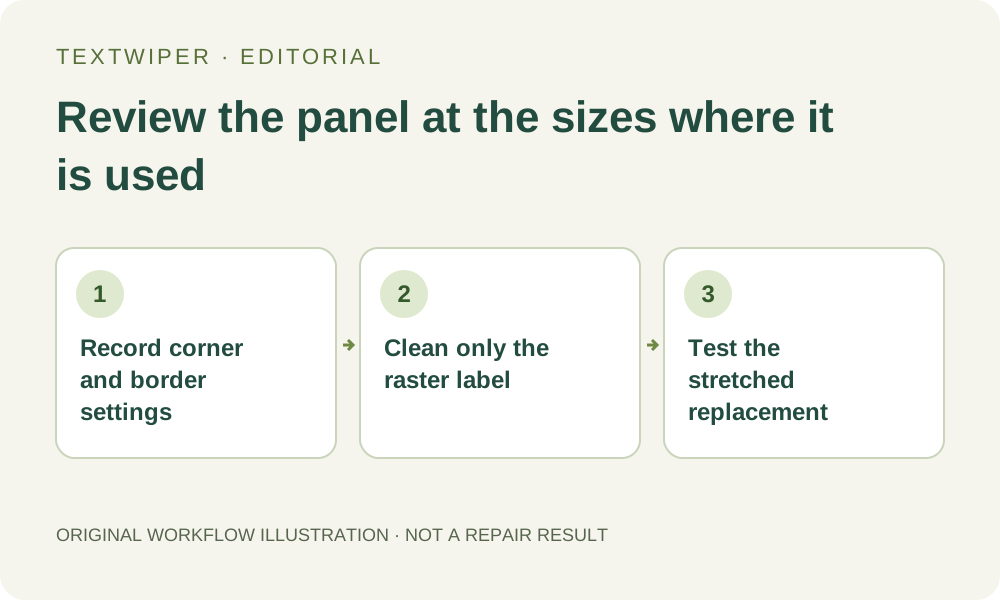
Download the reviewed PNG and reopen it, then replace a copy of the texture in the original project. Keep the same bounds and restore or confirm the recorded border settings there. Check a compact panel, a wide panel and a tall panel using the tool’s actual sliced or tiled behavior.
Look for a smudge that stretches into a stripe, a repaired fragment that repeats, discontinuities at band boundaries and different corner thicknesses. Test the design at its real display scale as well. These are proposed acceptance checks, not a newly measured TextWiper integration or a guarantee that every engine imports the asset identically.
6. Deliver the texture with its external review notes
Keep the accepted raster file alongside a note of the border values, consuming project and sizes inspected. Sending only the PNG can omit the external slicing information. Preserve the original so a rejected version can be replaced without rebuilding the whole UI from a rendered screenshot.
Manual repair and downloads are free during beta, but no nine-slice editor is built into this workflow. The limited whole-image trial does not preserve external metadata or validate stretched rendering. Use the original UI project whenever the required change involves corner geometry, border definitions or editable layout rather than a separate raster label.
Sources
- Unity: 9-slice a sprite — Explains external corner, border and center behavior. TextWiper does not supply Unity settings or an engine compatibility test.