PRACTICAL IMAGE EDITING
Clean a Source Component or the Finished Composite? Choose the Scope First
A photograph may be used several times in a poster, a product sheet or a collage. Cleaning the photograph itself and repairing one finished composition are different tasks. The first can affect future placements when you replace their source; the second changes only the flattened file you open. Choose the intended scope before selecting words. TextWiper does not discover linked placements, edit a layout project or propagate an image revision to other documents. This workflow explains source dependencies rather than another way to divide a collage into local masks.
Published 2026-10-24 · Updated
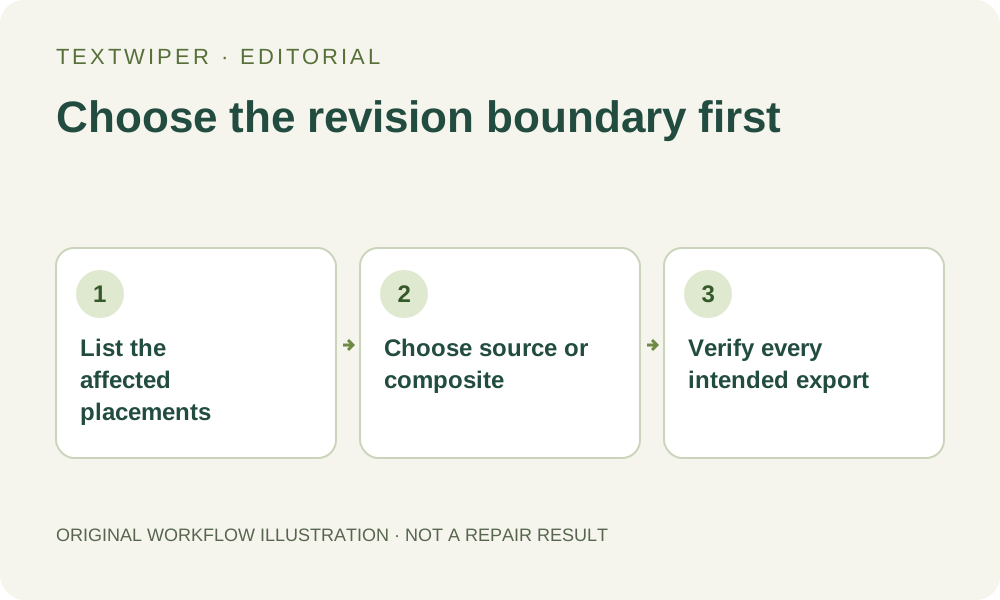
1. Describe which uses should change
Start with a simple inventory outside the editor. Perhaps the same authorized photograph appears once as a wide banner and again as a cropped detail. Decide whether both uses should lose the added caption or only the banner should change. These are planning examples, not newly processed customer images. Keep the original photograph and existing layout available.
Use content and placement to identify each occurrence. Similar-looking pictures may be distinct files, and two instances of one source may show different crops. A name such as final-photo is not enough to establish dependency. Do not assume that changing a downloaded image will update an earlier document or a website that already received a separate copy.
2. Inspect the layout source before choosing a repair input
If you have the editable layout, find out whether the unwanted words are separate text objects above the photograph or already inside its pixels. Remove an editable caption in that application where appropriate. A caption added at composition level will remain even if you clean the underlying photo; opening that source photo in TextWiper cannot remove the other object.
Next determine how the photograph is used: a linked asset, an embedded copy or several unrelated exports. These distinctions depend on the layout application. TextWiper neither reads those relationships nor relinks documents. Check the current project rather than inferring its structure from the flattened preview or from the apparent sharpness of the lettering.
3. Choose the component route for a shared image revision
Use this route when the unwanted overlay is baked into the photograph and the revised component is appropriate for all intended uses. Open the highest suitable authorized source, make a deliberate local selection and review the repair. Optional Find text asks for recognition upload permission; Brush can be used without that request.
- Save the unchanged component and identify its relationship to each intended placement.
- Select only the unwanted embedded lettering with Brush or Area, trimming with Erase as necessary.
- Repair and inspect the complete candidate, including details needed by tighter crops.
- Download and reopen the accepted image before replacing any layout source.
- Replace or relink only the intended placements in the layout application, then export and inspect them.
4. Choose the composite route for one finished placement
When only one finished composition should change, work from a separate flattened copy of that composition. A component-level edit might unintentionally affect other placements when later relinked. The composite may contain nearby headings, borders or repeated instances, so choose the actual unwanted occurrence spatially rather than treating all matching wording as one instruction.
A repair on the composite operates at that file's pixel scale. A small cropped photograph inside it does not regain the detail of its larger source. TextWiper does not move, unclip or extract the component as an editable object. If an accurate local boundary cannot be made, return to the layout source and prepare a more suitable export instead.
5. Check the dependency chain after the edit
For the component route, inspect each affected crop after replacement. A repair hidden outside the banner crop can be central in the detail view. Verify that the intended instances changed and any intentionally unchanged uses still reference the correct version. Reopen the actual new layout exports; the component preview alone does not demonstrate what those files contain.
For the composite route, check the whole composition and the selected occurrence. Then confirm that you have not mistaken its cleaned download for a universally updated component. Keep source and deliverable names distinct. If an old caption remains in another export, establish whether it is a separate layout object, an unchanged copy or another embedded occurrence before repairing again.
6. Keep the handoff limited to the version you verified
Record which component or composition was changed, which placements were checked and where an unchanged master remains. Do not present a single repaired file as proof that every use of the asset has been updated. Reusing the component in a future layout still requires checking that layout's crop, surrounding information and output.
Manual selection, Quick repair, Smart repair and downloads are free during beta without an account. Whole-image automatic cleanup is a separate limited sign-in trial and cannot manage layout dependencies. If the proposed edit would remove information required by another use, make a clearly separate variant or change the source plan before replacing anything.