PRACTICAL IMAGE EDITING
Make Two Cleanup Variants from One Original Without Mixing Their Edits
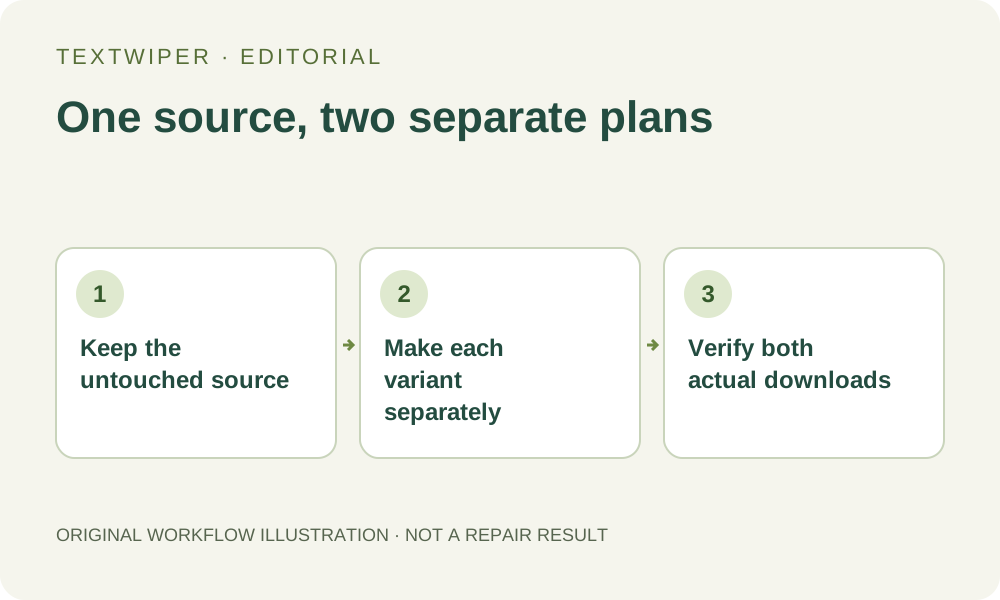
Two uses of one image can need different cleanup decisions. A presentation copy might keep a heading while a background copy omits it; both may remove a temporary note. Make these as independent variants from the same unchanged source, rather than making the second from the first download by accident. TextWiper has one current single-image workspace, not a named version tree or stored image project. Your saved files and a short removal plan establish which variant is which. This is a workflow guide, not a new comparison test or a promise that repeated repair produces identical pixels.
Published 2026-10-23 · Updated
1. Define two different outputs before drawing
Write a small keep/remove list for each version outside the editor. Use content and position, such as keep the top heading in A but remove it in B, and remove the bottom draft note in both. These are fictional planning examples, not newly processed samples. Confirm that you own or may edit all the material concerned.
Also record the common content that neither version may change: a useful illustration, required wording or a border. If the differences are actually text replacement, finish that stage in your layout application. TextWiper does not insert the alternative heading or remember your two plans as separate projects. Give each deliverable an unambiguous purpose instead of simply calling both files final.
2. Keep the source outside the editing workspace
Save the untouched supported JPG, PNG or still WebP separately and check its composition. A previously repaired download is a different source, even when the thumbnail looks familiar. Identify the original by its visible content and your own file organization, not solely by a short filename shared with another picture.
Opening another image replaces the single-image workspace. Signing in synchronizes eligible settings and keyword templates, not an image archive, mask history or version branches. Download and check any candidate you want to retain before changing the current source. Do not expect Undo to retrieve an earlier workspace after a new file is opened.
3. Finish and save the first plan
Build A using a deliberate manual selection. Optional Find text asks permission to upload a resized working image; you may use Brush without that request. Words found by recognition are not selected automatically. Check the actual removal area against A's list before choosing a repair mode.
- Open the retained original and confirm the intended heading and temporary note are present.
- Select only A's unwanted areas with Brush or Area, then trim excess coverage with Erase.
- Protect useful visible details where necessary, remembering that protected source pixels can also retain an overlapping unwanted mark.
- Run Quick or Smart repair and inspect the full result, which appears by default.
- Download the accepted file, reopen it and give it a distinct variant name in your own storage before switching images.
4. Start the second plan from the original again
Choose New image and open the untouched source, not the A export. Verify that A's removed note has returned in this fresh input; that is expected. Build B's entire removal mask according to B's list. The previous selection is not transferred, so the note shared by both plans must be deliberately selected again.
This independent route differs from an intentional second editing pass, where an accepted repaired PNG becomes the new input. Here, starting from A could make an inferred patch part of B's source and hide which changes B actually requires. Use a second-pass workflow only when that dependency is deliberate and documented, rather than treating every new version as an accumulated edit.
5. Review each variant against its own plan
Check A and B separately beside the untouched reference. Verify the shared note is absent from both, the heading remains where A requires it and B's extra removal is acceptable. A smooth background does not compensate for delivering the wrong retained information. Check common boundaries and meaningful small text as well as the differing target.
Use Show comparison only when useful, then hide it to assess each complete candidate. Changing the mask invalidates the old candidate and the next repair uses that workspace's original. If you revise A later, reopen the original and follow A's plan again; do not silently replace it with B or assume selection history is a durable version catalog.
6. Deliver two verified files, not an editor screenshot
Reopen both real downloads, confirm their dimensions and map each file to its intended destination. The export name alone is not a version label: repeated downloads from the same source can have similar names. Rename copies using your normal file manager and preserve the original separately. Check the actual file selected when uploading to another application.
Manual selection, Quick repair, Smart repair and downloads are free during beta without an account. Whole-image automatic cleanup is a separate limited sign-in trial with its own upload choice and allowance; it is unnecessary for this version plan. Stop if a required detail is hidden or the two outputs cannot be distinguished reliably. Resolve that uncertainty before sharing either variant.