PRACTICAL IMAGE EDITING
Clean a Label from Your Sprite Atlas Without Shifting Frame Rectangles
A sprite atlas is one image whose fixed rectangles are read as separate frames or interface assets. Removing a temporary label must not move those rectangles, trim their transparent spacing or change which pixels a consumer reads. Start from the atlas source when possible. For a flattened copy, make only a bounded manual edit and test the saved image using the existing frame definitions. TextWiper does not slice atlases, edit frame metadata, preview animation or certify compatibility with an engine.
Published 2026-10-24 · Updated
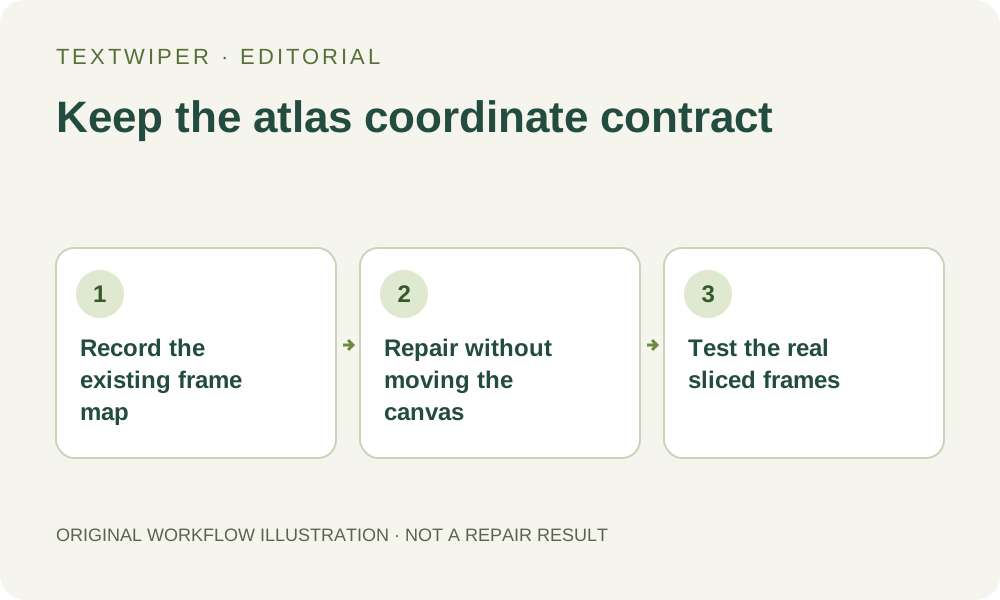
1. Identify the image and the frame definitions together
Keep the unchanged authorized atlas and the metadata or project settings that describe its frames. Record the image dimensions and the rectangles that use the area near the label. A picture viewed alone cannot tell you whether a seemingly empty strip is disposable; it may be padding between frames or part of a fixed cell.
Prefer rebuilding the atlas from its original assets with the same intended settings. Removing a temporary annotation before export can avoid reconstructing a sprite beneath it. If only the flattened atlas remains, decide whether an estimated change is acceptable. A label covering unique animation detail may require an earlier source rather than a plausible patch.
2. Treat blank spacing as meaningful structure
A consumer may read a frame from an exact position and size, whether the region looks visually full or mostly transparent. In a fictional example, a rectangle starting at x 64 and y 32 does not follow an object if someone shifts that object left. These numbers illustrate coordinates, not a measured TextWiper result or a recommendation for your project.
Do not crop, resize, repack or trim the atlas merely to remove the label. Such changes belong in the source pipeline, where frame definitions can be updated deliberately. This task differs from repairing a repeating tile: the critical relationship is between an image coordinate and its consuming rectangle, not the join between repeated outer edges.
3. Bound the manual selection before requesting repair
Open a supported still image within the editor’s limits. Locate the temporary label against the known frame map. Use Brush or Area to select only the intended pixels and Protect to keep visible frame details out of repair. Avoid selecting adjacent cells or treating every transparent gutter as background that may be filled.
- Save the atlas dimensions and the affected frame identities outside the editor.
- Inspect the label and any visible outline or shadow against the cell boundaries.
- Check the complete mask and protection before repair.
- Inspect the finished candidate in full, with comparison available only as an optional review aid.
4. Check content and alpha before saving a replacement
Inspect every frame touched by the selection, not only the center of the label. Look for a softened outline, a newly opaque patch in a transparent gap or detail bleeding toward a neighboring frame. Manual PNG repair retains original alpha, so removing visible color does not create new transparency where the source was opaque. The task may need source-level reconstruction instead.
Quick and Smart repair estimate selected pixels; neither understands frame ownership or animation continuity. A patch that looks plausible in the whole sheet can still be wrong inside one small frame. Changing the mask invalidates the candidate and requires another repair. Reject a result that cannot be checked against the actual sprite design.
5. Export PNG and compare the file’s dimensions
Download the accepted PNG and reopen it. Confirm its actual width and height match the intended atlas and examine the repaired region. PNG supports transparency and avoids a new JPG compression stage. It does not promise that indexed palette organization, metadata or the original file bytes will be retained. Keep the unchanged source and candidate under distinct names.
If a source tool normally performs packing or trimming during re-export, check that you are testing the exact saved candidate rather than an accidentally repacked derivative. TextWiper supplies a raster image and does not update a JSON frame map, stylesheet offsets or engine import configuration. Those definitions remain a separate part of the asset. For example, Godot’s TileSet documentation treats margins, separation and region size as explicit layout settings; those controls belong to the consuming project.
6. Verify the exact file in the consuming application
Load the candidate through the project’s ordinary asset workflow and inspect the existing slices. Confirm the affected frames show the intended content, neighboring frames remain separate and the frame sequence still makes sense. If animation is involved, inspect that sequence in the application that actually plays it; a still atlas preview cannot reveal temporal jumps.
Also review the destination’s normal filtering and scale, which may make neighboring pixels visible differently from the editor preview. Keep an accepted replacement only after these checks. Manual editing is free during beta, while this guide requests no recognition or automatic trial. It describes a coordinate-aware workflow, not a new engine test or a guarantee that inferred artwork is faithful.
Sources
- Godot: Using TileSets — Documents pixel-based atlas margins, separation and texture region size in Godot. This is an example of a consumer layout, not a TextWiper slicing or metadata feature.