PRACTICAL IMAGE EDITING
Remove a Label from Your Seamless Tile and Check the Repeated Join
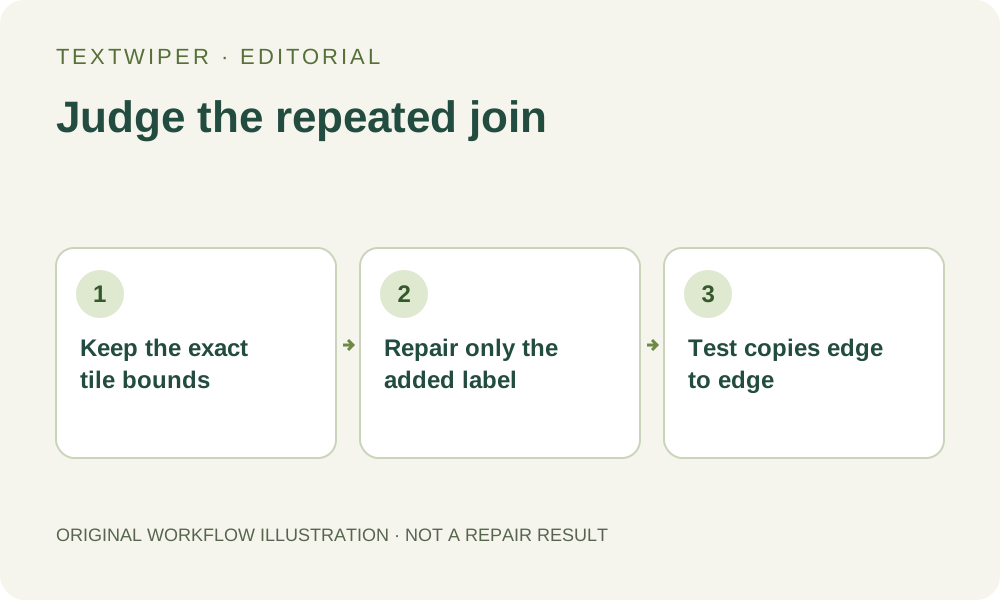
An image intended to repeat needs a different acceptance check from an ordinary photograph of patterned fabric. The right edge will meet another copy's left edge, and the bottom will meet the next copy's top. Removing a label inside one tile can leave a visible grid when that file is repeated. Keep the untouched tile and its original dimensions, make only an appropriate local repair, then test copies in the application that will repeat them. TextWiper has no wrap-aware repair, tile-offset control or seamless-pattern certification. This guide provides a review method, not a newly measured seamless result.
Published 2026-10-23 · Updated
1. Confirm that this file is the repeat unit
Locate the authorized raster tile rather than a screenshot of a large repeated preview. A preview might contain several partial units, scaling or a crop that no longer joins at its outer edges. Record the source width and height and how your destination repeats it. Do not assume that a square picture is a seamless tile simply because its subject contains a pattern.
Use an unmarked export from the original pattern document when possible. Distinguish an added temporary label from lettering deliberately designed into the motif. If the label is a permission condition or identifies someone else's asset, this workflow is not a reason to remove it. Work only on a copy you are entitled to alter and retain the original source separately.
2. Check the existing repeat before editing
Place unchanged copies edge to edge in your pattern, layout or preview application first. Inspect horizontal joins, vertical joins and the point where four corners meet. This establishes whether a seam already existed. TextWiper's single-image viewport does not arrange neighboring copies, and its checkerboard indicates transparency rather than a repeat test.
Note whether a distinctive shape continues across opposite edges or a soft color transition meets there. A label at a tile boundary is particularly difficult: local repair sees a file edge, not the actual neighboring copy. If a necessary cross-boundary motif is covered, return to the pattern source or use a suitable wrap-aware editor rather than guessing that repair knows the repeat relationship.
3. Make a local selection without changing the bounds
For a separable label away from important joins, open the tile as a supported still image. Recognition is optional and asks for working-image upload permission; Brush can select the added label without recognizing its words. The purpose is clearing an authorized overlay, not replacing the whole pattern.
- Check that the opened image matches the retained tile's width, height and framing.
- Use Brush to cover the label and its visible effects while preserving useful space between strokes where possible.
- Trim excess coverage with Erase; protect visible motif details that the manual repair must exclude.
- Inspect all four outer sides before repair, including any target that reaches one of them.
- Try a suitable local repair only when its missing area can be judged from the available source.
4. Inspect the complete tile without a wrap promise
Quick repair may suit a small plain patch; Smart repair may be worth checking for texture. Neither mode reconstructs the pattern's design rules or automatically consults a copy beyond the canvas boundary. A visually plausible fragment inside the selected area can still place a motif at the wrong interval or create a second, unintended focal shape.
The full result is shown by default. Inspect local lines, color changes and any retained lettering, then use Show comparison when needed. If you revise the mask, the old candidate is invalidated and the next repair uses the original with the complete revised mask. Do not keep enlarging the selection merely to make a repeated defect less obvious inside this one tile.
5. Test the actual download in the repeated layout
Download the reviewed PNG and reopen that exact file. Check its dimensions and intended transparency, then repeat copies in the same external application and arrangement used for the source check. Inspect a horizontal run, a vertical run and a four-corner meeting. Also view a larger repeated area: one faint patch per tile can become a conspicuous grid or rhythm.
Keep scaling and placement consistent while comparing the original and candidate. A gap introduced by the destination layout is different from mismatched image edges; inspect the asset and placement separately. For a transparent tile, also use the intended backdrop. TextWiper's manual PNG repair retains input alpha, so clearing colored lettering does not automatically remove an alpha silhouette belonging to that lettering.
6. Accept the repeated asset or return to its source
Reject a candidate when its joins break, an unintended repeated patch dominates or the intended motif cannot be checked. Clearing the label is only one acceptance condition. Keep the exact approved download beside its repeat preview and source record. If you change its size, crop or placement elsewhere, recheck the repeat rather than transferring the earlier approval blindly.
Manual selection, Quick repair, Smart repair and downloads are free during beta without an account. The separate whole-image automatic trial requires sign-in, upload choice and available allowance, and is not a seamless-tile tool. A source export or another pattern editor may be the appropriate next step. This article does not claim that the illustrated workflow has produced a tested repair for every tile geometry.