PRACTICAL IMAGE EDITING
Remove Added Text from Patterned Fabric and Check the Repeat
A patterned shirt, curtain or cushion needs more than a patch with the right colors. When removing your own added text, compare the repeating motif and the way it bends over folds. A repaired flower in the wrong position or an extra stripe across a seam can misrepresent the fabric even when the unwanted word is no longer visible.
Published 2026-10-19 · Updated
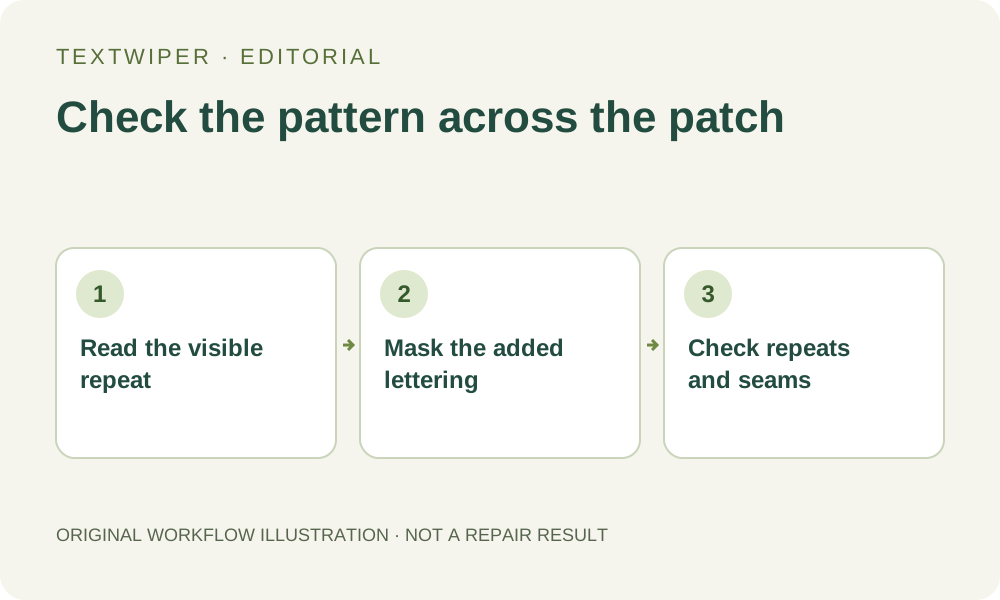
1. Separate the caption from the fabric design
Keep the unchanged photo and confirm that you are authorized to edit it. Identify the text added over the photo, as distinct from printing, embroidery, a care label or words intentionally included in the fabric. Recognition may find all of these. Removing a caption does not mean removing the clothing’s design or the product information beside it.
Use a photo without the overlay or a layered source when available. If the image is a product listing, the exact motif, stripe count, stitching and placement may matter. A visually attractive invented repeat is not a faithful record of the item. Decide which details are required before trying to fill any covered pixels.
2. Read the repeat in the photographed perspective
Locate several visible instances of the same motif around the caption. Compare their spacing within one patch of cloth rather than assuming an even screen grid. A fold can compress one section, turn a stripe or hide part of a flower; the visible relationship between neighboring motifs is the reference for review.
Inspect seams, hems and joins separately. A pattern may stop at a seam or meet a differently oriented panel. Note shadows along a fold, fabric texture inside a light area and any stitched edge near the words. TextWiper has no pattern-repeat ruler or manual motif-placement tool, so a failed alignment may require the original source or a different editing application.
3. Keep the removal mask close to the added letters
Find text is optional and asks for recognition upload permission. If used, choose the added caption deliberately; a phrase woven or printed on the cloth can be legitimate content. Do not approve every detected item simply because it looks like text.
- Open your authorized photo in TextWiper and enlarge the caption area. Use Pan to inspect the nearest repeated motifs and garment boundaries.
- Choose Brush and cover the actual overlay, including its visible shadow. Preserve clear spaces between letters where practical instead of clearing a whole strip of patterned fabric.
- Trim excess coverage with Erase. Use Protect for visible stitching, nearby intentional text or a motif that must remain.
- Check where protection meets lettering. Protected input pixels retain everything present there, including any unwanted overlay; hidden cloth cannot be protected back into existence.
- Repair one representative area. If you extend the selection, keep the earlier intended removal regions and rerun the revised mask from the original.
4. Judge a repair by the fabric, not by added sharpness
Quick repair can be a starting point for very small lettering on a relatively plain part of the weave. Smart repair may be worth comparing where a mask crosses motifs. Neither mode knows the garment’s real repeat, and a sharper synthetic shape can still be the wrong flower or stripe. Compare the same mask under both options if the first candidate fails.
Manual selection, Quick repair, Smart repair and downloads are free during beta without an account. Whole-image automatic cleanup is a separate limited trial requiring sign-in, separate upload permission and available allowance. It may modify unprotected fabric elsewhere and does not guarantee preservation of the exact pattern. This local workflow can be completed without using it.
5. Check repeat spacing, folds and sewing in that order
The full result appears after repair. Trace stripes or rows of motifs across the patch and compare the intervals with the adjacent visible fabric. Look for a duplicated flower, half a motif where a full one should fit, a stripe that changes width or a repeated tile that ignores a fold. Do not assume every irregularity is a repair defect; compare it with the original photograph.
Follow nearby seams and stitches, checking for a new join or an existing line that has been smoothed away. Use Show comparison to locate changes and Hide comparison to judge the complete garment. Review close up and at listing size, including intentional clothing text that should still be readable.
6. Keep the product accurate and stop at an uncertain repeat
Reject a result if it changes a distinctive pattern, fabric panel, fold edge or relevant stitching. A larger mask may remove more of the useful repeat and make the task harder. If a caption covers a unique part of the design, request an unmarked photo, use the source design or photograph that item again rather than inventing the missing product detail.
Download a reviewed PNG and reopen it before replacing the listing image. Keep the original, candidate and any notes separately, then inspect the destination’s resized copy. This article supplies a repeat-specific review method, not a new textile repair test or a promise that every fabric pattern can be reproduced.