PRACTICAL IMAGE EDITING
Remove Added Text from a Grainy Photo Without Accepting a Smooth Patch
On a grainy photograph, removing the letters is only one acceptance check. Compare the repaired location with nearby areas of similar brightness: an isolated smooth patch or conspicuous new speckles can still reveal the edit. TextWiper has no dedicated grain-matching or grain-restoration control.
Published 2026-11-01 · Updated
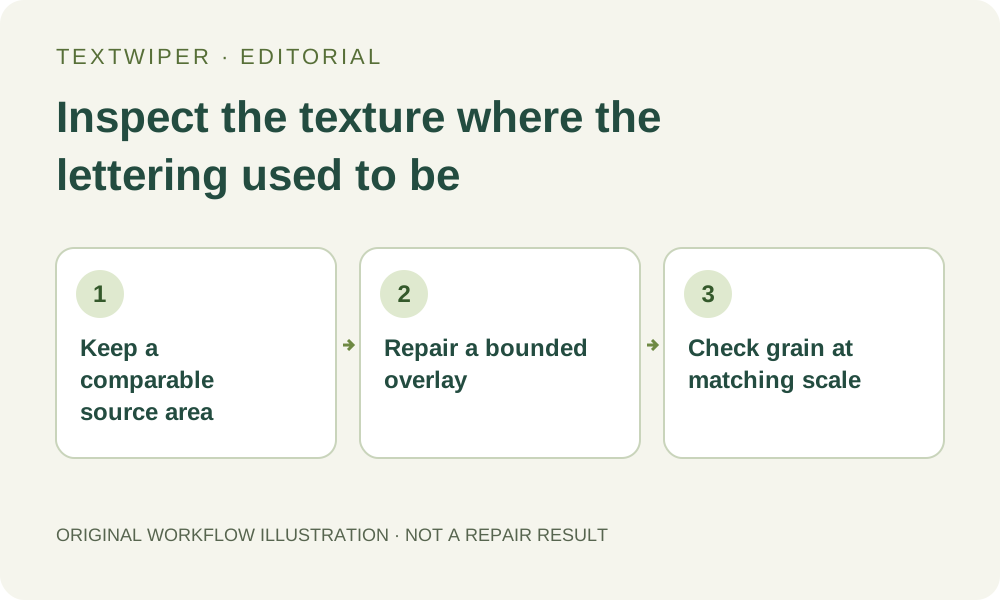
1. Decide whether the texture belongs to the intended appearance
Keep your authorized source master and a separate editing copy. Identify whether the visible grain is part of the look you want to keep. This task is removing added wording, not removing noise throughout the photo; do not judge the entire image as defective merely because it contains visible texture.
Choose nearby comparison areas with similar brightness and subject material. A dark jacket, bright sky and soft cheek are not interchangeable texture references. Note the target location before starting, so your review compares like with like rather than treating any smooth region as proof of a good repair.
2. Separate grain from a damaged input or display preview
Inspect the original at a consistent magnification before editing. Look for existing block boundaries, ringing around letters or a patch already blurred in an earlier file. If the clean master is available, use it rather than repeatedly processing a compressed screenshot or an image that has already been smoothed.
The editor’s fitted view may hide small differences, while extreme enlargement emphasizes every pixel. Use the same scale for original and candidate when checking texture. A difference first noticed after repair is an observation to investigate; it does not prove the repair created every blemish visible in the input.
3. Cover the added lettering without widening into a texture exercise
Open the copy, zoom in and brush over the actual lettering and its visible outline or shadow. Keep useful surrounding texture outside the green mask. Add Protect coverage for important adjacent detail, and inspect the effective boundary where protection excludes removal.
Recognition is optional and asks permission to send a working image; its suggested positions do not isolate fine grain or guarantee a tight letter-shaped selection. Refine a coarse box manually. Selecting a broad plain-looking rectangle just to make the letters disappear can unnecessarily enlarge the area whose texture must be rebuilt.
4. Compare one candidate with the source at the same scale
Choose Quick or Smart according to the local background and run one manual repair. Read the full result first, then enable comparison to locate the edited region. Check for a smooth island, a sudden change in speckle size, an obvious boundary or repeated-looking fragments that draw attention to the former text.
A clean word-shaped hole with mismatched texture is not the desired result. A grainy patch is not automatically successful either: it can obscure a fine edge or look different from its surroundings. Smart may still soften detail, and no mode here guarantees reconstruction of the exact hidden grain pattern.
5. Refine the mask or return to a suitable external source workflow
If the difference follows excess selection, refine the mask from the original and run another deliberate candidate. Changing the selection invalidates the previous preview; include the complete intended region again. Avoid repeatedly reopening compressed results merely to disguise an obvious patch.
When texture matching requires clone control, a separate grain layer or source-specific finishing, use an external editor that provides those controls, or re-export from the editable source without the overlay. Those are separate capabilities, not hidden TextWiper options. Do not describe a plausible replacement texture as recovery of the original covered pixels.
6. Inspect both the saved file and the final presentation
Download the accepted PNG, reopen it and compare the target with your noted reference areas. Then inspect the actual intended display size. If another tool resizes or compresses that copy, review that delivered version too; the source-size candidate and final presentation can reveal different texture problems.
Keep the source, accepted result and chosen review scale together. Manual repair and PNG/JPG downloads remain free during beta; the limited automatic trial is a separate whole-image process and is not a grain-matching filter. The illustration here records a review plan, not a new texture-repair experiment or measured quality result.