PRACTICAL IMAGE EDITING
Text Removed but JPEG Blocks Remain? Check the Input Before Another Repair
If a small JPEG still has square patches or noisy edges after text removal, compare the same area in the original before enlarging the mask. The marks may already belong to the input, while a new soft patch may come from the repair. TextWiper has no dedicated deblocking or detail-recovery control. Diagnose the stage that introduced the problem before trying another edit.
Published 2026-10-19 · Updated
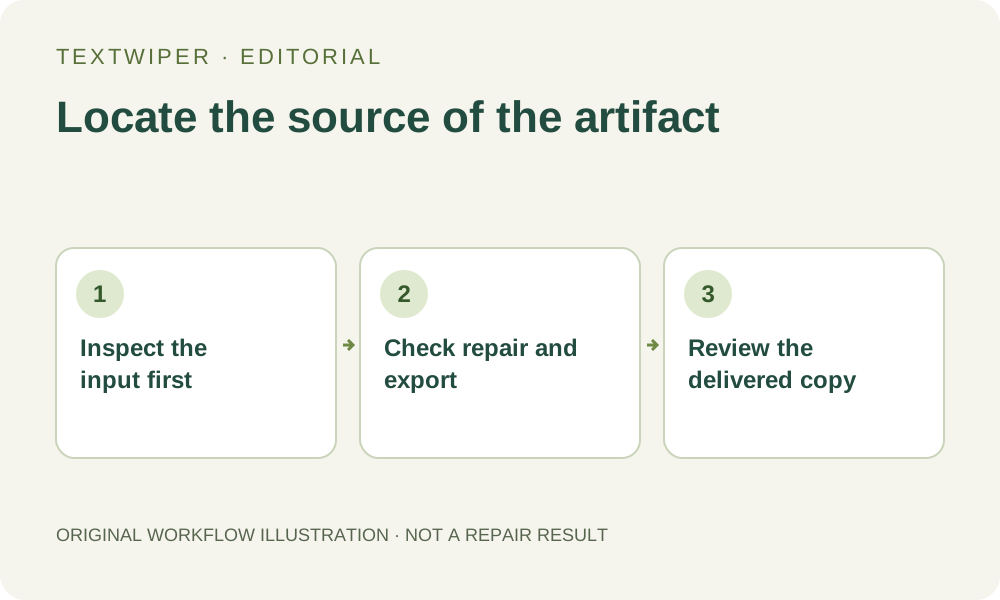
1. Keep the best available JPEG before editing
Use an image you own or have permission to change, and retain the unchanged file. If a higher-resolution source, original design or earlier export exists, start there instead of using a small messaging preview. Opening a small picture at a large display size does not supply the actual detail that the file lacks.
Look at the caption and its surroundings before repair. Note square tonal patches, jagged edges, faint ringing around letters or noise in otherwise plain areas. These are observations to compare, not a diagnosis based on appearance alone. Do not call every irregular mark JPEG compression or assume that everything remaining after an edit was created by the repair engine.
2. Compare the input and result at matching viewing scales
Pick a few landmarks: an intact edge beside the words, a plain color patch and a fine detail outside the intended mask. Compare the original and result at the same zoom and intended presentation size. Comparing a tiny source preview with a greatly enlarged result can make an existing issue look newly introduced.
During manual repair, PNG output preserves the original decoded pixels outside the removal mask. Existing artifacts outside that mask therefore remain part of the input, not an area that the repair was meant to clean. Inside the mask, both the previous image quality and the new fill can affect appearance. Keep those two questions separate when deciding what to change.
3. Select the text, not every nearby irregularity
Do not widen a rectangle just because it contains square patches. That can replace genuine detail with a larger guess. If a mark was already outside the text in the original, treating it as another editing target is a separate decision.
- Open the best authorized source in TextWiper. Zoom in to distinguish actual lettering, its visible shadow and unrelated background marks.
- Use Brush to select the unwanted text. Use Erase to withdraw oversize coverage and Protect to keep useful visible detail nearby.
- If Find text helps, approve its recognition upload permission and review the returned selection. Recognition may miss very small or degraded letters, so complete only the intended mask by hand.
- Try Quick repair for a small area over even color; compare Smart repair if the surrounding texture warrants it. Neither option is a dedicated JPEG deblocking function.
- Inspect the full result. If a missed letter edge needs another selection, keep the intended earlier mask areas, revise carefully and repair again from the original.
4. Separate the browser result from a fresh JPG export
The full repaired image appears by default; choose Show comparison only when you need it. Review the repair boundary for a new soft box, smeared line or leftover letter edge. Download PNG as a useful comparison file and reopen it. PNG stores the pixels it receives; changing the extension does not remove artifacts already present in a decoded JPEG.
If you also download JPG, TextWiper flattens transparency onto white and re-encodes the entire image. Compare that saved JPG with the PNG, including areas outside the mask. A difference that first appears in the JPG is an export-stage question, rather than a reason to keep modifying the removal selection. Keep the better reviewed master separately.
5. Check what the receiving website actually displays
Upload the accepted file only after reviewing it locally, then inspect the version served by the destination. Check whether the page displays a reduced thumbnail, crops the picture or produces another compressed copy. Compare at the same presentation size and distinguish that delivered version from the file you originally downloaded.
This workflow provides no compression-rate benchmark and does not identify a platform’s encoding settings. If the local PNG is acceptable but the published image is not, review the receiving platform’s own upload requirements. Repeatedly repairing the source cannot control a later service’s resizing or encoding, and repeated JPG saves need not improve a weak input.
6. Choose a better source when quality cannot be supported
Stop when small letters cannot be separated from useful detail, or when neither local repair gives a suitable result. Look for a larger original, editable artwork or a new capture. Keep an imperfect but faithful detail rather than assuming a sharper reconstruction contains the real information that was missing.
Manual selection, Quick or Smart repair and downloads are free during beta without an account. Whole-image automatic cleanup is a separate limited sign-in trial requiring its own upload permission and available allowance; it is not a guaranteed compression fix. This article supplies a diagnosis checklist, not a new JPEG test, upscaler or claim that lost detail can be recovered.