PRACTICAL IMAGE EDITING
Free Text Remover Without Signup
You can remove text from a picture online for free in TextWiper without creating an account, entering a card or installing an app. Choose the unwanted text, inspect the repaired area and download the result. This guide explains the current free tools and the limits to check before you start.
Updated
Find text and keep control
Choose Find text to suggest words in your image. Before the first scan, we ask permission to securely send a resized working image to TextWiper and its text recognition service providers. Continuing covers images you explicitly scan on this page, including batches; closing or reloading the page resets permission. Opening a file or watching a demo does not send an image.
TextWiper does not save the working image or recognized text. Service providers handle data under their own policies. You can also mark text with the brush without running recognition. Repair and downloads remain in your browser. Optional accounts do not store your images or recognized text.
Text recognition has temporary usage limits. Using the brush, repairing an image and downloading do not use recognition allowances. If recognition fails, times out or reaches the limit, try again explicitly or use the brush. See the image-processing and privacy details.
What is free, and what needs an account?
During the public beta, single-image editing, automatic recognition or a supported text language, your own keyword rules, manual selection, Quick repair, Smart repair and PNG/JPG downloads are free. The download does not add a TextWiper watermark. The batch workspace also processes up to 10 images and exports completed results as a ZIP.
No signup is required for these editing tools. An optional account saves preferences and your custom keyword templates across devices; it does not unlock a paid download, save a cloud image history or remove the image limits. No subscriptions, credit purchases or paid plans are available today. The current pricing and beta scope explain this in one place.
Use a JPG, PNG or still WebP up to 10 MB, 16 megapixels and 4096 pixels per side. GIF, animated images, SVG and HEIC are not supported. A batch is limited to 10 images, 40 megapixels and 100 MB of source files. Smaller batches can be easier on a phone or an older computer.
Pick the selection method for your picture
| Your task | Start here | What to check |
|---|---|---|
| A caption, date or word missed by detection | Paint a removal mask with Brush. | Cover the letters and their shadow while keeping nearby details outside the mask. |
| Several clear words in a supported language | Use Find text, then select only the detections you intend to erase. | Detection reads words; it does not decide what you want to keep. |
| The same wording across several images | Enter removal and keep words. | Choose whole-word matching for short words and inspect protection areas. |
| A collection of product pictures | Review a batch and export a ZIP. | Only successful repairs belong in the download; check each important image. |
Manual brushing lets you select letters without running recognition, so it can select text written in a language that the detector does not support. This does not add automatic detection for that language. TextWiper has 18 interface languages. Recognition supports the languages listed in the editor, with an automatic option; interface and recognition language are independent.
Remove text without registering
- Open your picture. Choose a supported file in the editor, or use the worked example below to explore the controls first. Opening a picture keeps its working copy in this browser. Recognition sends a resized working image only after your confirmation.
- Select what should disappear. Brush over the unwanted lettering or run Find text and select the intended detections. Add Protect over nearby details that must remain.
- Choose a repair mode. Quick repair is a useful starting point for small, smooth areas. Smart repair is also free and can be tried for texture or a larger selection.
- Repair and inspect. Compare the original with the result. Check leftover strokes, a visible patch and any edge near the text. Refine the mask before trying again if needed.
- Download PNG or JPG. Use PNG for transparency or to retain decoded pixels outside the repair mask. Choose JPG for an opaque photo when whole-image recompression is acceptable. Download before leaving the page.
How Smart repair works
Smart repair fills the selected area using nearby image details. The first use may take longer while required files load. Repair runs in your browser. Network speed, device memory and the selection affect the wait, so a demo animation is not a processing-time promise.
Quick repair and Smart repair both estimate pixels under the text. Neither retrieves the original scene hidden by the letters. Text over a plain panel is easier to inspect than text across a face, fine lettering or a repeating pattern. Read the background and PNG guide before editing important details.
Common questions about free online text removal
- Is the result download free as well?
- Yes. PNG, JPG and successful batch ZIP downloads are included during the current public beta, without an added TextWiper watermark or a signup requirement. File and batch limits still apply.
- Can I automatically remove every word?
- Text detection starts with no words selected. For automatic keyword removal in a batch, enter the words to remove and explicitly choose Scan & erase matches. An empty removal list erases nothing. Review the output rather than treating “automatic” as a quality guarantee.
- Can I use this on a phone?
- The editor runs in a browser and supports touch selection. Large images or Smart repair can take more memory and time on a phone. Start with one supported image, use a smaller selection and download before closing the tab.
- Are my images uploaded or saved in an account?
- After you confirm recognition, a resized working image is securely sent to TextWiper and its text recognition service providers. TextWiper does not save images or recognized text; service providers handle data under their own policies. Repair and downloads stay in your browser. Optional accounts store preferences and keyword templates, not images. Originals and results stay in page memory; leaving or clearing the editor removes them. See the privacy details for optional analytics.
- Does free mean unlimited or free forever?
- The current beta is free with the limits described above. This page does not promise unlimited processing or permanent pricing. Any future priced service would need to describe its terms separately.
Try a free edit: remove SALE and keep the brand
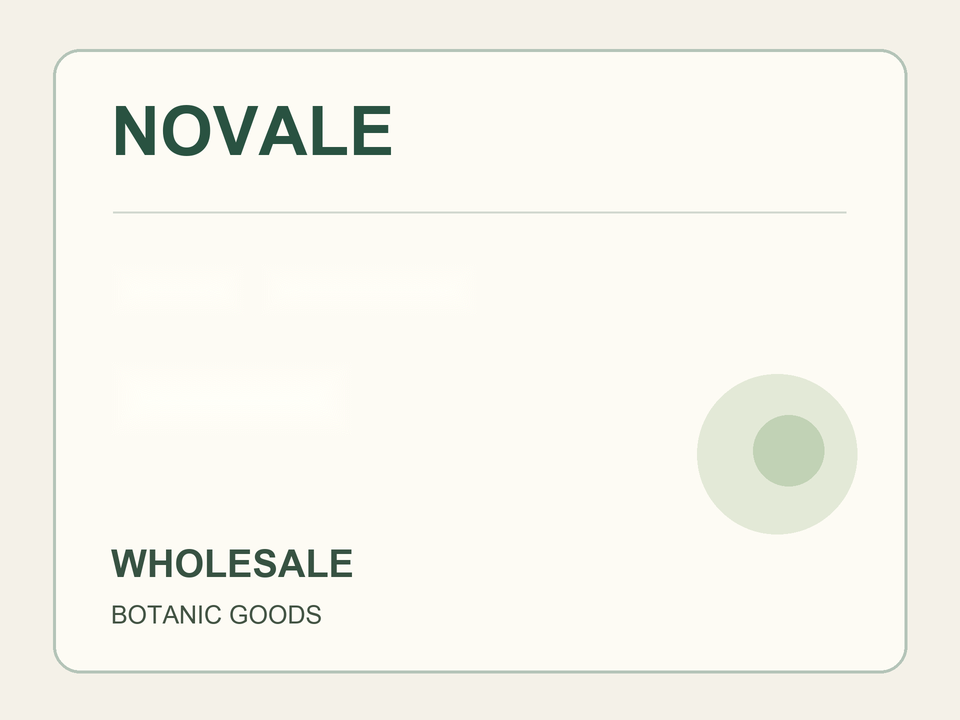
This self-created practice label lets you check the no-signup workflow with clear lettering. The recorded mask and PNG below came from English text recognition, whole-word keyword matching and Quick repair on the real site.
Try this example in the editor
Loads only this site’s samples. No automatic scanning, removal or saved word rules. Follow the steps below.
- Load the practice label in the editor. It starts with no detections, selection or result, and does not save sample word rules.
- Enter SALE and OLD OFFER as removal words, and NOVALE as a keep word. Choose Whole word or phrase, then scan and inspect the mask.
- Choose Quick repair, run the repair and compare the label. WHOLESALE should remain outside a whole-word match for SALE.
- Download PNG without registering. The original, actual removal mask and actual free download recorded earlier are shown below.
A self-created label for exploring the free tools


White in the mask marks pixels allowed to be repaired. The dark background only makes the transparent mask visible.
These are actual Quick repair outputs from a controlled label example, not an AI-quality guarantee for every photo. Keyword recognition and the selected area affect results. You can also use Brush instead of detection and then inspect your own repair.
Self-created samples · Real browser workflow · Quick repair · October 11, 2026