PRACTICAL IMAGE EDITING
Visible Watermarks and Image Metadata: Know Which Task You Are Doing
A mark you can see on a photograph and information stored with that file are different things. Brushing over visible words changes the picture being displayed; it does not tell you what descriptive information the file contains. Before editing your own or authorized image, decide whether you need a visual correction, a file-information review or both. TextWiper covers the visual editing task and provides no metadata-inspection or privacy-clearance certificate.
Published 2026-10-21 · Updated
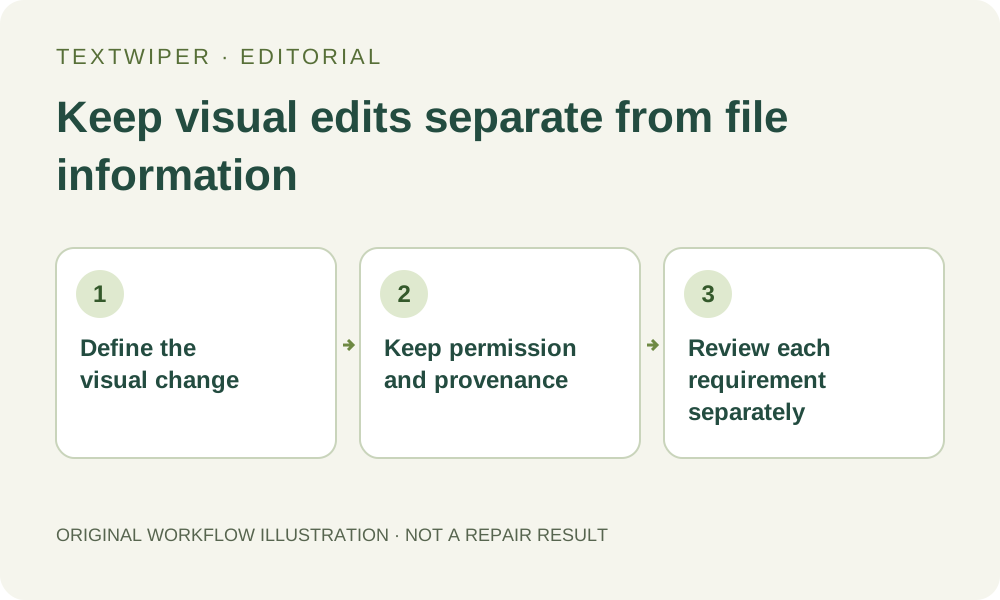
1. Describe the mark without assuming what the file contains
Start with a specific visual request: remove your outdated draft label from an authorized product photo, for example. Identify where the letters appear and which surrounding details must stay. That is a pixel-editing problem when the words have already been flattened into the picture. The requested change should be clear before selecting a tool.
File metadata is a separate category of information, sometimes including descriptive, technical or attribution fields. Its presence and meaning depend on the file and the applications that created it. A clean-looking image cannot show whether such fields are present, complete or accurate. Equally, a visible caption does not prove that any corresponding metadata exists.
2. Preserve permission and the image history
Keep the original file and any accompanying license or source record before making an ordinary visual revision. Confirm that permission covers the change you want. If the visible mark or file information identifies ownership, licensing, attribution or rights management, do not treat this tutorial as a way to remove those requirements. Ask the rights holder for an appropriate deliverable instead.
For your own marketing materials, record why the visible wording is being revised and where the replacement will be used. Preserve required credit and meaningful context in the destination. A new filename or a repaired patch does not transfer ownership, expand a license or make a previously restricted picture suitable for another use.
3. Use TextWiper only for the authorized visible change
For an ordinary visual edit, work on a duplicate and keep the scope narrow. Recognition is optional: you can draw the selection without sending a recognition request. Neither the text list nor the repaired canvas is a metadata report.
- Open the authorized still image and locate only the visible wording that may be changed.
- Use Brush or Area to select that wording. Trim unwanted coverage with Erase and protect nearby visible details with Protect.
- Try Quick repair for a suitable simple patch, or consider Smart repair for a more textured area.
- Inspect the complete result for leftovers, seams and changed meaningful content before accepting the visual candidate.
- Download a separate file and reopen it to confirm that the intended visual correction is present.
4. Treat file-information requirements as another review
TextWiper does not offer an EXIF or IPTC inspector, a rights-information editor or a certified metadata-cleaning workflow. A browser export should not be used as proof that metadata was either retained or removed. If a delivery contract specifies file-information requirements, check them using the appropriate documented process for that file type and your organization.
Keep that review separate from the picture repair. This article does not provide instructions for stripping attribution or circumventing rights information. If you need an original author credit, license identifier or other required context retained, obtain a suitable file or guidance from the source owner rather than guessing from how the picture looks.
5. Verify the actual deliverable against two different questions
The visual question is whether the authorized words were removed while necessary content remains. Check the whole image and the repaired area at a useful zoom. Compare the actual download with your approved candidate, including the framing and any transparency. An attractive preview alone does not establish that the delivered file meets every requirement.
The file-information question is whether the final asset satisfies the separately specified documentation and handling requirements. Record the reviewer and method when your workflow requires them; do not invent a pass result from a successful download. If either review is unresolved, keep the file as a candidate instead of marking it ready for unrestricted publication.
6. Keep this boundary when sharing the edited image
Send collaborators the approved image with the source and permission notes they need. Explain that a visual label was revised, without claiming the file is anonymous, securely redacted or cleared of all embedded information. Those statements describe different checks that TextWiper does not perform. Avoid sending confidential material merely to test a visual editor.
Manual selection, Quick or Smart repair and downloads are free during the public beta without an account. Optional recognition requires upload permission; whole-image automatic cleanup is a separate limited sign-in trial. None of these routes changes the distinction between the visible picture, its provenance and any file-level information that must be reviewed elsewhere.
Sources
- About metadata — File metadata can describe origin and rights separately from visible pixels; this source does not verify which fields TextWiper exports.